Setup step on the Grant types page · Project management and accounting
Set up Grant types
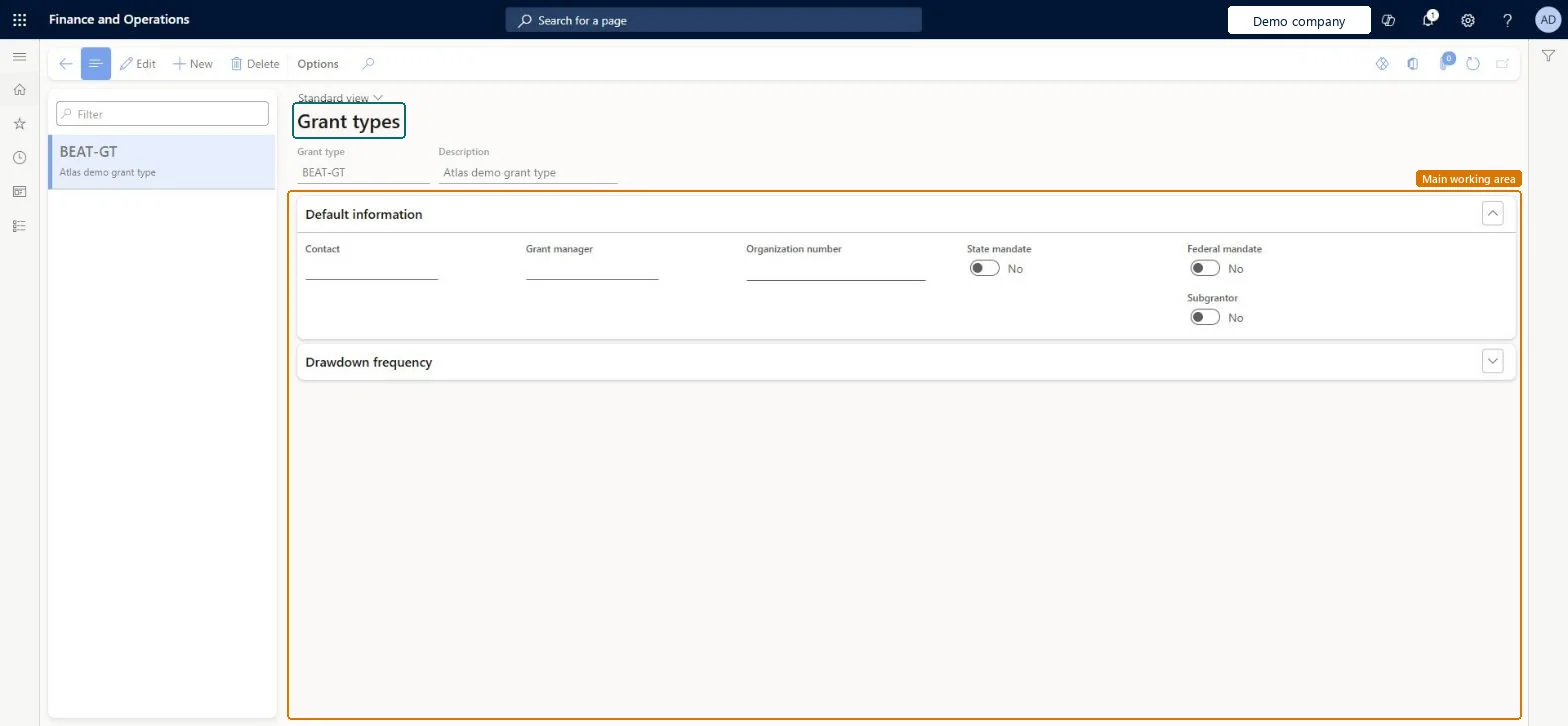
A setup page where you define grant types, each with a description, default information such as contact, grant manager, organization number, state mandate, federal mandate and subgrantor, and a Drawdown frequency section.
SETUP GUIDEHow to set it up8 sections. Choose a role to highlight what matters to you.
Everyone
1What it is and why
What it is
A setup page where you define grant types, each with a description, default information such as contact, grant manager, organization number, state mandate, federal mandate and subgrantor, and a Drawdown frequency section.
What you do here
Use this page to create grant types and to set the default information that applies to grants of that type, including whether the type is excluded from the Schedule of Expenditures of Federal Awards inquiry.
Example
For example, BEAT creates the grant type RESEARCH for federal research awards and PRIVATE, with Exclude from Schedule of Expenditures of Federal Awards selected, for foundation grants, so the SEFA inquiry for 2026 lists grant GR-0007 but not the foundation grant GR-0011.
The page in Dynamics 365. page title tab to open what to set or check
About the examples: Examples and screenshots in this guide use BEAT, a demo company in a Dynamics 365 test environment. Use your own company's codes and values instead of copying them.
Step by step, with screenshots
Set up Grant types1 screen
Screen 1
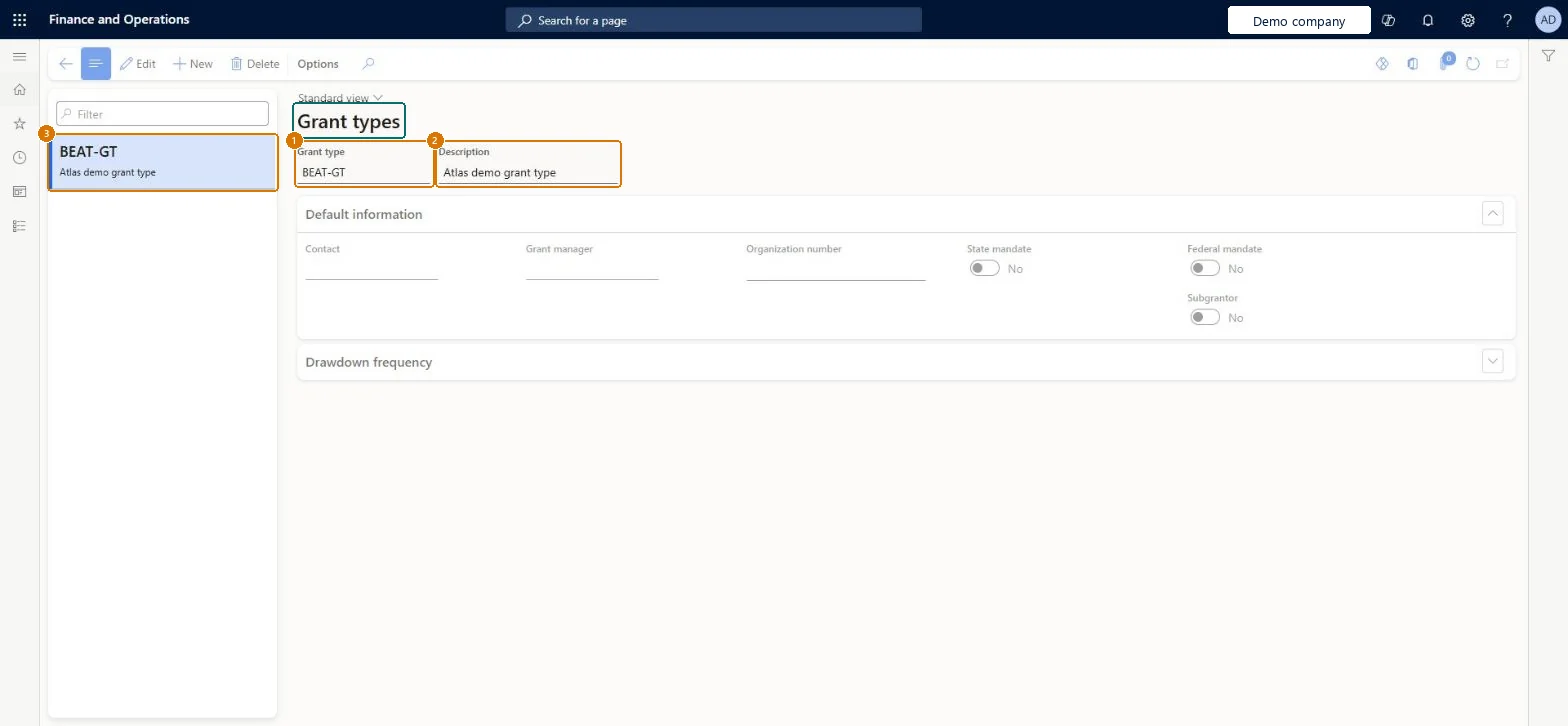
Create a grant type
Go to Project management and accounting > Setup > Grants > Grant types
Select New
Enter the grant type and description
Fill in the default information, such as contact and grant manager, if needed
Select Save
1Grant type
BEAT-GT
2Description
Grant type
Show the full screen page title tab to open what to set or check
Steps from Microsoft
Go to Project management and accounting > Setup > Grants > Grant types.
Select New and enter the Grant type and Description.
In Default information, fill Contact, Grant manager and Organization number, and set State mandate, Federal mandate and Subgrantor.
Select Exclude from Schedule of Expenditures of Federal Awards for types that aren't federal awards.
Run the Schedule of Expenditures of Federal Awards inquiry and check which grants are listed.
A private grant shows in the Schedule of Expenditures of Federal Awards.
Its grant type doesn't have Exclude from Schedule of Expenditures of Federal Awards selected. Select it and run the inquiry again. Microsoft Learn
Test checklist
Create two grant types: one federal, one with Exclude from Schedule of Expenditures of Federal Awards selected.
Create one grant of each type with projection dates inside the test period and a CFDA number on the Setup FastTab.
Go to Project management and accounting > Inquiries and reports > Grant inquiry > Schedule of Expenditures of Federal Awards and run it for that period.
Check that only the grant of the federal type is listed, with its CFDA cluster, grantor agency and grant ID.
Select Exclude from Schedule of Expenditures of Federal Awards on every grant type that is not a federal awardLearn describes excluding grants from the Schedule of Expenditures of Federal Awards (SEFA) inquiry by grant type, on the Default information FastTab. The SEFA is part of the single audit report for federal funds, so non-federal grants shouldn't appear on it.
Reversible: The SEFA inquiry is run on demand for a date range, so a change to the check box shows the next time the inquiry is run.
If you change it later
Grants of a type with Exclude from Schedule of Expenditures of Federal Awards selected are left out of the SEFA inquiry; the default information of the type fills new grants of that type. Microsoft Learn
Technical architect
6Technical
Menu item
ProjGrantTypeChecked in Dynamics 365
Form
ProjGrantTypeChecked in Dynamics 365
Table
ProjGrantTypeShown as “Project grant type” in Record infoChecked in Dynamics 365
PrivilegesMaintain matching fund types ProjGrantSetupMaintainDutiesEnable project accounting process ProjProjectAccountingProcessEnable1 security roleProject supervisor ProjProjectSupervisorChecked in Dynamics 365
Roles to set it up and use it
To set it up or change itProject supervisor ProjProjectSupervisorGive people one of these roles. On this system, 1 role can open this page.Checked in Dynamics 365
Actions on the page
Options: Personalize, Page options, ShareChecked in Dynamics 365
ProjGrantTypeEntity (Project grant type): loaded for each company, in Microsoft's default template 650 - Project accounting.ProjGrantTypeV2Entity (Project grant type V2): loaded for each company.Load order: Microsoft's default template 650 - Project accounting loads Project grant type at execution unit 1, level 650, sequence 10. Lower levels load first, and entities at the same level load in sequence order.Load first: the default templates at lower levels (System setup to Expense management)Microsoft Learn
Checked in a working Dynamics 365 system, version 10.0.49: the menu item, form, table and security, the page, the demo records and the values in the screenshots.
To cite this step: PM-SETUP-460, Set up Grant types. Beyond ERP Atlas Hub, 2026-11-11. https://www.beyonderp.cloud/atlas/step/PM-SETUP-460