SETUP GUIDEHow to set it up8 sections. Choose a role to highlight what matters to you.
Everyone
1What it is and why
What it is
A setup page where you set the main accounts that project cost and revenue transactions post to.
What you do here
Use this page to choose posting accounts by project, project group or funding source, by category or category group, or by any mix of these.
Example
For example, BEAT posts hour cost for the category group LABOR to account 640100, but cost for the category TRAVEL-AIR to 640300, so a 950.00 flight on PRJ-0042 lands on its own account.
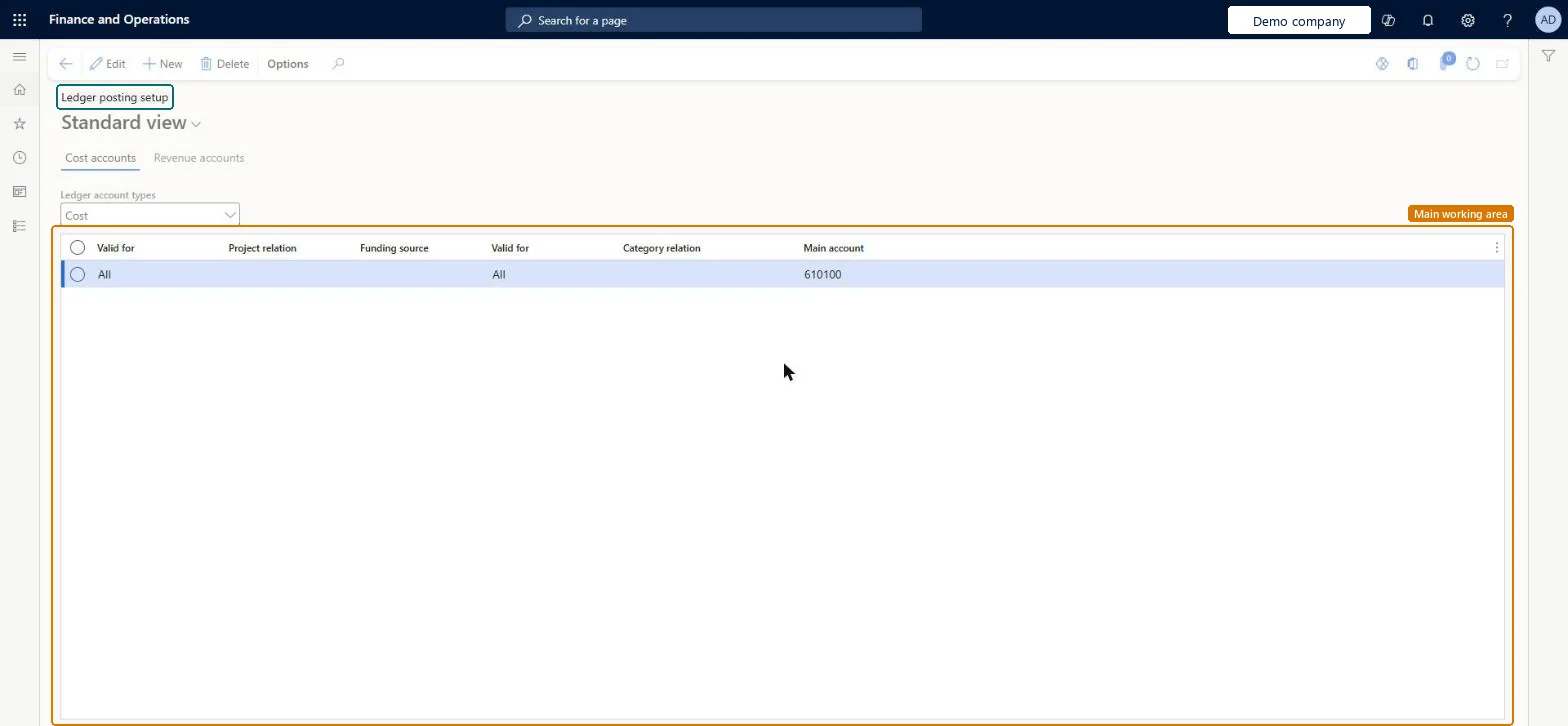
The page in Dynamics 365. page title tab to open what to set or check
About the examples: Examples and screenshots in this guide use BEAT, a demo company in a Dynamics 365 test environment. Use your own company's codes and values instead of copying them.
Step by step, with screenshots
Set up Ledger posting setup1 screen
Use this page to choose posting accounts by project, project group or funding source, by category or category group, or by any mix of these.
Screen 1
Review the ledger posting setup
Go to Project management and accounting > Setup > Posting > Ledger posting setup
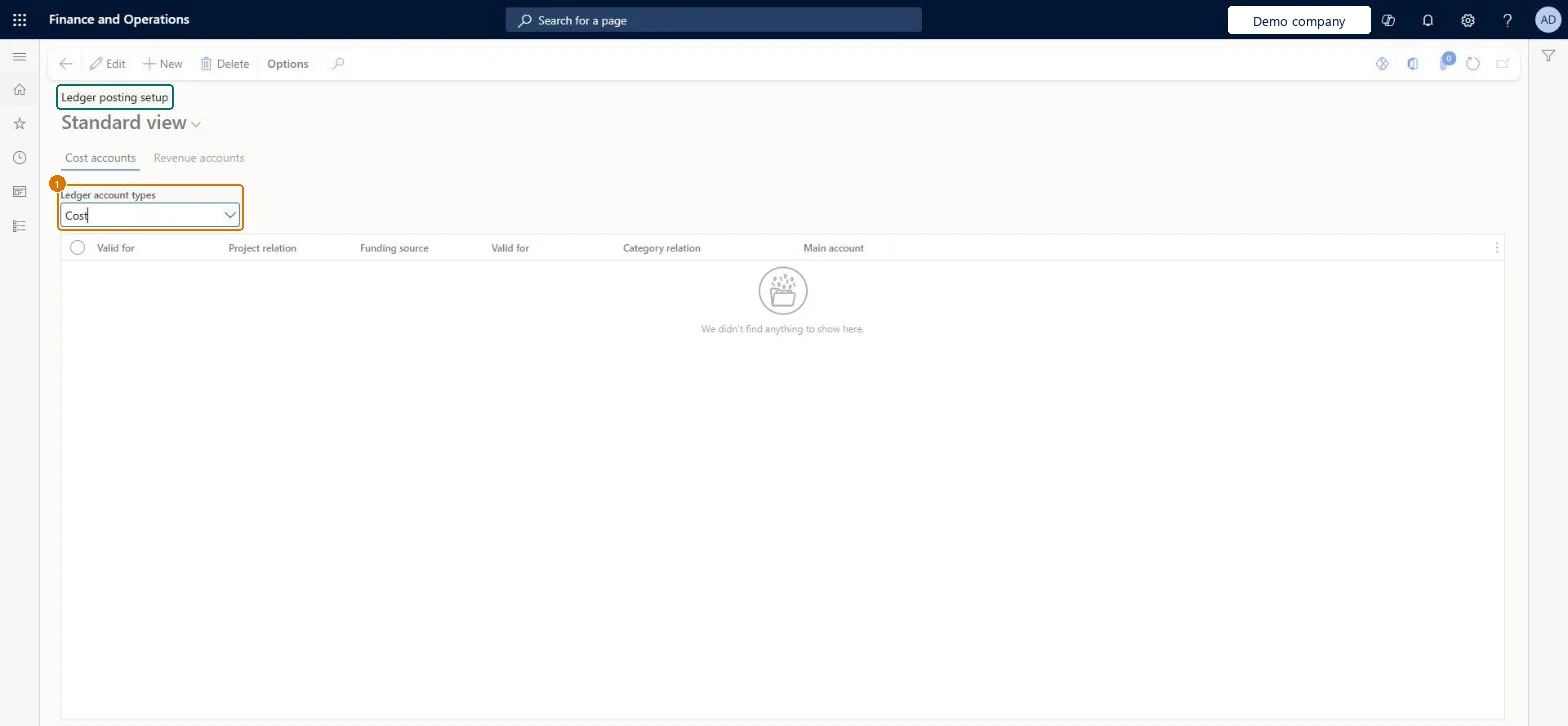
Open the Cost accounts tab and choose the ledger account type, such as Cost
Select New and choose what the line is valid for, such as a project, project group or all
Choose the category relation and the main account to post to
Select the Revenue accounts tab to set up the revenue accounts the same way
1Ledger account types
Cost
Show the full screen page title tab to open what to set or check
Steps from Microsoft
Go to Project management and accounting > Setup > Posting > Ledger posting setup.
On the Cost accounts or Revenue accounts tab, select the account type to set up, such as Cost or Payroll allocation, and select Add.
In the first Valid for field, select Table, Group or All for the projects the line covers, and the project or project group in the Project relation field.
In the second Valid for field, select Table, Group or All for the categories, and the category or category group.
Select the Main account, and optionally a Sales tax group.
Post a test hour journal and open the voucher to check the account used.
Whether the line applies to one project (Table), a project group (Group) or all projects (All); a second Valid for does the same for categories.Microsoft Learn
Group
Funding source
The funding source that is invoiced for the cost transactions the line covers.Microsoft Learn
C-0451
Sales tax group
Lets you track and report taxable sales by sales tax rate.Microsoft Learn
FULL
Main account
The account that transactions post to for the chosen combination.Microsoft Learn
640100
Ledger account types
The kind of ledger account the row sets, such as cost.Microsoft Learn
Cost
Common errors and fixes
Message
What to do
Posting stops because no ledger account is found for a project transaction.
No line matches the project and category of the transaction. Add a line for the category group or an All line for the account type. Microsoft Learn
Test checklist
Set a Cost account for an hour category group and a different one for one category in it.
Post an hour journal line on another category in the group and check the voucher uses the group account.
Post a line on the specific category and check it uses the category account.
For an internal project check hours debit Cost and credit Payroll allocation.
Accounts by category group as the base, with category-specific rows only where a category needs its own accountCategory groups exist to share posting setup between related categories, and category-specific settings override group-level settings, so exceptions stay small and explicit.
Hard to reverse: Changes affect new postings only; vouchers already posted keep the accounts they used.
If you change it later
When a transaction posts, the system looks for the most specific project and category match; if no line matches at all, posting stops with an error. Microsoft Learn
Technical architect
6Technical
Menu item
ProjPostingChecked in Dynamics 365
Form
ProjPostingChecked in Dynamics 365
Table
ProjPostingShown as “Ledger posting setup” in Record infoKey field: ProjAccountTypeChecked in Dynamics 365
Data entities
ProjLedgerPostingDefinitionEntityProject ledger posting definition Microsoft data model
To set it up or change itProject accountant ProjProjectAccountantGive people one of these roles. On this system, 1 role can open this page.Checked in Dynamics 365
Actions on the page
Options: Personalize, Page options, ShareChecked in Dynamics 365
ProjLedgerPostingDefinitionEntity (Project ledger posting definition): loaded for each company, in Microsoft's default template 650 - Project accounting.Load order: Microsoft's default template 650 - Project accounting loads Project ledger posting definition at execution unit 1, level 650, sequence 40. Lower levels load first, and entities at the same level load in sequence order.Load first: the default templates at lower levels (System setup to Expense management)Microsoft Learn
Checked in a working Dynamics 365 system, version 10.0.49: the menu item, form, table and security, the page, the demo records and the values in the screenshots.
To cite this step: PM-SETUP-100, Set up Ledger posting setup. Beyond ERP Atlas Hub, 2026-11-11. https://www.beyonderp.cloud/atlas/step/PM-SETUP-100