SETUP GUIDEHow to set it up8 sections. Choose a role to highlight what matters to you.
Everyone
1What it is and why
What it is
A setup page where you create journal names, which hold default settings such as the voucher series for project hour, fee and beginning balance journals.
What you do here
Use this page to set up journal options once so that they are added automatically to every new project journal that uses the name.
Example
For example, BEAT keeps the journal name HOURS of type Hour with voucher series PRJ-JV and approval procedure APPR-2, so that every hour journal for PRJ-0042 gets a voucher from that series and is posted only after the project supervisor approves it.
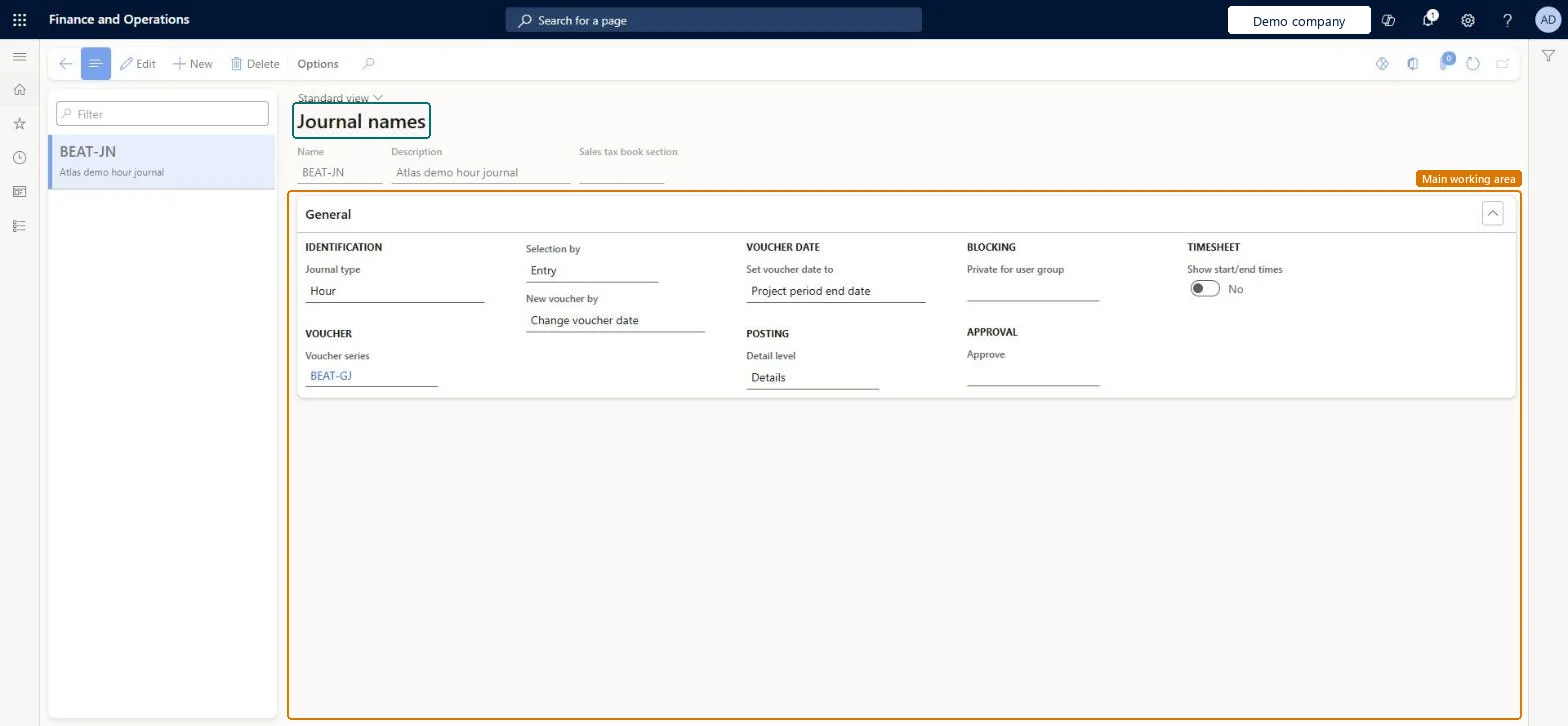
The page in Dynamics 365. page title tab to open what to set or check
About the examples: Examples and screenshots in this guide use BEAT, a demo company in a Dynamics 365 test environment. Use your own company's codes and values instead of copying them.
Step by step, with screenshots
Set up Journal names1 screen
Use this page to set up journal options once so that they are added automatically to every new project journal that uses the name.
Screen 1
Create a project journal name
Go to Project management and accounting > Setup > Journals > Journal names
Select New
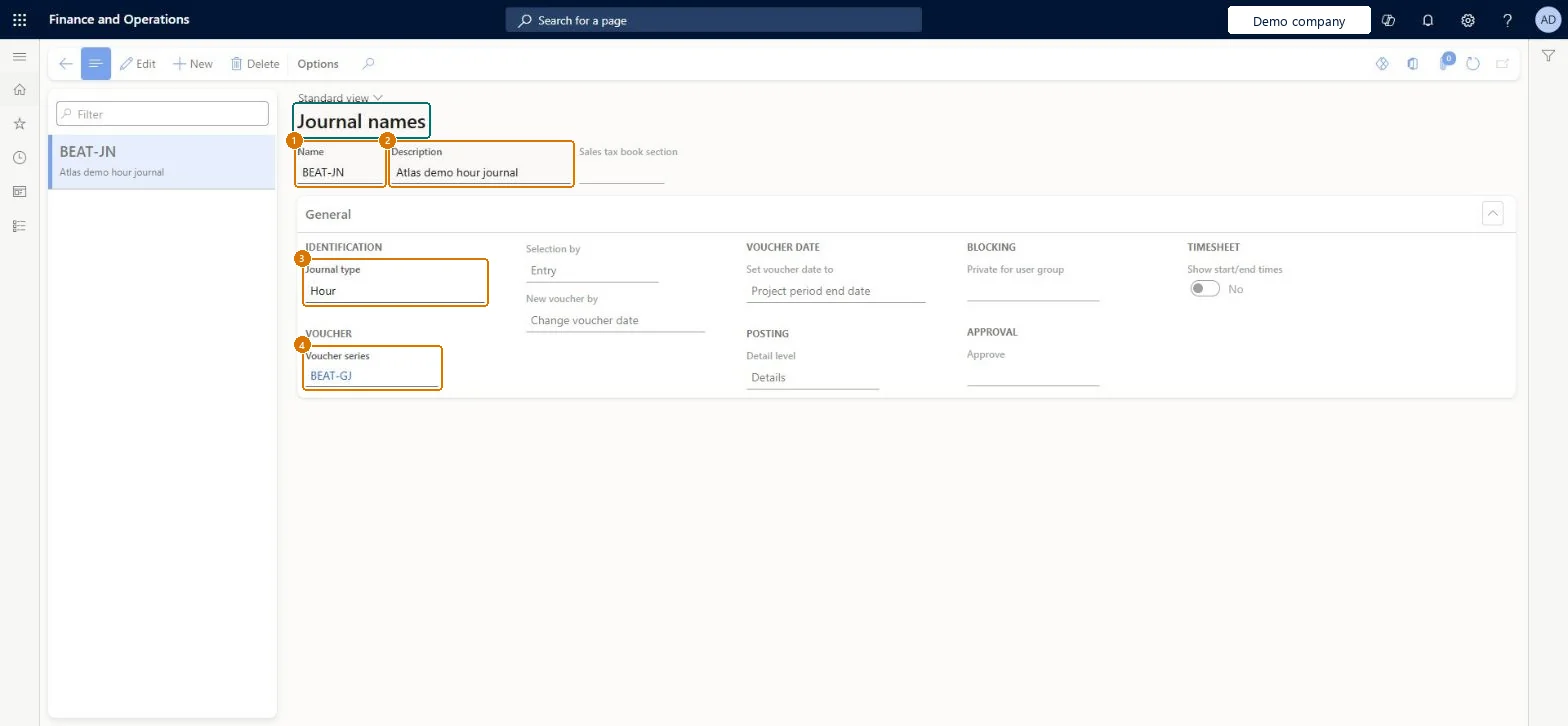
Enter the journal name and a description
Select the journal type
Select the voucher series (a number sequence for vouchers that already exists)
Select Save
1Name
BEAT-JN
2Description
Hour journal
3Journal type
Hour
4Voucher series
BEAT-GJ
Show the full screen page title tab to open what to set or check
Steps from Microsoft
Go to Project management and accounting > Setup > Journals > Journal names.
Select New, enter the Name and a Description, and select the Journal type, such as Hour, Fee or Beginning balance.
Select the Voucher series that vouchers of journals with this name use.
In Approve, select a journal approval procedure if the journal must pass approval stages before posting.
Select the name as the default journal on the Journals tab of Project management and accounting parameters, then create the first hour journal with it.
An hour journal can't be posted because it isn't approved.
The journal name carries an approval procedure. Move the journal through the stages on Journal approval, or remove the procedure from the journal name if no approval is needed. Microsoft data model
Test checklist
Select Show start/end times on the Journals tab of Project management and accounting parameters.
Open the hour journal name, select Show start/end times on its General tab, and check a voucher series is set.
Create an hour journal with that name and check the lines show start and end time fields.
Post the journal and check the voucher number comes from the journal name's voucher series.
One journal name per journal type in use (Hour, Fee, Beginning balance), each with its own voucher series; add an approval procedure only to names whose journals need approvalThe journal name decides the voucher series and the approval rule of every journal created with it, so one name per type keeps vouchers traceable and approvals predictable.
Reversible: Changes reach new journals only; posted vouchers keep their numbers.
If you change it later
The settings of a journal name are copied to each new journal that uses it. A changed voucher series or approval procedure applies to journals created afterwards. Microsoft data model
Technical architect
6Technical
Menu item
ProjJournalSetupChecked in Dynamics 365
Form
ProjJournalNameChecked in Dynamics 365
Table
ProjJournalNameShown as “Project journal names” in Record infoKey field: JournalNameId, JournalType, DescriptionChecked in Dynamics 365
PrivilegesMaintain project journal names ProjJournalSetupMaintainView project journal names ProjJournalSetupViewDutiesEnable project accounting process ProjProjectAccountingProcessEnableInquire into project accounting reference data ProjProjectAccountingReferenceDataInqui1 security roleProject supervisor ProjProjectSupervisorChecked in Dynamics 365
Roles to set it up and use it
To set it up or change itProject supervisor ProjProjectSupervisorGive people one of these roles. On this system, 1 role can open this page.Checked in Dynamics 365
Actions on the page
Options: Personalize, Page options, ShareChecked in Dynamics 365
ProjJournalNameEntity (Project journal names): loaded for each company, in Microsoft's default template 650 - Project accounting.Load order: Microsoft's default template 650 - Project accounting loads Project journal names at execution unit 1, level 40, sequence 10. Lower levels load first, and entities at the same level load in sequence order.Load first: the default templates at lower levels (System setup to dependency bands 30 to 90)Microsoft Learn
Checked in a working Dynamics 365 system, version 10.0.49: the menu item, form, table and security, the page, the demo records and the values in the screenshots.
To cite this step: PM-SETUP-060, Set up Journal names. Beyond ERP Atlas Hub, 2026-11-11. https://www.beyonderp.cloud/atlas/step/PM-SETUP-060