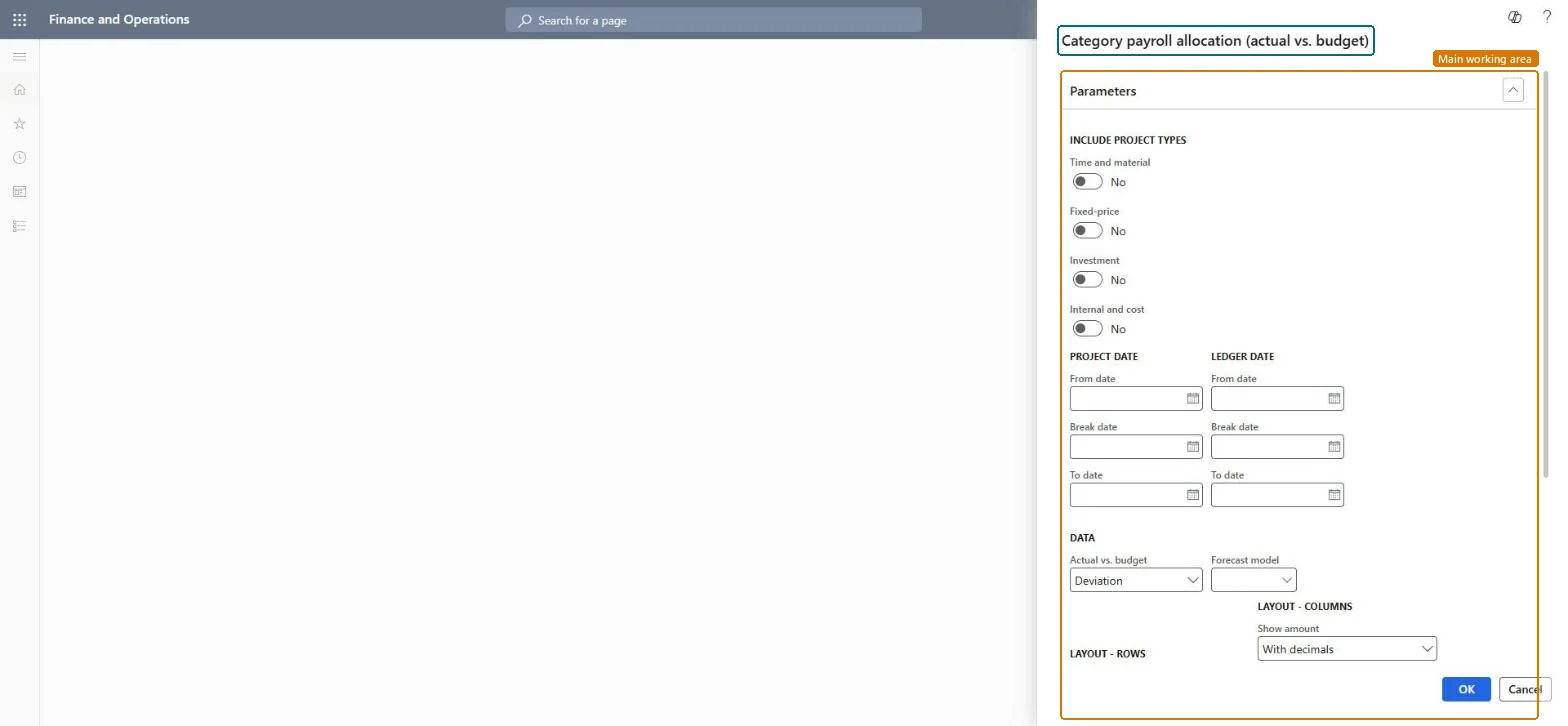
Set the selection for Category payroll allocation (actual vs. budget)
Project management and accountingInquiries and reportsPayroll allocation reports
output:ProjListProjPayRollCategory2Column
Business process
Analyze project performance
Menu item
output:ProjListProjPayRollCategory2Column
Setup steps
1 on this page
Show what matters for
SETUP GUIDEHow to set it up8 sections. Choose a role to highlight what matters to you.
Everyone
1What it is and why
What it is
A report that compares actual payroll allocation per project category with the budget held in a forecast model, as a deviation or as a sum of actuals up to a break date and budget after it.
What you do here
Use it in a project or budget review to see which project category runs over or under its planned payroll cost.
Example
BEAT checks categories against forecast model BUDGET26: category CONSULT is at 41,200.00 against 38,000.00 budgeted, a deviation of 3,200.00 that the controller follows up.
The page in Dynamics 365. page title tab to open what to set or check
About the examples: Examples and screenshots in this guide use BEAT, a demo company in a Dynamics 365 test environment. Use your own company's codes and values instead of copying them.
When to run it
When to run it
During a budget review, after the period's hours are posted, when you want to see which project categories are over or under their payroll budget.
How often
On demand, at each budget review or period close.
What the output shows
One row per project category with actual, budget and deviation (or sum) amounts. Many categories with only budget and no actuals usually means hours were posted to other categories than were budgeted.
Set the selection for Category payroll allocation (actual vs. budget)
Get payroll allocation per project category that can be checked against the ledger or the budget.
Steps from Microsoft
Go to Project management and accounting > Inquiries and reports > Payroll allocation reports > Category payroll allocation (actual vs. budget).
Under Include project types, turn on Time and material, Fixed-price, Investment or Internal and cost for the projects whose category budgets you check.
Under Data, choose Deviation or Sum in Actual vs. budget and pick the Forecast model with the category budget.
Enter the From date, Break date and To date under Project date and Ledger date; the Break date only matters when you use Sum.
Under Layout - columns, set Show amount, run the report, and look at the categories with the largest deviation from budget.
Choose how amounts are shown, such as with decimals, without decimals, or in thousands or millions.Microsoft Learn
Show hour
Choose whether to show the number of hours, the cost value of the hours, or both.Microsoft Learn
Common errors and fixes
Message
What to do
The deviation equals the whole actual amount on every row.
The chosen forecast model holds no hour forecasts for these rows. Pick the model with the budget, or enter the hour forecasts under All project forecasts. Microsoft Learn
Choose the forecast model that holds the approved budget and set Actual vs. budget to Deviation.The budget column comes only from the forecast model you pick; Deviation shows actual minus budget per row, which is the number the review acts on.
On the live system, Project manager, Project supervisor, Chief executive officer and Chief financial officer can run this page.
Checked in Dynamics 365
Solution architect
5Design impact
Shared or per company
Per legal entity: the report reads only the project data of the company you are signed in to, so run it in each company you close. Checked in Dynamics 365
Can it be undone
Reversible: Running or rerunning the report changes no data.
If you change it later
The report reads posted hour transactions and, for budgets, forecast lines. A change to cost prices or to the project cost and revenue profile affects only hours posted afterwards; past hours change only through Adjust transactions, after which you rerun the report. Microsoft Learn
Technical architect
6Technical
Menu item
output:ProjListProjPayRollCategory2ColumnChecked in Dynamics 365
Form
SysOperationTemplateFormChecked in Dynamics 365
Roles to set it up and use it
To use itProject manager ProjProjectManagerProject supervisor ProjProjectSupervisorChief executive officer CompanyChiefExecutiveOfficerChief financial officer CompanyChiefFinancialOfficerGive people one of these roles. On this system, 4 roles can run this page.Checked in Dynamics 365
Load order: Category payroll allocation (actual vs. budget) has no data entity in Data management: the menu item ProjListProjPayRollCategory2Column opens a report that only reads posted project data. There is nothing to migrate for the report itself; load the project data it reads, for example opening balances through Journals > Beginning balance, then run the report in the new system and compare its totals with the old one.Checked in Dynamics 365
Checked in a working Dynamics 365 system, version 10.0.49: the menu item, form, table and security, the page.
To cite this step: PM-RC-110, Set the selection for Category payroll allocation (actual vs. budget). Beyond ERP Atlas Hub, 2026-11-11. https://www.beyonderp.cloud/atlas/step/PM-RC-110