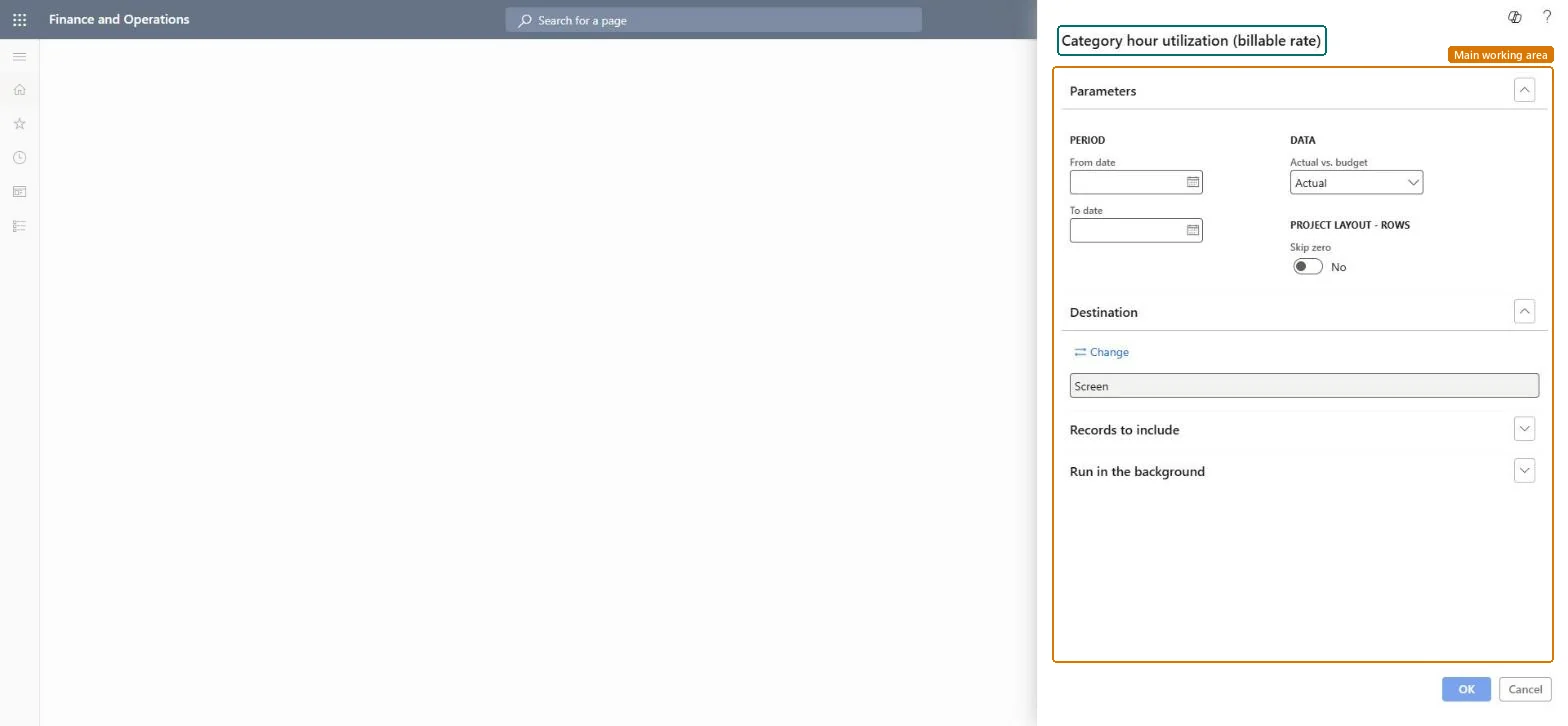
Run the Category hour utilization (billable rate) report
Project management and accountingInquiries and reportsHour utilization reports
output:ProjBillUtilCategory
Business process
Analyze project performance
Menu item
output:ProjBillUtilCategory
Setup steps
1 on this page
Show what matters for
SETUP GUIDEHow to set it up8 sections. Choose a role to highlight what matters to you.
Everyone
1What it is and why
What it is
A report of the hour utilization billable rate, one row per project category: the share of included hours that are chargeable, with utilization hours, burden hours and included hours.
What you do here
It answers how much of the recorded time is chargeable per project category. For projects and categories the rate must use included hours. Project managers, project supervisors, the CEO and the CFO can run it on this system.
Example
BEAT runs Category hour utilization (billable rate) for Q3 2026. HOURS-CONS is 94.20 percent billable, while HOURS-TRAIN is 0.00 percent because training hours carry a non-chargeable line property.
The page in Dynamics 365. page title tab to open what to set or check
About the examples: Examples and screenshots in this guide use BEAT, a demo company in a Dynamics 365 test environment. Use your own company's codes and values instead of copying them.
When to run it
When to run it
After all timesheets for the period are posted.
How often
Monthly, or once per timesheet period.
Batch settings
Run it from the dialog; schedule it monthly in the background for the resource review.
What the output shows
Utilization hours, burden hours, included hours and the billable rate percentage, one row per project category.
Run the Category hour utilization (billable rate) report
Review the billable rate per project category.
Steps from Microsoft
Go to Project management and accounting > Inquiries and reports > Hour utilization reports > Category hour utilization (billable rate).
Enter From date and To date for whole timesheet periods, for example 1 October 2026 to 31 October 2026, after all timesheets for them are posted.
Turn on Skip zero so categories without hours drop out of the list.
Read utilization hours (chargeable), burden hours (non-chargeable) and included hours per project category; the billable rate is utilization hours as a share of included hours.
For a category with an unexpected billable rate, check the line property that its hours carry in Line properties.
Actual (the default) shows posted hours; Budget shows hours from the forecast.Checked in Dynamics 365
Actual
Forecast model
Not on the 10.0.49 dialog of this report, which shows Period, Actual vs. budget and the row layout only.Checked in Dynamics 365
Skip zero
Leaves out project categories with no hours.Checked in Dynamics 365
Yes
(Period) From date / To date
The dates of the hours to include. Use whole timesheet periods so every worker's time is complete.Checked in Dynamics 365
1 October 2026 to 31 October 2026
Common errors and fixes
Message
What to do
The billable rate looks too high for a project category that had idle time.
Rates on included hours count only the hours entered; make sure workers record all their working time, including non-chargeable time, then rerun. Microsoft Learn
Hours of some project types are missing from the included hours.
Project types set to Not included are left out; check whether each type is set to Utilization, Burden or According to line property. Microsoft Learn
Test checklist
Post 30.00 chargeable and 10.00 non-chargeable hours for W-0042 on PRJ-0042 in one week for BEAT.
Run Category hour utilization (billable rate) for that week.
Check that included hours are 40.00 and the billable rate is 75.00 percent.
Set From date and To date to whole, fully posted timesheet periods first.The rate is a share of hours; a partly posted or partial period changes the denominator and the rate with it.
On the live system, Project manager, Project supervisor, Chief executive officer and Chief financial officer can run this report.
Checked in Dynamics 365
Solution architect
5Design impact
Shared or per company
Per legal entity: the report reads the projects, transactions and setup of the company you run it in. Run it in each company to compare them. Checked in Dynamics 365
Can it be undone
Reversible: The report changes no data.
If you change it later
Rerun after timesheets are posted or the Utilization or Burden setting of a project type changes; both change the rate. The report itself changes nothing downstream. Microsoft Learn
Technical architect
6Technical
Menu item
output:ProjBillUtilCategoryChecked in Dynamics 365
Form
SysOperationTemplateFormChecked in Dynamics 365
Roles to set it up and use it
To use itProject manager ProjProjectManagerProject supervisor ProjProjectSupervisorChief executive officer CompanyChiefExecutiveOfficerChief financial officer CompanyChiefFinancialOfficerGive people one of these roles. On this system, 4 roles can run this page.Checked in Dynamics 365
Load order: Category hour utilization (billable rate) has no data entity in Data management: it is a report. Move the project transactions, timesheets and forecasts it reads, and the report shows them when it runs.Checked in Dynamics 365
Checked in a working Dynamics 365 system, version 10.0.49: the menu item, form, table and security, the page.
To cite this step: PM-RB-360, Run the Category hour utilization (billable rate) report. Beyond ERP Atlas Hub, 2026-11-11. https://www.beyonderp.cloud/atlas/step/PM-RB-360