Run the Resource/item consumption (2 periods) report
Project management and accountingInquiries and reportsConsumption reports
output:ProjListProjConsumptionEmplItem2CoPeriod
Business process
Analyze project performance
Menu item
output:ProjListProjConsumptionEmplItem2CoPeriod
Setup steps
1 on this page
Show what matters for
SETUP GUIDEHow to set it up8 sections. Choose a role to highlight what matters to you.
Everyone
1What it is and why
What it is
A report of the hours, expenses and items consumed, one row per resource (worker) or item, for two ledger date ranges side by side, built from posted project transactions.
What you do here
It answers how much work and material went into each of the resources and items, as a period-on-period comparison, so project managers see whether effort runs ahead of plan before it shows in profit. The Project manager, Project supervisor, CEO and CFO roles can run it on this system.
Example
BEAT compares Q2 and Q3 2026 in Resource/item consumption (2 periods). W-0042 used 217.00 hours in Q2 and 324.00 hours in Q3; the jump shows the team ramping up before the October milestone.
The page in Dynamics 365. page title tab to open what to set or check
About the examples: Examples and screenshots in this guide use BEAT, a demo company in a Dynamics 365 test environment. Use your own company's codes and values instead of copying them.
When to run it
When to run it
Weekly or at month end, after timesheets and expense journals are posted, when you want to see how the figures moved from one period to the next.
How often
Weekly or monthly
Batch settings
Run it from the dialog for one review, or run it in the background on a monthly recurrence for the close pack.
What the output shows
Hours, expense amounts and item amounts consumed, one row per resource (worker) or item, for period 1 and period 2 side by side.
Run the Resource/item consumption (2 periods) report
Review hours, expenses and items consumed per resource (worker) or item for two ledger date ranges side by side.
Steps from Microsoft
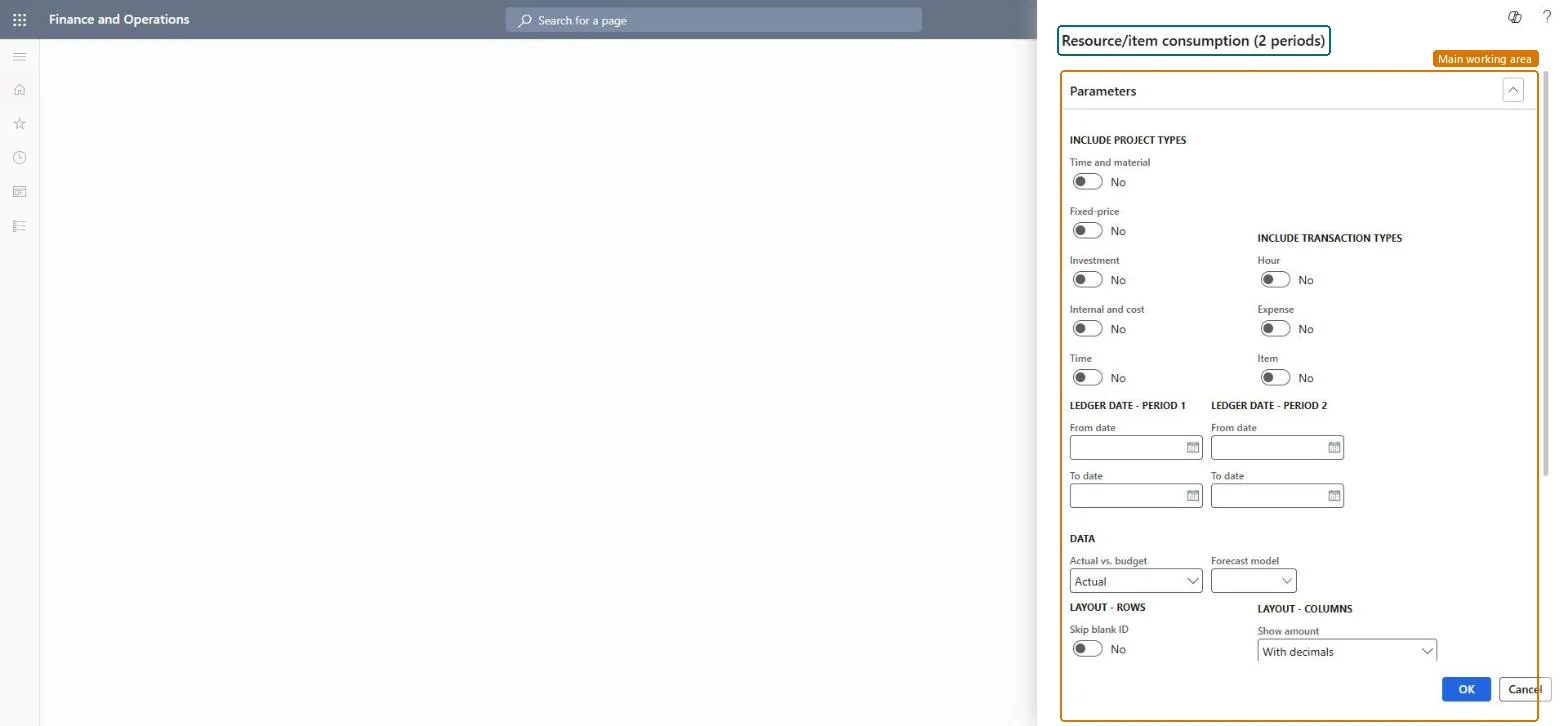
Go to Project management and accounting > Inquiries and reports > Consumption reports > Resource/item consumption (2 periods).
Turn on the project types and the Hour, Expense and Item transaction types you want counted for each resource or item; consumption is about effort, so include Internal and cost projects if internal work matters.
Enter Ledger date - period 1 and Ledger date - period 2, for example September 2026 and October 2026, so the two consumption columns compare like with like.
Turn on Skip zero to hide resources and items with no amounts, and Skip blank ID to leave out lines that carry no resource or item ID.
Read the hour quantity and the expense and item amounts on each resource or item row; compare hours with what was planned before they turn into cost.
Check the hour total against Ledger updates - consumption, then ask for a forecast or budget update for any resource or item that runs ahead of plan.
Turn on each project type to include; at least one must be on. Time projects post no ledger transactions, so they add hours but no amounts to financial totals.Microsoft Learn
Time and material and Fixed-price on
Include transaction types
Turn on the transaction types to include: hours, expenses and items are what the consumption figures count.Microsoft Learn
Hour, Expense and Item on
(Ledger date - period 1) From date / To date
The ledger date range shown in the period 1 column.Checked in Dynamics 365
1 September 2026 to 30 September 2026
(Ledger date - period 2) From date / To date
The ledger date range shown in the period 2 column.Checked in Dynamics 365
1 October 2026 to 31 October 2026
Forecast model
The forecast model that holds the budget figures. With project budget control, pick the original or remaining budget forecast model that the project's budget uses.Microsoft Learn
BUD-ORIG
Actual vs. budget
Actual (the default) shows posted figures; Budget shows the amounts in the chosen forecast model.Checked in Dynamics 365
Actual
Skip blank ID
Leaves out lines that have no resource or item ID.Checked in Dynamics 365
Skip zero
Leaves out rows where every amount is zero.Checked in Dynamics 365
Yes
Show amount
How amounts are printed: With decimals (the default), without decimals, or in thousands or millions.Checked in Dynamics 365
With decimals
Show hour
Whether hour lines show the number of hours, their cost value or both.Checked in Dynamics 365
Common errors and fixes
Message
What to do
Fee and on-account amounts are missing from the report.
The consumption dialog counts hours, expenses and items only; use the matching profit and loss report for fees and on-account billing. Checked in Dynamics 365
The period 2 column is empty although work was done.
Ledger date ranges only pick up transactions that are posted to the ledger; post the open journals and timesheets for period 2, then rerun. Checked in Dynamics 365
Test checklist
Run Resource/item consumption (2 periods) for BEAT for October 2026 with W-0042 in the data.
Open Posted project transactions filtered on the same project and dates.
Check that the hour total on the W-0042 row equals the sum of the hour transactions, for example 217.00 hours.
Set both ledger date ranges to complete periods of the same length first, then the project and transaction types.Unequal or open periods make one column look better or worse for reasons that are only about the calendar.
On the live system, Project manager, Project supervisor, Chief executive officer and Chief financial officer can run this report.
Checked in Dynamics 365
Solution architect
5Design impact
Shared or per company
Per legal entity: the report reads the projects, transactions and setup of the company you run it in. Run it in each company to compare them. Checked in Dynamics 365
Can it be undone
Reversible: The report changes no data.
If you change it later
Rerun after timesheets, expense journals and item journals are posted; the consumption totals change with every posting for the dates. The report itself changes nothing downstream. Microsoft Learn
Technical architect
6Technical
Menu item
output:ProjListProjConsumptionEmplItem2CoPeriodChecked in Dynamics 365
Form
SysOperationTemplateFormChecked in Dynamics 365
Roles to set it up and use it
To use itProject manager ProjProjectManagerProject supervisor ProjProjectSupervisorChief executive officer CompanyChiefExecutiveOfficerChief financial officer CompanyChiefFinancialOfficerGive people one of these roles. On this system, 4 roles can run this page.Checked in Dynamics 365
Load order: Resource/item consumption (2 periods) has no data entity in Data management: it is a report. Move the project transactions, timesheets and forecasts it reads, and the report shows them when it runs.Checked in Dynamics 365
Checked in a working Dynamics 365 system, version 10.0.49: the menu item, form, table and security, the page.
To cite this step: PM-RB-150, Run the Resource/item consumption (2 periods) report. Beyond ERP Atlas Hub, 2026-11-11. https://www.beyonderp.cloud/atlas/step/PM-RB-150