SETUP GUIDEHow to set it up8 sections. Choose a role to highlight what matters to you.
Everyone
1What it is and why
What it is
The project expense journal: a ledger journal of type Project expenses, where you enter expenses by project and category with an offset account and post them to the project and the ledger.
What you do here
Use it to charge costs such as materials bought on account, subcontractor fees or travel paid outside expense reports to a project, so project cost is complete and traceable.
Example
For example, BEAT charges a subcontractor fee of 3,200.00 to PRJ-0042 in expense journal PEXP-000118, category SUBCON, line property CHARGE, offset to the accrual account 2310, sales tax group STD.
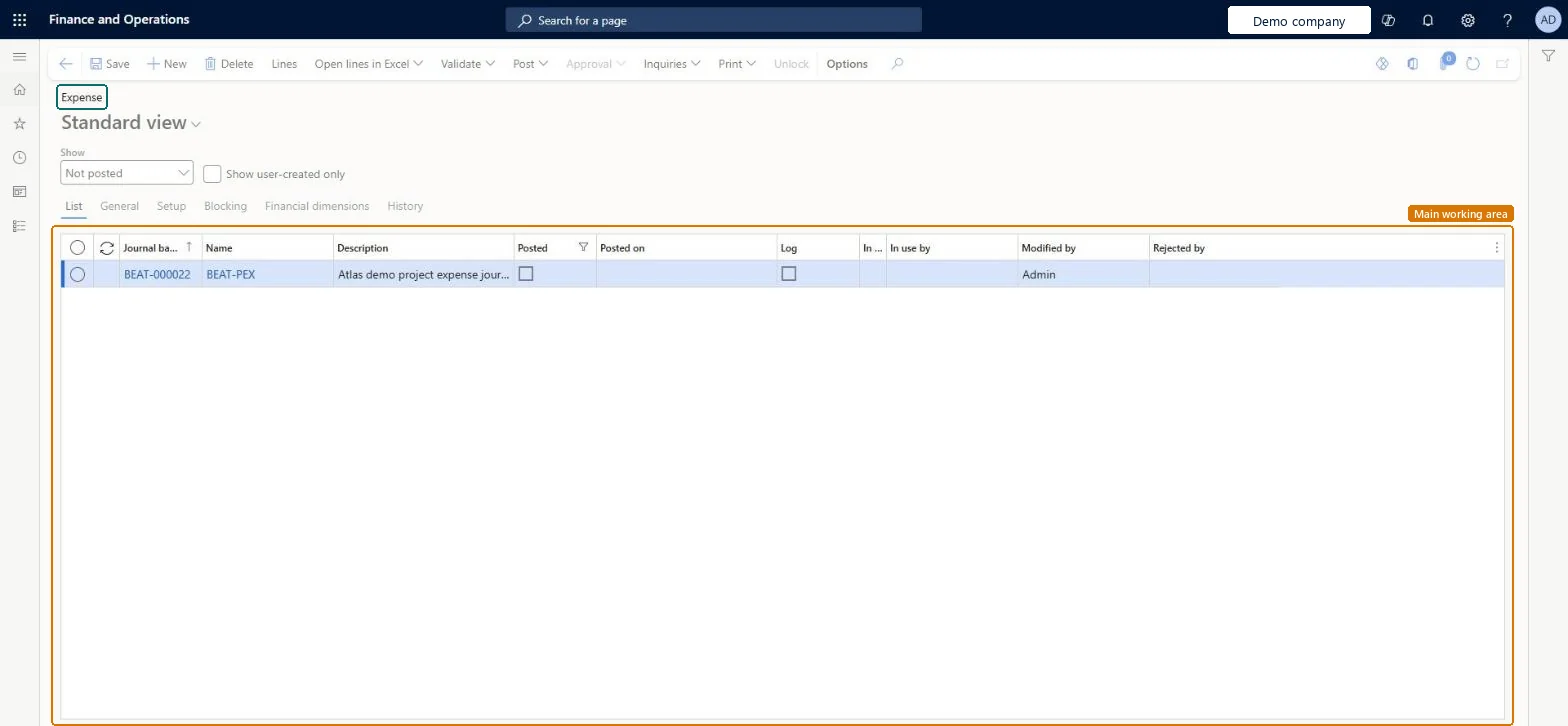
The page in Dynamics 365. page title tab to open what to set or check
About the examples: Examples and screenshots in this guide use BEAT, a demo company in a Dynamics 365 test environment. Use your own company's codes and values instead of copying them.
Setup steps on this page
Charge project expenses with category and offset
Post expenses to the right project account.
Steps from Microsoft
Go to Project management and accounting > Journals > Expense.
Select New, select the journal name, and then select Lines.
On each line, select the project and the expense category, and enter the amount.
Check the offset account, the sales tax groups and the line property.
Review the entries for accuracy, then post the journal.
Check the expense on Posted project transactions under the right category.
Set default offset accounts for expenses, and select the project and expense category on every line.The category decides the posting account and the line property; the offset account balances the entry.
Hard to reverse: Posted expenses are corrected through project adjustments.
If you change it later
Posting debits the project cost or WIP account set for the category and credits the offset account; the cost then counts in project statements and invoicing. Microsoft Learn
Technical architect
6Technical
Menu item
LedgerjournalTable7Checked in Dynamics 365
Form
LedgerJournalTableChecked in Dynamics 365
Table
LedgerJournalTableShown as “Ledger journal table” in Record infoKey field: JournalNumChecked in Dynamics 365
To set it up or change itProject manager ProjProjectManagerProject accountant ProjProjectAccountantProject assistant ProjProjectClerkField Service Integration User FieldServiceIntegrationUserRental manager RentalManagerTo use itChief executive officer CompanyChiefExecutiveOfficerChief financial officer CompanyChiefFinancialOfficerAccounts receivable clerk CustInvoiceAccountsReceivableClerkAccounting manager LedgerAccountingManagerFinancial controller LedgerFinancialControllerGive people one of these roles. On this system, 22 roles can open this page.Checked in Dynamics 365
Actions on the page
Options: Personalize, Page options, Edit, ShareChecked in Dynamics 365
ExpenseJournalHeaderEntity (Project expense journal header): loaded for each company.ExpenseJournalLineEntity (Project expense journal lines): loaded for each company.Load order: Load journal names, projects, project categories and ledger accounts first, then the journal headers, then the lines.Load first: Journal names, Projects, Project categories, Main accountsMicrosoft Learn
Checked in a working Dynamics 365 system, version 10.0.49: the menu item, form, table and security, the page.
To cite this step: PM-OPS-420, Charge project expenses with category and offset. Beyond ERP Atlas Hub, 2026-11-11. https://www.beyonderp.cloud/atlas/step/PM-OPS-420