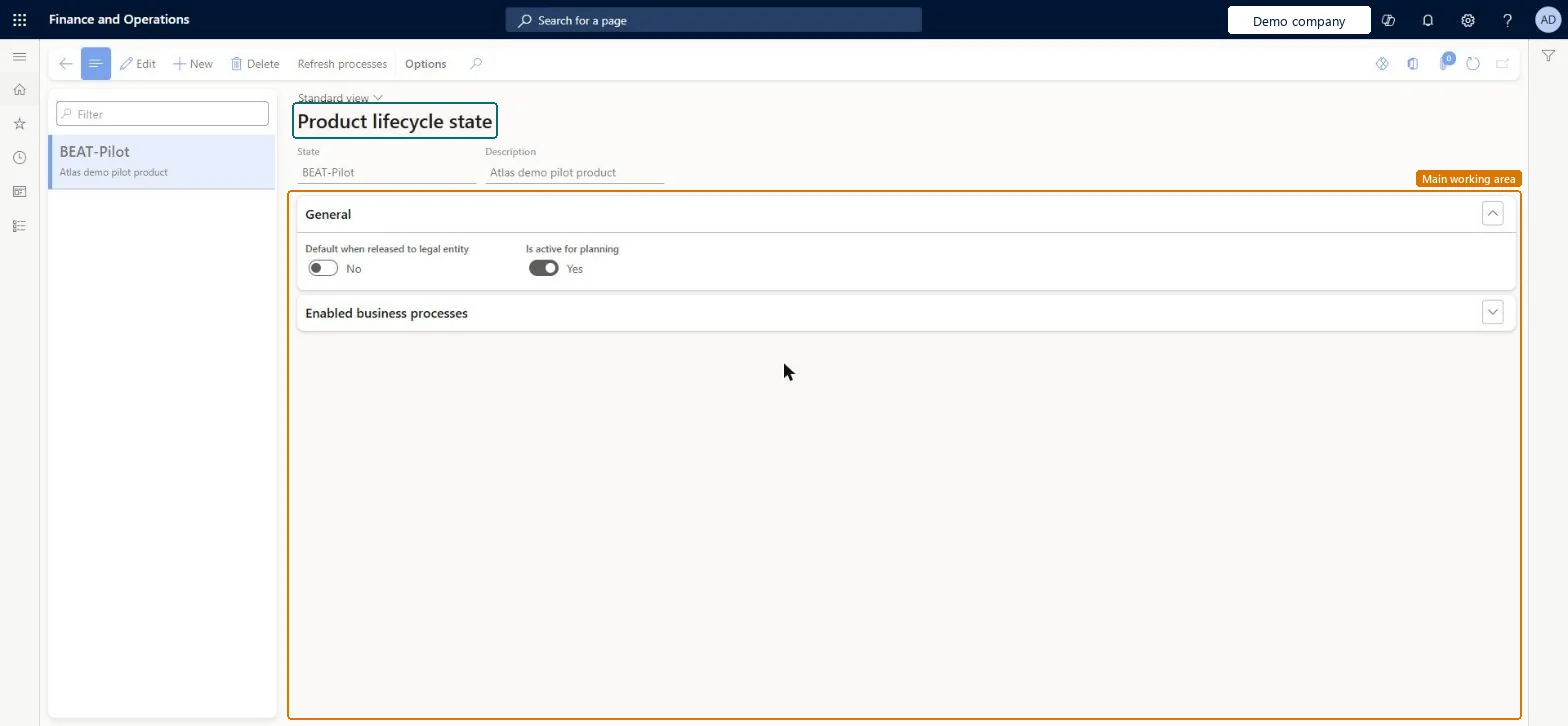
Setup step on the Product lifecycle state page · Product information management
Set up Product lifecycle state
Use this page to control which business processes, such as purchase orders, production or planning, can use released products or variants that are in each lifecycle state.
Purchasing agent, Purchasing Agent - Public Sector, Product designer and 6 more roles
Business process
Develop product strategy
Menu item
EcoResProductLifecycleState
Main table
EcoResProductLifecycleState
Data entity
EcoResProductLifecycleStateEntity
Setup steps
1 on this page
Show what matters for
SETUP GUIDEHow to set it up8 sections. Choose a role to highlight what matters to you.
Everyone
1What it is and why
What it is
A setup page where you define the lifecycle states, such as Prototype, Active or Obsolete, that you assign to released products and released product variants.
What you do here
Use this page to control which business processes, such as purchase orders, production or planning, can use released products or variants that are in each lifecycle state.
Example
For example, you can block end-of-life products from being purchased.
The page in Dynamics 365. page title tab to open what to set or check
About the examples: Examples and screenshots in this guide use BEAT, a demo company in a Dynamics 365 test environment. Use your own company's codes and values instead of copying them.
Setup steps on this page
Set up Product lifecycle state
Use this page to control which business processes, such as purchase orders, production or planning, can use released products or variants that are in each lifecycle state.
Steps from Microsoft
Go to Product information management > Setup > Product lifecycle state.
On the Action Pane, select Refresh processes.
Select New to create a lifecycle state, or select an existing state and select Edit.
Enter the State and the Description.
On the General FastTab, set Default when released to legal entity and Is active for planning.
On the Enabled business processes FastTab, set the Policy for each process to Enabled, Blocked or Enabled with warning.
Set to Yes to apply this lifecycle state by default to products when they are first released. It does not apply to engineering products.Microsoft Learn
IsDefaultOnProductRelease
Is active for planning
When set to No, products in this state are excluded from master planning and BOM level calculations.Microsoft Learn
IsActiveForPlanning
Policy
Controls whether a business process can use products in this state: Enabled, Blocked or Enabled with warning.Microsoft Learn
Blocked
Process area
The process area that the business process belongs to. It is generated by the system and should not be changed.Microsoft Learn
ReadinessCategory
Test checklist
Select Refresh processes, then create an Obsolete state with Is active for planning = No and Purchase order Blocked.
Assign Obsolete to a released product.
Try to add the product to a purchase order line: the system blocks it with an error.
Run master planning and check no planned orders are created for the product.
One default state for newly released products (Default when released to a legal entity = Yes), plus an obsolete state with Is active for planning = No and purchasing and sales processes BlockedLearn recommends putting obsolete products and variants in a lifecycle state that turns off master planning, for performance, and uses Blocked to stop end-of-life products being purchased.
Editing the Process area values. They are generated by the framework, and changing them can break system validations or business rule behaviour.Test: Blocked lifecycle state stops purchasing
Solution architect
5Design impact
Can it be undone
Reversible: You can change a product's lifecycle state at any time; on a product master you choose whether variants with the same original state follow. Policies apply to transactions from then on.
If you change it later
The Process area values are generated by the system, and changing them can break system validations or business rule behaviour. Microsoft Learn
Technical architect
6Technical
Menu item
EcoResProductLifecycleStateChecked in Dynamics 365
Form
EcoResProductLifecycleStateChecked in Dynamics 365
Table
EcoResProductLifecycleStateShown as “PRODUCT LIFECYCLE STATE” in Record infoKey field: StateIdChecked in Dynamics 365
PrivilegesMaintain product lifecycle states EcoResProductLifecycleStateMaintainView product lifecycle states EcoResProductLifecycleStateViewDutiesInquire into products definition master EcoResProductDefinitionMasterInquireMaintain products definition master EcoResProductDefinitionMasterMaintainEnable the engineering change management process EngChgEngineeringChangeManagementProcessEnable9 security rolesProduct designer BOMProductDesignerProduct engineering manager EngChgProductEngineeringManagerMaterials manager InventMaterialsManagerQuality control manager InventQualityControlManagerBuying agent TradeBuyingAgentPurchasing manager TradePurchasingManagerPurchasing agent VendPurchasingAgentPurchasing Agent - Public Sector VendPurchasingAgent_PSNWarehouse manager WMSWarehouseManagerChecked in Dynamics 365
Roles to set it up and use it
To set it up or change itProduct designer BOMProductDesignerProduct engineering manager EngChgProductEngineeringManagerTo use itMaterials manager InventMaterialsManagerWarehouse manager WMSWarehouseManagerPurchasing manager TradePurchasingManagerPurchasing agent VendPurchasingAgentQuality control manager InventQualityControlManagerGive people one of these roles. On this system, 9 roles can open this page.Checked in Dynamics 365
Actions on the page
(Action Pane without tabs): Refresh processesChecked in Dynamics 365
EcoResProductLifecycleStateEntity (Product lifecycle states): shared by all companies, in Microsoft's default template 310 - Product information management.Load order: Microsoft's default template 310 - Product information management loads Product lifecycle states at execution unit 1, level 30, sequence 10. Lower levels load first, and entities at the same level load in sequence order.Load first: the default templates at lower levels (System setup to General ledger)Microsoft Learn
Checked in a working Dynamics 365 system, version 10.0.49: the menu item, form, table and security, the page.
To cite this step: PIM-SETUP-040, Set up Product lifecycle state. Beyond ERP Atlas Hub, 2026-11-11. https://www.beyonderp.cloud/atlas/step/PIM-SETUP-040