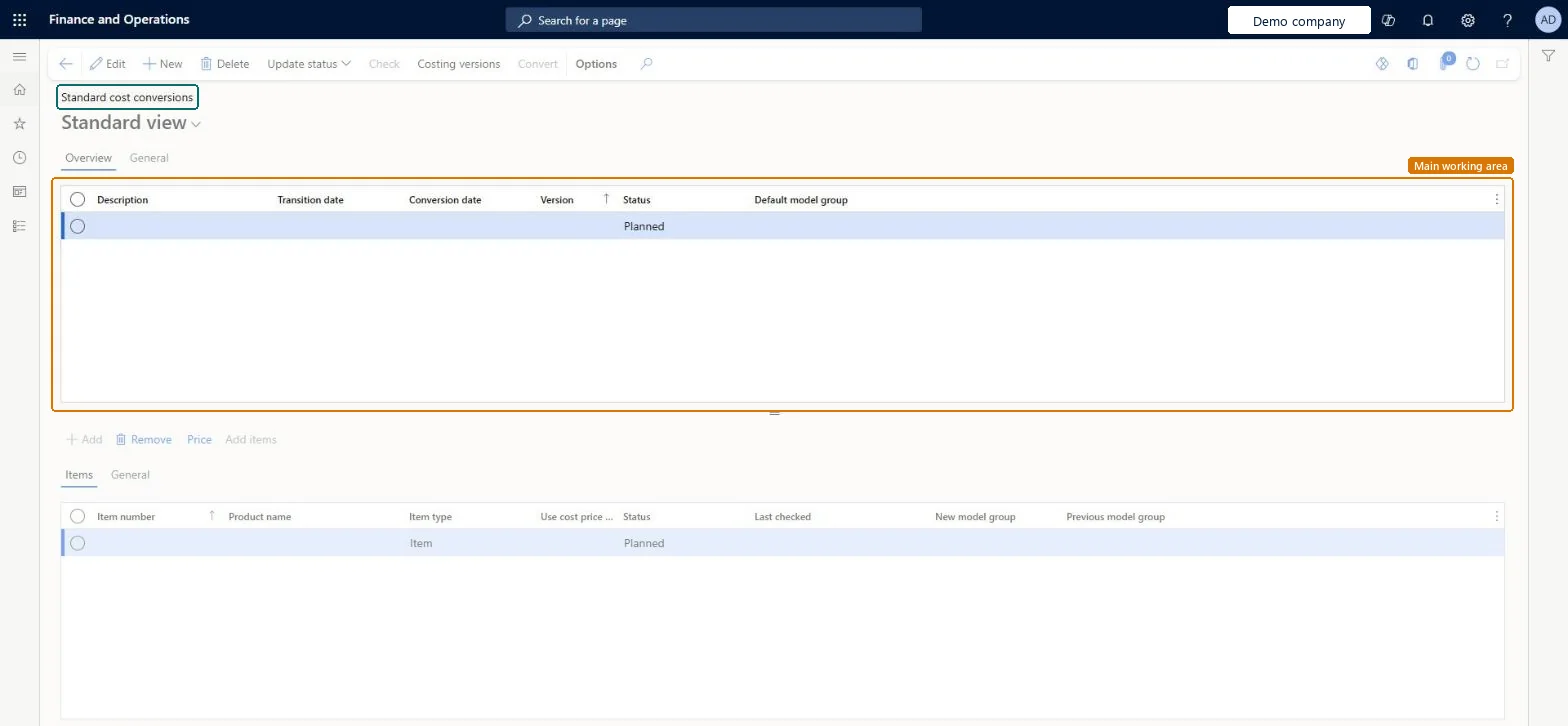
Setup step on the Standard cost conversions page · Product information management
Set up Standard cost conversions
Use this page to convert the inventory model for a batch of selected items from actual cost to standard cost, by working through item checks and status changes during a planned transition period.
SETUP GUIDEHow to set it up8 sections. Choose a role to highlight what matters to you.
Everyone
1What it is and why
What it is
A list page where you create standard cost conversion records and add the items that each record converts from an actual costing approach to standard cost.
What you do here
Use this page to convert the inventory model for a batch of selected items from actual cost to standard cost, by working through item checks and status changes during a planned transition period.
The page in Dynamics 365. page title tab to open what to set or check
About the examples: Examples and screenshots in this guide use BEAT, a demo company in a Dynamics 365 test environment. Use your own company's codes and values instead of copying them.
Setup steps on this page
Set up Standard cost conversions
Use this page to convert the inventory model for a batch of selected items from actual cost to standard cost, by working through item checks and status changes during a planned transition period.
Steps from Microsoft
Go to Product information management > Periodic tasks > Cost conversions > Standard cost conversions.
Select New to create a conversion record, and enter the transition date, the conversion date and the identifier for the new costing version.
Add the items that you want to convert to standard cost.
Enter or calculate the pending standard cost for each item in the dedicated costing version.
Select Check, and resolve any issues until every item has a status of Checked.
Use Update status to change the status of the conversion record to Ready.
On the planned conversion date, select Convert to perform the conversion.
One conversion record that holds all manufactured items, with the transition start date set to the day after an inventory closeLearn advises including all manufactured items in a single conversion record so costs are calculated correctly, and the status can only move to Ready when an inventory close exists one day before the transition start date.
Starting the transition without an inventory close one day before the transition start date. The record can't be set to Ready, and you lose time in the transition period.Test: Convert an actual cost item to standard cost
One-way: Warning: once the conversion completes, the items move to a standard cost item model group, on-hand is revalued to standard cost, and the inventory close one day before the conversion date can't be cancelled. Back up the database before you convert.
If you change it later
When the conversion record status is changed to Ready, changes to the cost records in its costing version are no longer permitted. Microsoft Learn
Technical architect
6Technical
Menu item
InventStdCostConvChecked in Dynamics 365
Form
InventStdCostConvChecked in Dynamics 365
Table
CostingVersionShown as “COSTING VERSIONS” in Record infoChecked in Dynamics 365
PrivilegesMaintain standard cost conversions InventStdCostConvMaintainView standard cost conversions InventStdCostConvViewDutiesEnable inventory valuation process InventStdCostInvValuationProcessEnableInquire into inventory valuation status InventValueInvValuationStatusInquireInquire into inventory valuation policies (cur.) InvStdCostInvValuatPoliciesSecInquire_RU3 security rolesInventory accountant InventCostAccountantInventory accountant clerk InventCostCostClerkAccounting manager LedgerAccountingManagerChecked in Dynamics 365
Roles to set it up and use it
To set it up or change itAccounting manager LedgerAccountingManagerTo use itInventory accountant InventCostAccountantInventory accountant clerk InventCostCostClerkGive people one of these roles. On this system, 3 roles can open this page.Checked in Dynamics 365
Actions on the page
(Action Pane without tabs): Update status, Check, Costing versions, ConvertChecked in Dynamics 365
CostingVersionEntity (Costing versions): loaded for each company, in Microsoft's default template 420 - Costing.Load order: Microsoft's default template 420 - Costing loads Costing versions at execution unit 1, level 300, sequence 50. Lower levels load first, and entities at the same level load in sequence order.Load first: the default templates at lower levels (System setup to Budgeting)Microsoft Learn
Checked in a working Dynamics 365 system, version 10.0.49: the menu item, form, table and security, the page.
To cite this step: PIM-SETUP-010, Set up Standard cost conversions. Beyond ERP Atlas Hub, 2026-11-11. https://www.beyonderp.cloud/atlas/step/PIM-SETUP-010