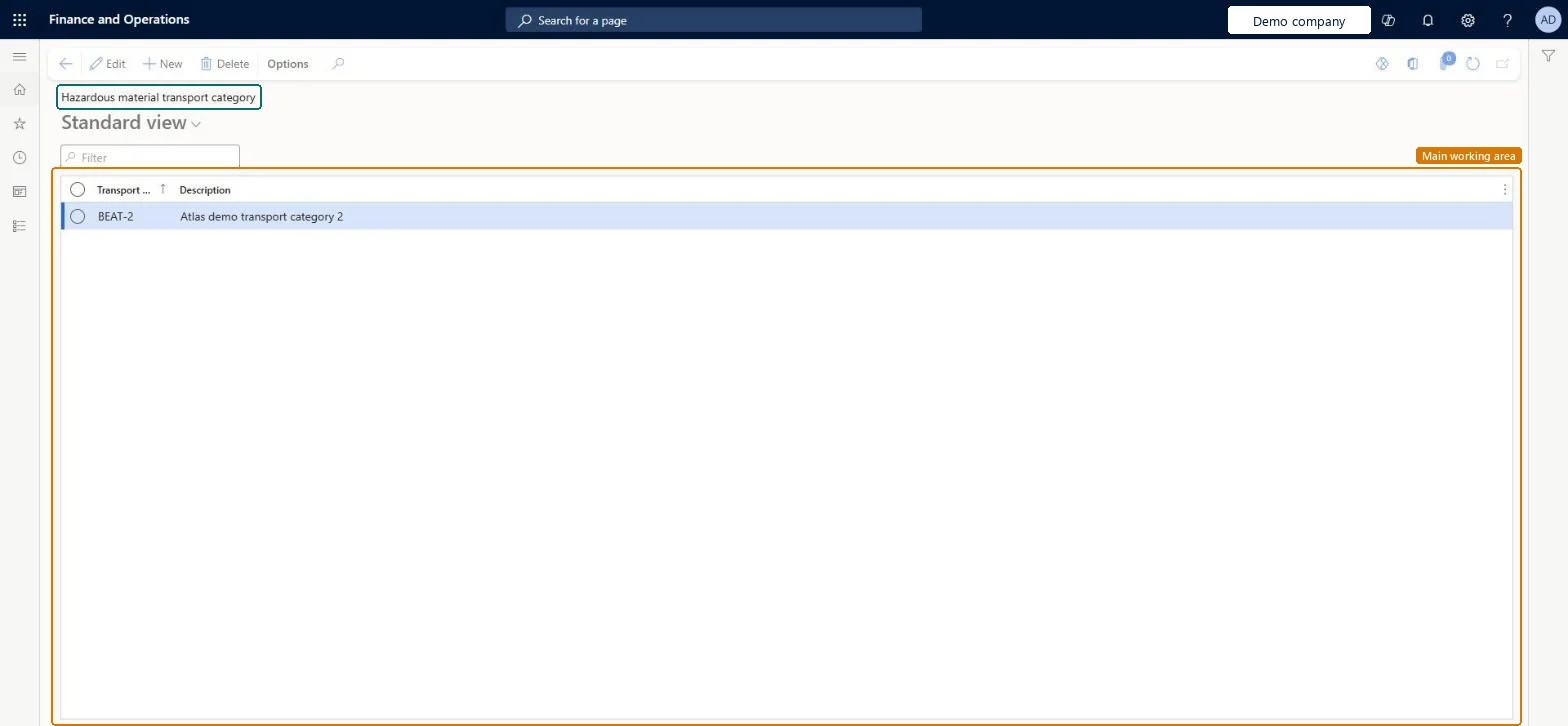
Setup step on the Hazardous material transport category page · Product information management
Set up Hazardous material transport category
Use this page to create transport categories, each with a display name and a short description, that you can assign to hazardous products and classification groups.
SETUP GUIDEHow to set it up8 sections. Choose a role to highlight what matters to you.
Everyone
1What it is and why
What it is
A setup page where you define transport categories that group similar hazardous products on reports.
What you do here
Use this page to create transport categories, each with a display name and a short description, that you can assign to hazardous products and classification groups.
Example
For example, transport categories are used on the Shipment summary report, which you can print from the warehouse shipment record.
The page in Dynamics 365. page title tab to open what to set or check
About the examples: Examples and screenshots in this guide use BEAT, a demo company in a Dynamics 365 test environment. Use your own company's codes and values instead of copying them.
Setup steps on this page
Set up Hazardous material transport category
Use this page to create transport categories, each with a display name and a short description, that you can assign to hazardous products and classification groups.
Steps from Microsoft
Go to Product information management > Setup > Hazardous material shipping documentation > Hazardous material transport category.
Select New to add a transport category.
Enter the display name for the transport category.
In the Description field, enter a short description.
One transport category per group of similar hazardous products you want grouped on shipping reports such as the Shipment summaryLearn describes transport categories as the specification that groups similar hazardous products on reports, including the Shipment summary report.
Treating the values as company-specific. Hazardous material specification values are shared by all legal entities, so a change affects every company.
Reversible: Categories can be edited at any time, but the data is shared across all legal entities.
Technical architect
6Technical
Menu item
HMIMTransportCategoryDisplayChecked in Dynamics 365
Form
HMIMTransportCategoryListChecked in Dynamics 365
Table
HMIMTransportCategoryShown as “HAZARDOUS MATERIAL TRANSPORT CATEGORY” in Record infoKey field: TransportCategoryCodeChecked in Dynamics 365
Data entities
HMIMTransportCategoryEntityHazardous material transport category Microsoft data model
Who can open it
PrivilegesHazardous material transport category maintain HMIMTransportCategoryDisplayMaintainHazardous material transport category view HMIMTransportCategoryDisplayViewDutiesMaintain Hazardous materials HMIMHazardousMaterialsMaintainView Hazardous materials HMIMHazardousMaterialsView2 security rolesHazardous materials manager HMIMHazardousMaterialsManagerHazardous materials viewer HMIMHazardousMaterialsViewerChecked in Dynamics 365
Roles to set it up and use it
To set it up or change itHazardous materials manager HMIMHazardousMaterialsManagerTo use itHazardous materials viewer HMIMHazardousMaterialsViewerGive people one of these roles. On this system, 2 roles can open this page.Checked in Dynamics 365
Checked in a working Dynamics 365 system, version 10.0.49: the menu item, form, table and security, the page.
To cite this step: PIM-HAZ-140, Set up Hazardous material transport category. Beyond ERP Atlas Hub, 2026-11-11. https://www.beyonderp.cloud/atlas/step/PIM-HAZ-140