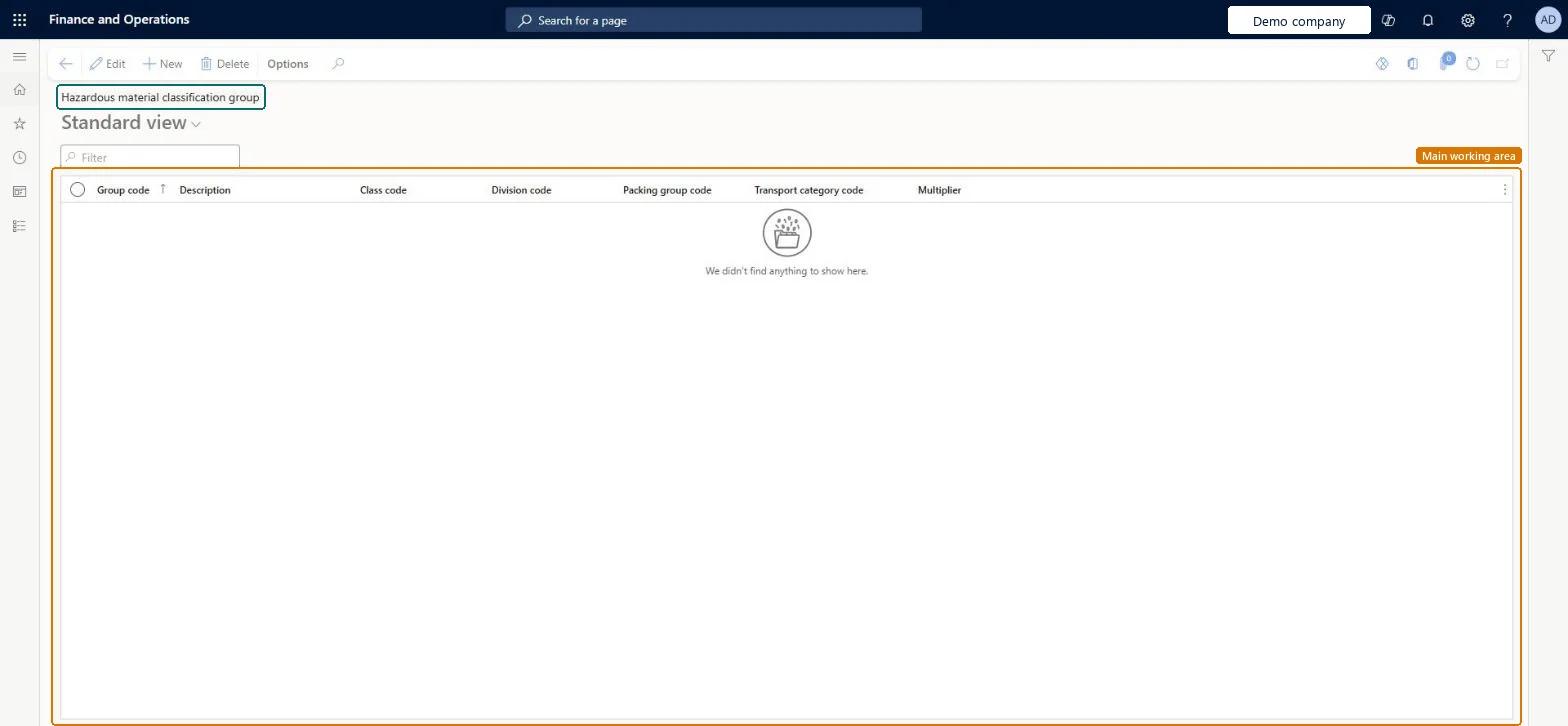
A setup page where you define hazardous material classification groups, each a template of related hazardous material field values that you can apply to released items.
PAGE GUIDEWhat the page does and how to use it8 sections. Choose a role to highlight what matters to you.
Everyone
1What it is and why
What it is
A setup page where you define hazardous material classification groups, each a template of related hazardous material field values that you can apply to released items.
What you do here
Use this page to set up combinations of class, division, packing group, transport category and multiplier that you often use together. When you assign a group code to a released item, its values are copied into the item's fields.
The page in Dynamics 365. page title tab to open what to set or check
About the examples: Examples and screenshots in this guide use BEAT, a demo company in a Dynamics 365 test environment. Use your own company's codes and values instead of copying them.
Setup steps on this page
Set up Hazardous material classification group
Use this page to set up combinations of class, division, packing group, transport category and multiplier that you often use together. When you assign a group code to a released item, its values are copied into the item's fields.
How to use it
Go to Product information management > Setup > Hazardous material shipping documentation > Hazardous material classification group.
On the Action Pane, select New.
Enter a Group code and a Description.
Select the Class code, Division code, Packing group code and Transport category code.
The multiplier for the selected class and division under the applicable regulation, used to calculate the total hazardous material points in a load or shipment.Microsoft Learn
Multiplier
Test checklist
Create a group with a class, a division of that class, a packing group, a transport category and a multiplier.
Assign the group code to a hazardous released item.
Check that class, division, packing group, transport category and multiplier are filled on the item.
One group per class, division, packing group, transport category and multiplier combination you use often, with the Multiplier taken from the applicable regulationAssigning the group code copies these values into the item's fields, which makes item setup faster. The multiplier feeds the hazardous material points calculated for a load or shipment.
Using a multiplier that isn't from the regulation. Hazardous material points for loads and shipments are then wrong.
Reversible: The group is a template copied onto items at assignment. You can change it any time; items already set up keep the values they were given. Microsoft Learn
Technical architect
6Technical
Menu item
HMIMClassGroupListDisplayChecked in Dynamics 365
Form
HMIMClassGroupListChecked in Dynamics 365
Table
HMIMClassGroupShown as “CLASSIFICATION GROUP” in Record infoKey field: ClassGroupCodeChecked in Dynamics 365
PrivilegesHazardous material class group maintain HMIMClassGroupListDisplayMaintainHazardous material class group view HMIMClassGroupListDisplayViewDutiesMaintain Hazardous materials HMIMHazardousMaterialsMaintainView Hazardous materials HMIMHazardousMaterialsView2 security rolesHazardous materials manager HMIMHazardousMaterialsManagerHazardous materials viewer HMIMHazardousMaterialsViewerChecked in Dynamics 365
Roles to set it up and use it
To set it up or change itHazardous materials manager HMIMHazardousMaterialsManagerTo use itHazardous materials viewer HMIMHazardousMaterialsViewerGive people one of these roles. On this system, 2 roles can open this page.Checked in Dynamics 365