About the examples: Examples and screenshots in this guide use BEAT, a demo company in a Dynamics 365 test environment. Use your own company's codes and values instead of copying them.
Setup steps on this page
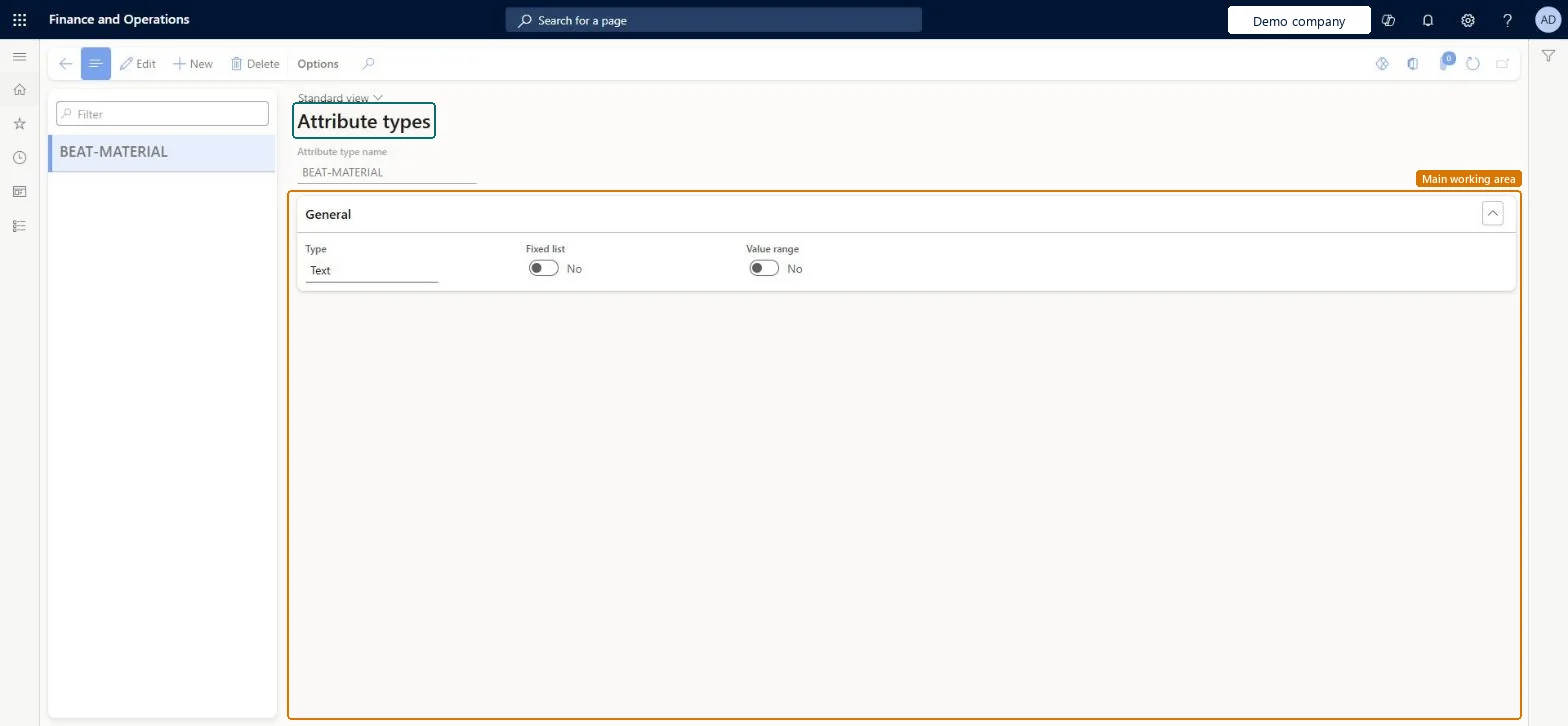
Set up Attribute types
Use this page to create attribute types, choose their data type and, where needed, define a fixed list of values or a range of valid values.
Steps from Microsoft
Go to Product information management > Setup > Categories and attributes > Attribute types.
Select New to add a new attribute type, and enter a name for it.
On the General FastTab, in the Type field, select the type of data that users can enter for attributes of this type.
If the type is Decimal or Integer, select a unit of measure.
If the type is Text, select Fixed list, and then enter the list of values on the Values FastTab.
To define a range of valid values, select Value range, and then enter the range on the Range FastTab.
Text with Fixed list = Yes for attributes used as refiners, with a manageable list (up to 100 to 200 values)Learn recommends refinable attributes of type Text with a fixed list kept manageable, and Text without a fixed list when a refiner has 1,000 or more values.
Using the Decimal type for attributes that cloud-powered search needs. Decimal isn't supported for cloud-powered search.
Hard to reverse: After an attribute is refinable for a channel, don't change its attribute type; create a new attribute and retire the old one.
Technical architect
6Technical
Menu item
EcoResAttributeTypeChecked in Dynamics 365
Form
EcoResAttributeTypeChecked in Dynamics 365
Table
EcoResAttributeTypeShown as “ATTRIBUTE TYPES” in Record infoKey field: NameChecked in Dynamics 365
Data entities
EcoResProductAttributeValueTypeEntityProduct attribute value types Microsoft data model EcoResProductAttributeEnumerationIntegerValueTypeEntityProduct attribute integer enumeration types Microsoft data model EcoResProductAttributeEnumerationValueTypeEntityProduct attribute enumeration types Microsoft data model
Who can open it
PrivilegesMaintain attribute types EcoResAttributeTypeView attribute types EcoResAttributeTypeViewDutiesInquire into category hierarchy details EcoResCategoryMasterInquireMaintain all category hierarchy details EcoResCategoryMasterMaintainMaintain product configuration model master PCProductConfigModelMasterMaintainInquire into product configuration model master PCProductConfigurationModelMasterInquirEnable purchasing process ProcPurchasingProcessEnable12 security rolesProduct designer BOMProductDesignerProduct design manager BOMProductDesignManagerMaterials manager InventMaterialsManagerRetail catalog manager RetailCatalogManagerRetail merchandising manager RetailMerchandisingManagerRetail service RetailServiceProcess engineer RouteProcessEngineerProcess engineering manager RouteProcessEngineeringManagerPurchasing manager TradePurchasingManagerAccounts payable manager VendInvoiceAccountsPayableManagerPurchasing agent VendPurchasingAgentPurchasing Agent - Public Sector VendPurchasingAgent_PSNChecked in Dynamics 365
Roles to set it up and use it
To set it up or change itProduct designer BOMProductDesignerProcess engineer RouteProcessEngineerRetail service RetailServiceRetail merchandising manager RetailMerchandisingManagerRetail catalog manager RetailCatalogManagerTo use itProduct design manager BOMProductDesignManagerProcess engineering manager RouteProcessEngineeringManagerMaterials manager InventMaterialsManagerGive people one of these roles. On this system, 12 roles can open this page.Checked in Dynamics 365
EcoResProductAttributeValueTypeEntity (Product attribute value types): shared by all companies, in Microsoft's default template 310 - Product information management.EcoResProductAttributeEnumerationIntegerValueTypeEntity (Product attribute integer enumeration types): shared by all companies.EcoResProductAttributeEnumerationValueTypeEntity (Product attribute enumeration types): shared by all companies.Load order: Microsoft's default template 310 - Product information management loads Product attribute value types at execution unit 1, level 30, sequence 10. Lower levels load first, and entities at the same level load in sequence order.Load first: the default templates at lower levels (System setup to General ledger)Microsoft Learn