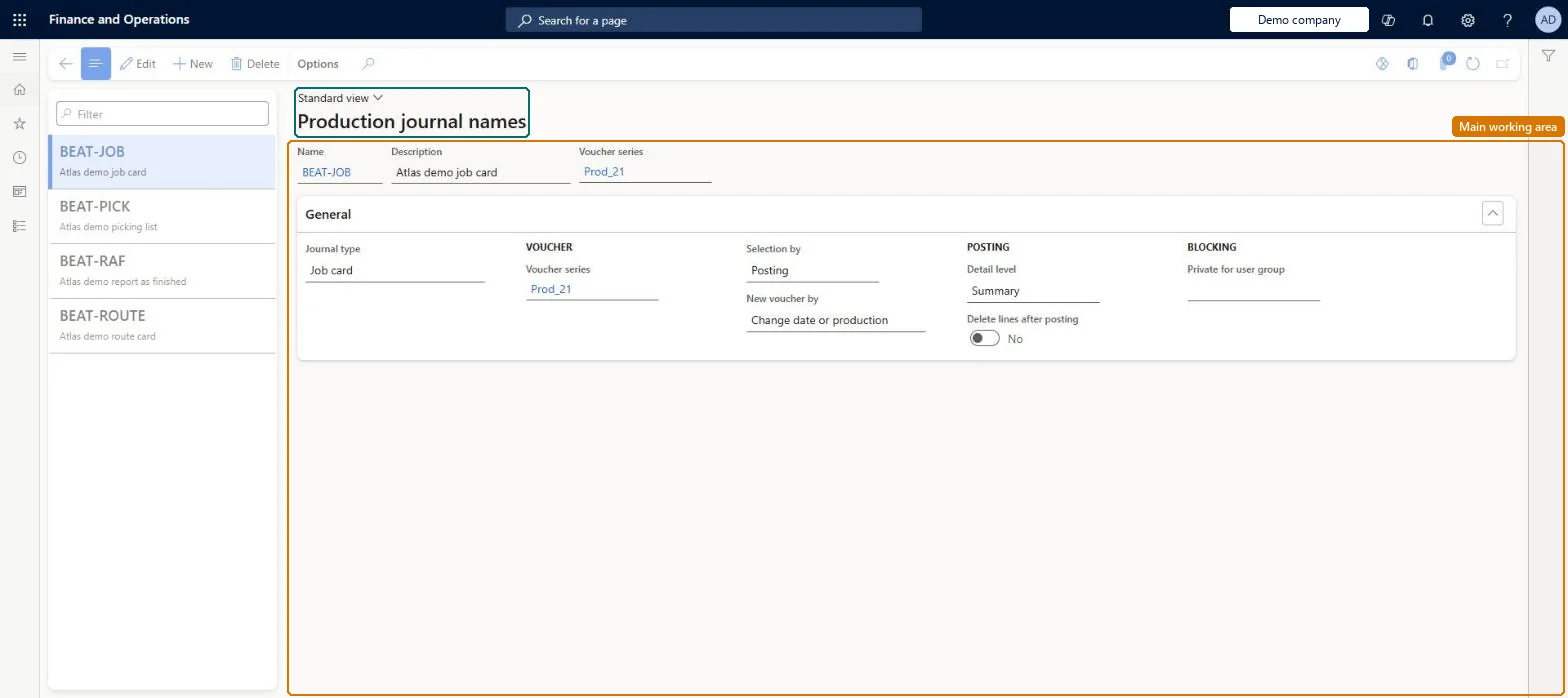
Setup step on the Production journal names page · Production control
Set up Production journal names
Use this page to define the production journal names you want to use to record and post ongoing production transactions, with their voucher series and posting details.
SETUP GUIDEHow to set it up7 sections. Choose a role to highlight what matters to you.
Everyone
1What it is and why
What it is
A setup page where you create the journal names (for picking list, route card, job card and report as finished journals) that production transactions are recorded and posted in.
What you do here
Use this page to define the production journal names you want to use to record and post ongoing production transactions, with their voucher series and posting details.
Example
For example, give each team or site its own picking list journal name so that two people are not working in the same journal at once.
The page in Dynamics 365. page title tab to open what to set or check
About the examples: Examples and screenshots in this guide use BEAT, a demo company in a Dynamics 365 test environment. Use your own company's codes and values instead of copying them.
Setup steps on this page
Set up Production journal names
Use this page to define the production journal names you want to use to record and post ongoing production transactions, with their voucher series and posting details.
How to use it
Go to Production control > Setup > Production journal names.
Select New, or select a journal name in the list pane.
Enter the Name, Description and Voucher series.
On the General FastTab, select the Journal type (picking list, route card, job card or report as finished), the Voucher series, Selection by and New voucher by.
Under Posting, set the Detail level and whether to Delete lines after posting; under Blocking, set Private for user group if only one group may use the journal.
Select Edit to change a journal name, or Delete to remove it.
PrivilegesMaintain production journal names ProdJournalNameMaintainView production journal names ProdJournalNameViewDutiesInquire into production policies ProdProductionPoliciesInquireEnable production process ProdProductionProcessEnable2 security rolesProduction manager ProdProductionManagerProcess engineering manager RouteProcessEngineeringManagerChecked in Dynamics 365
Roles to set it up and use it
To set it up or change itProduction manager ProdProductionManagerProcess engineering manager RouteProcessEngineeringManagerGive people one of these roles. On this system, 2 roles can open this page.Checked in Dynamics 365
ProductionJournalNameEntity (Production journal names): loaded for each company, in Microsoft's default template 410 - Production control.Load order: Microsoft's default template 410 - Production control loads Production journal names at execution unit 1, level 410, sequence 40. Lower levels load first, and entities at the same level load in sequence order.Load first: the default templates at lower levels (System setup to Transportation management)Microsoft Learn
Checked in a working Dynamics 365 system, version 10.0.49: the menu item, form, table and security, the page.
To cite this step: PC-SETUP-030, Set up Production journal names. Beyond ERP Atlas Hub, 2026-11-11. https://www.beyonderp.cloud/atlas/step/PC-SETUP-030