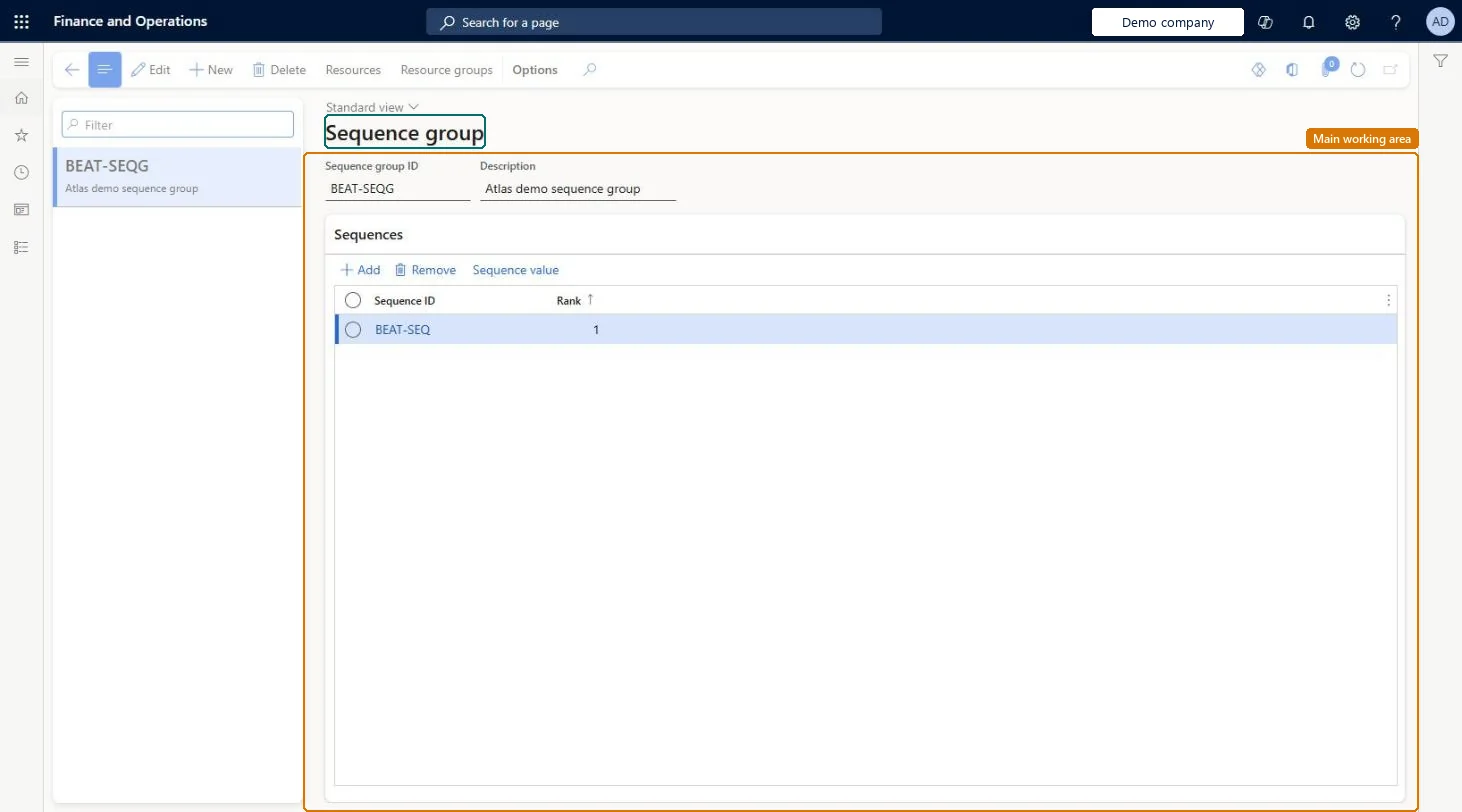
Setup step on the Sequence group page · Master planning
Set up Sequence group
Use this page to combine sequences, such as colour and paint type, into a group and rank them, so that planned batch orders are sequenced by the most important characteristic first.
SETUP GUIDEHow to set it up8 sections. Choose a role to highlight what matters to you.
Everyone
1What it is and why
What it is
A setup page where you create sequence groups and rank the sequences in them, so that production of items with similar characteristics is scheduled in a preferred order.
What you do here
Use this page to combine sequences, such as colour and paint type, into a group and rank them, so that planned batch orders are sequenced by the most important characteristic first.
Example
For example, a paint producer puts a colour sequence and a paint-type sequence in one group, so that orders are sorted by colour and latex is preferred to enamel.
The page in Dynamics 365. page title tab to open what to set or check
About the examples: Examples and screenshots in this guide use BEAT, a demo company in a Dynamics 365 test environment. Use your own company's codes and values instead of copying them.
Setup steps on this page
Set up Sequence group
Use this page to combine sequences, such as colour and paint type, into a group and rank them, so that planned batch orders are sequenced by the most important characteristic first.
Steps from Microsoft
Go to Master planning > Setup > Sequencing > Sequence group.
Create a sequence group.
In the Sequence group ID and Description fields, enter an ID and a description.
In the lower pane, select New to add a sequence to the group.
In the Sequence field, select the sequence, and in the Rank field, enter its rank.
Expecting planned orders to move as soon as master planning runs. Sequenced dates are shown on Sequenced planned orders and update the planned orders only after you select Accept.
Reversible: Group ranking is applied on each master planning run; planned orders change only when accepted.
Technical architect
6Technical
Menu item
PMFSequenceGroupChecked in Dynamics 365
Form
PMFSequenceGroupChecked in Dynamics 365
Table
PMFSequenceGroupShown as “SEQUENCE GROUP” in Record infoKey field: SequenceGroupIdChecked in Dynamics 365
Data entities
ProductionOrderSequencingGroupEntityProduction order sequencing groups Microsoft data model
Who can open it
PrivilegesMaintain sequence group PMFSequenceGroupMaintainView sequence group PMFSequenceGroupViewDutiesEnable master scheduling process ReqMasterSchedulingProcessEnable2 security rolesMaterials manager InventMaterialsManagerProduction manager ProdProductionManagerChecked in Dynamics 365
Roles to set it up and use it
To set it up or change itProduction manager ProdProductionManagerMaterials manager InventMaterialsManagerGive people one of these roles. On this system, 2 roles can open this page.Checked in Dynamics 365
Actions on the page
(Action Pane without tabs): Resources, Resource groupsChecked in Dynamics 365