About the examples: Examples and screenshots in this guide use BEAT, a demo company in a Dynamics 365 test environment. Use your own company's codes and values instead of copying them.
Setup steps on this page
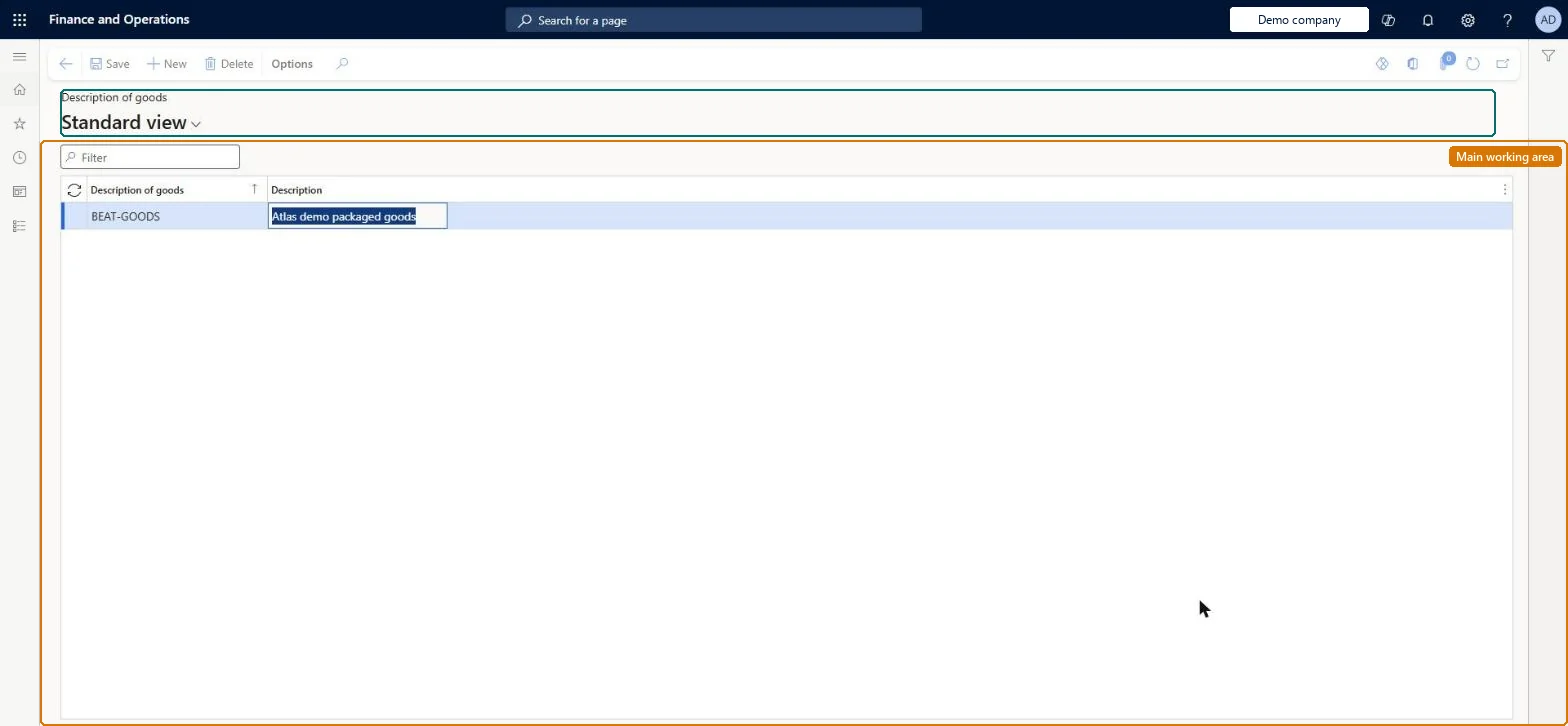
Set up Description of goods
Use this page to view, create and delete description-of-goods records that users later select on the shipping container header or the folio header.
How to use it
Go to Landed cost > Shipping information setup > Description of goods.
Use the Filter box to find a record.
Select New and enter the Description of goods code and its Description.
Select Save, or select a record and choose Delete to remove it.
Reversible: Records can be created and deleted at any time; they only identify containers and folios.
Technical architect
5Technical
Menu item
ITMGoodsDescTableChecked in Dynamics 365
Form
ITMGoodsDescriptionTableChecked in Dynamics 365
Table
ITMGoodsDescriptionTableShown as “DESCRIPTION OF GOODS” in Record infoKey field: ShipGoodsDescChecked in Dynamics 365
Data entities
ITMGoodsDescriptionEntityDescription of goods Checked in Dynamics 365
Who can open it
PrivilegesMaintain description of goods ITMGoodsDescTableMaintainDutiesMaintain Landed cost setup ITMSetupMaintain1 security roleLanded cost manager ITMManagerChecked in Dynamics 365
Roles to set it up and use it
To set it up or change itLanded cost manager ITMManagerGive people one of these roles. On this system, 1 role can open this page.Checked in Dynamics 365
Developer
6Developer
Open it by URL
https://<your-environment>/?mi=ITMGoodsDescTable
Integrate with
ITMGoodsDescriptionEntity data entity Checked in Dynamics 365