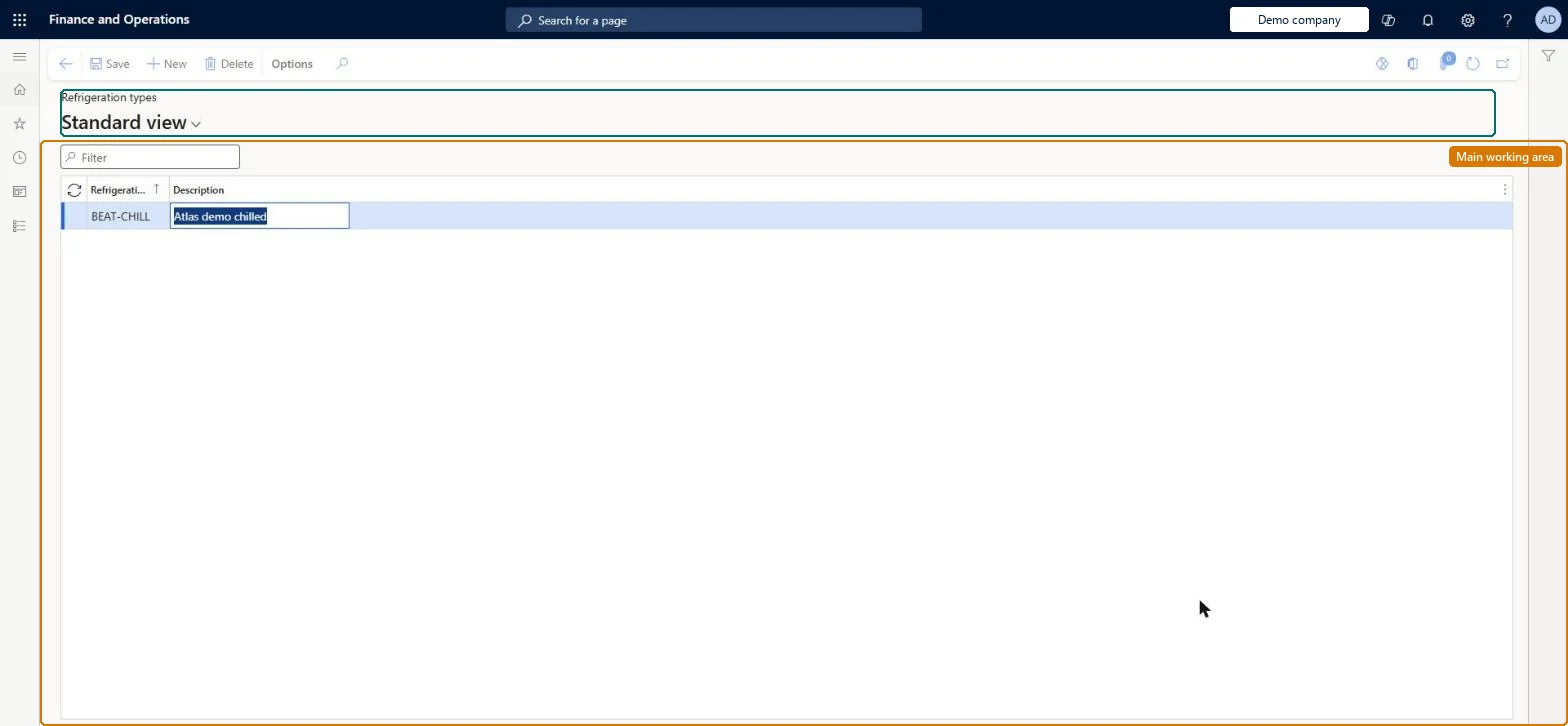
Setup step on the Refrigeration types page · Landed cost
Set up Refrigeration types
Use this page to view, add and remove refrigeration type records. A refrigeration type is then selected on the shipping container when it is set up on the All shipping containers page.
SETUP GUIDEHow to set it up7 sections. Choose a role to highlight what matters to you.
Everyone
1What it is and why
What it is
A setup page where you define refrigeration types, an extra grouping used to identify shipping containers, usually refrigerated ones.
What you do here
Use this page to view, add and remove refrigeration type records. A refrigeration type is then selected on the shipping container when it is set up on the All shipping containers page.
Example
For example, you create a Reefer refrigeration type and select it on every chilled container so that refrigerated shipments can be grouped and identified.
The page in Dynamics 365. page title tab to open what to set or check
About the examples: Examples and screenshots in this guide use BEAT, a demo company in a Dynamics 365 test environment. Use your own company's codes and values instead of copying them.
Setup steps on this page
Set up Refrigeration types
Use this page to view, add and remove refrigeration type records. A refrigeration type is then selected on the shipping container when it is set up on the All shipping containers page.
Steps from Microsoft
Go to Landed cost > Containers setup > Refrigeration types.
Select New to add a record.
In Refrigeration type, enter a unique identification name or number.
In Description, enter a description of the refrigeration type.
To set it up or change itLanded cost manager ITMManagerGive people one of these roles. On this system, 1 role can open this page.Checked in Dynamics 365