About the examples: Examples and screenshots in this guide use BEAT, a demo company in a Dynamics 365 test environment. Use your own company's codes and values instead of copying them.
Step by step, with screenshots
Set up Counting reason code groups1 screen
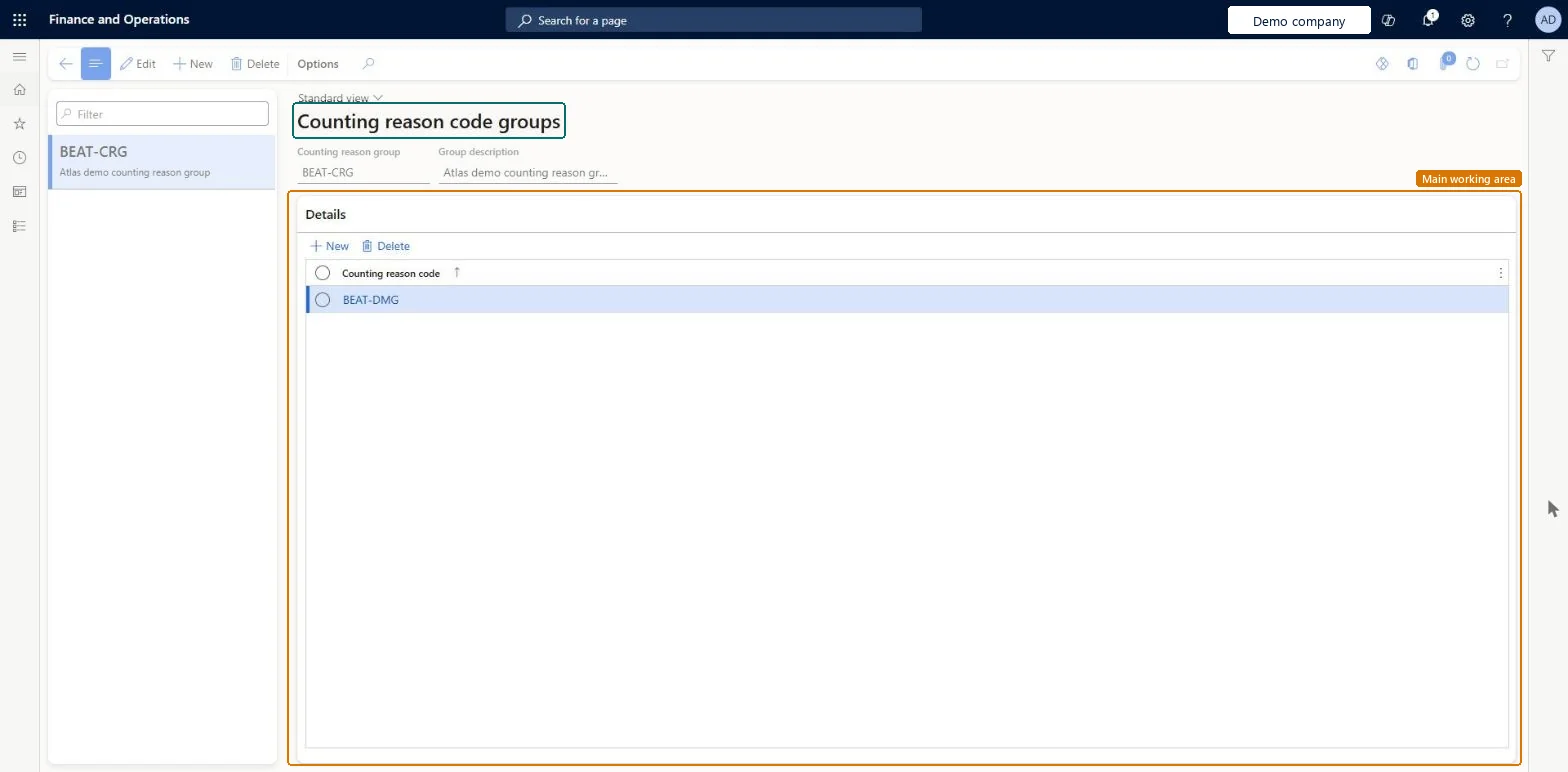
Use this page to show warehouse workers only a short, relevant list of counting reason codes in the Warehouse Management mobile app.
Screen 1
Create a counting reason code group
Go to Inventory management > Setup > Inventory > Counting reason code groups
Select New
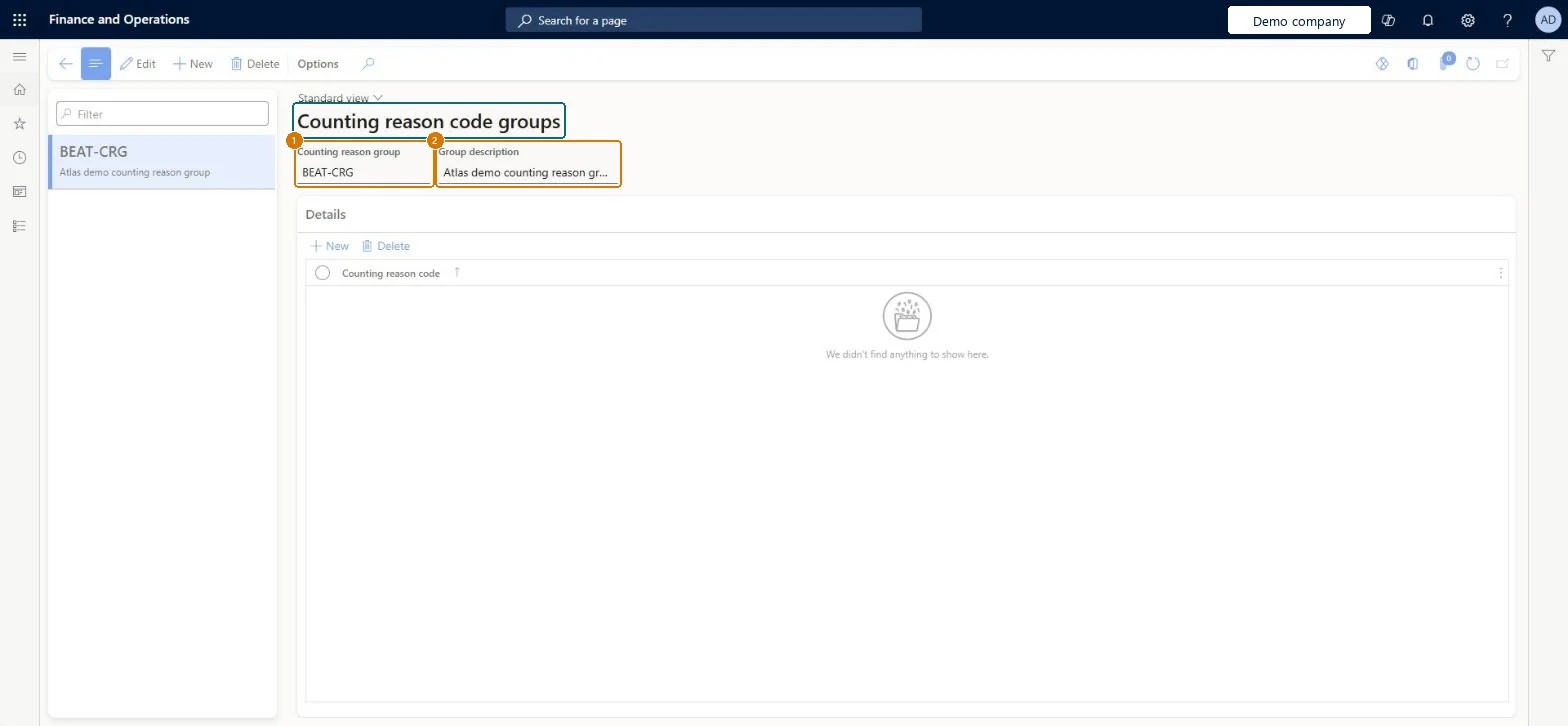
Enter the group code and description
Select Save
Under Details, add the counting reason codes that workers may pick from this group
1Counting reason group
BEAT-CRG
2Group description
Counting reason group
Show the full screen page title tab to open what to set or check
Steps from Microsoft
Go to Inventory management > Setup > Inventory > Counting reason code groups.
On the Action Pane, select New.
Enter the Counting reason group and Group description.
Select Save.
In the Details section, select New and choose a Counting reason code.
A short group of relevant codes per Adjustment in or Adjustment out menu item, with Use process guide set to Yes on that menu itemThe limited list appears in the Warehouse Management mobile app only when the group is assigned to an Adjustment in/out menu item that uses the process guide.
Assigning the group to an Adjustment out menu item with Use process guide = No, so workers don't get the limited list.
Solution architect
5Design impact
Can it be undone
Reversible: Groups and their codes can be changed at any time; the mobile menu shows the current list.
Technical architect
6Technical
Menu item
InventCountingReasonCodeGroupChecked in Dynamics 365
Form
InventCountingReasonCodeGroupChecked in Dynamics 365
Table
InventCountingReasonCodeGroupShown as “Counting reason code groups” in Record infoChecked in Dynamics 365
Data entities
InventCountingReasonCodeGroupEntityCounting reason code groups Checked in Dynamics 365
Who can open it
PrivilegesMaintain counting reason code group InventCountingReasonCodeGroupMaintainView counting reason code group InventCountingReasonCodeGroupViewDutiesInquire into warehouse operation policies WMSWarehouseOperationPoliciesInquireEnable warehouse operation process WMSWarehouseOperationProcessEnable3 security rolesMaterials manager InventMaterialsManagerWarehouse planner WHSWarehousePlannerWarehouse manager WMSWarehouseManagerChecked in Dynamics 365
Roles to set it up and use it
To set it up or change itWarehouse manager WMSWarehouseManagerTo use itMaterials manager InventMaterialsManagerWarehouse planner WHSWarehousePlannerGive people one of these roles. On this system, 3 roles can open this page.Checked in Dynamics 365
Checked in a working Dynamics 365 system, version 10.0.49: the menu item, form, table and security, the page, the demo records and the values in the screenshots.
To cite this step: IM-SETUP-220, Set up Counting reason code groups. Beyond ERP Atlas Hub, 2026-11-11. https://www.beyonderp.cloud/atlas/step/IM-SETUP-220