About the examples: Examples and screenshots in this guide use BEAT, a demo company in a Dynamics 365 test environment. Use your own company's codes and values instead of copying them.
Setup steps on this page
Set up Items blocked for inventory updates
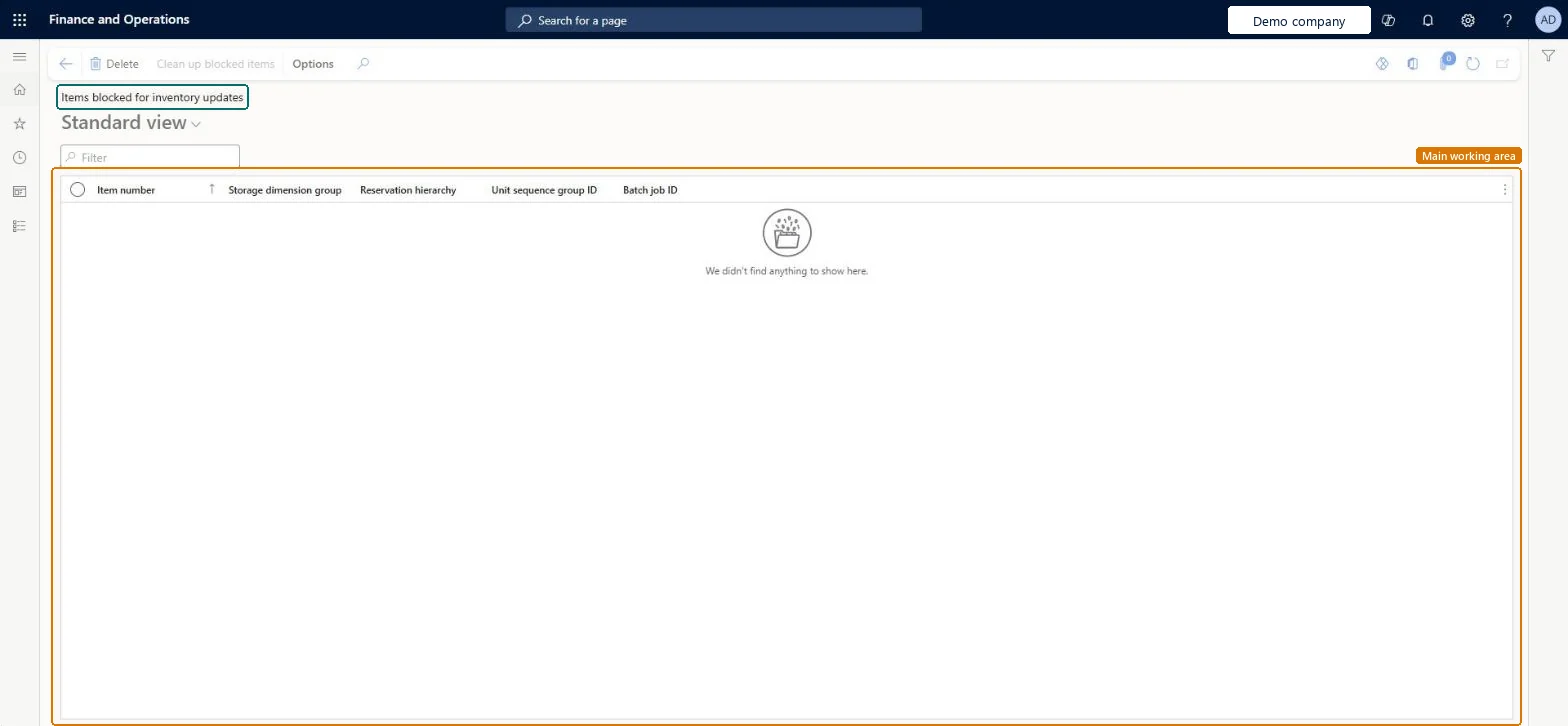
Use this page to find the items that must be moved to a new storage dimension group before they can be processed again.
How to use it
Go to Inventory management > Setup > Inventory > Items blocked for inventory updates.
Use the Filter box to find an item.
Check the Item number, Storage dimension group, Reservation hierarchy, Unit sequence group ID and Batch job ID columns.
Select an item and use Clean up blocked items or Delete on the Action Pane when they are available.
Source: Checked in Dynamics 365
Test checklist
Note the items listed on this page.
Add each to Change storage dimension group for items with the target group, reservation hierarchy and unit sequence group.
Select Validate changes and fix any errors.
Select Process changes, wait for the batch tasks, and check the item is no longer listed and an inventory journal for it posts.
Move each listed item to a new storage dimension group: either Site, Warehouse and Location only, or a group with Use warehouse management processes (license plates)These are the two options Learn gives to unblock items that used the Pallet ID dimension in AX 2012; the change is made on Change storage dimension group for items and is allowed even with open transactions.
Hard to reverse: Process changes updates all inventory dimensions in batch; validation issues may need fixes in the source data and another data upgrade.
If you change it later
Items listed here are blocked from all inventory processes until they're migrated. Microsoft Learn
Technical architect
6Technical
Menu item
InventUpdateBlockedItemChecked in Dynamics 365
Form
InventUpdateBlockedItemChecked in Dynamics 365
Who can open it
PrivilegesView items blocked for inventory updates InventUpdateBlockedItemViewDutiesInquire into items blocked for inventory updates InventUpdateBlockedItemInquire1 security roleMaterials manager InventMaterialsManagerChecked in Dynamics 365
Roles to set it up and use it
To use itMaterials manager InventMaterialsManagerGive people one of these roles. On this system, 1 role can open this page.Checked in Dynamics 365
Checked in a working Dynamics 365 system, version 10.0.49: the menu item, form, table and security, the page.
To cite this step: IM-SETUP-200, Set up Items blocked for inventory updates. Beyond ERP Atlas Hub, 2026-11-11. https://www.beyonderp.cloud/atlas/step/IM-SETUP-200