Setup step on the Charges code page · Inventory management
Set up Charges code
A setup page where you define charges codes, each with a description, an item sales tax group, the debit and credit posting for the charge and foreign trade settings.
SETUP GUIDEHow to set it up8 sections. Choose a role to highlight what matters to you.
Everyone
1What it is and why
What it is
A setup page where you define charges codes, each with a description, an item sales tax group, the debit and credit posting for the charge and foreign trade settings.
What you do here
Use this page to set up the charges codes that track extra amounts, such as freight or insurance, in addition to the lines on an order, and to define how each charge is posted.
Example
For example, a freight or insurance charge paid on a purchase order can be set up to post to an expense account or to be added to the cost of the items.
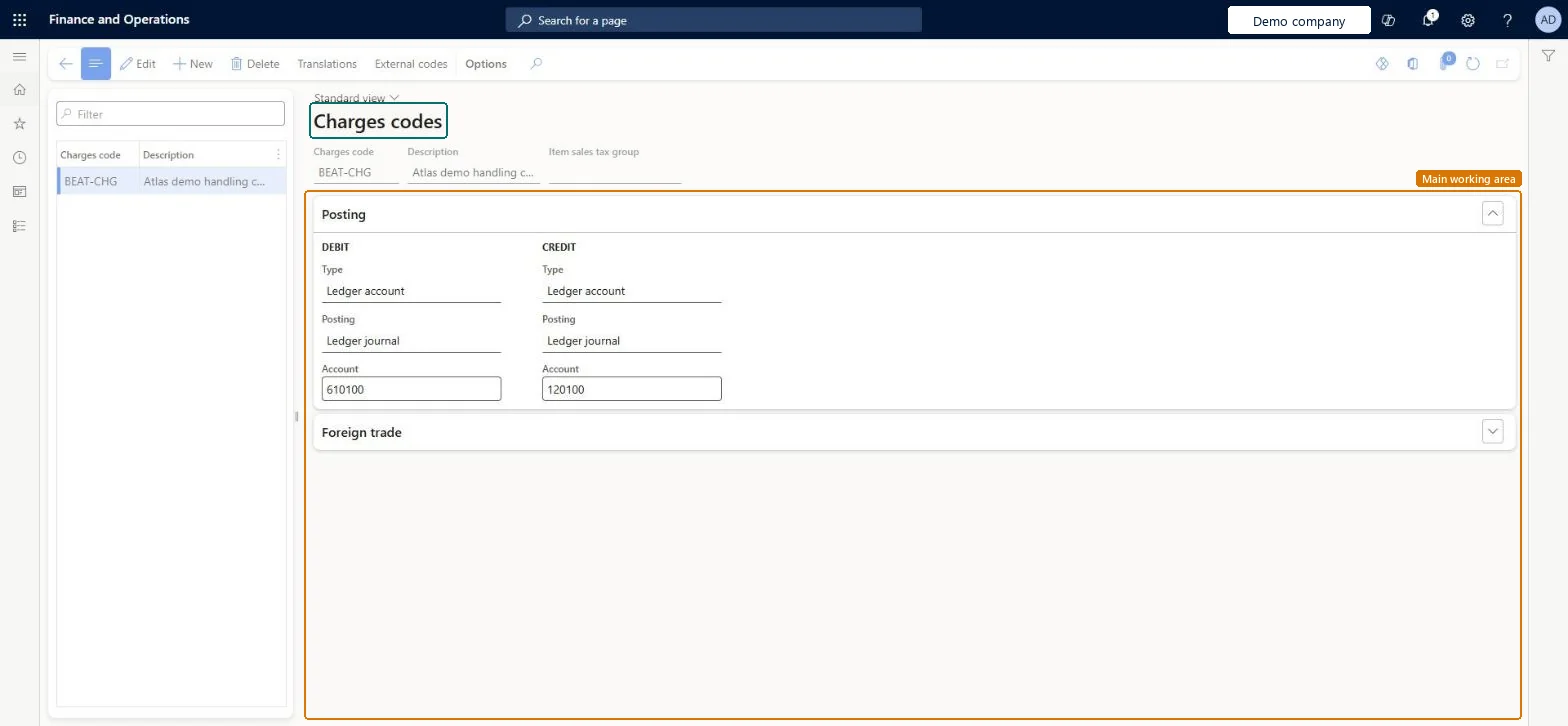
The page in Dynamics 365. page title tab to open what to set or check
About the examples: Examples and screenshots in this guide use BEAT, a demo company in a Dynamics 365 test environment. Use your own company's codes and values instead of copying them.
Step by step, with screenshots
Set up Charges code1 screen
Screen 1
Create a charges code
Go to Inventory management > Setup > Charges > Charges code
Select New
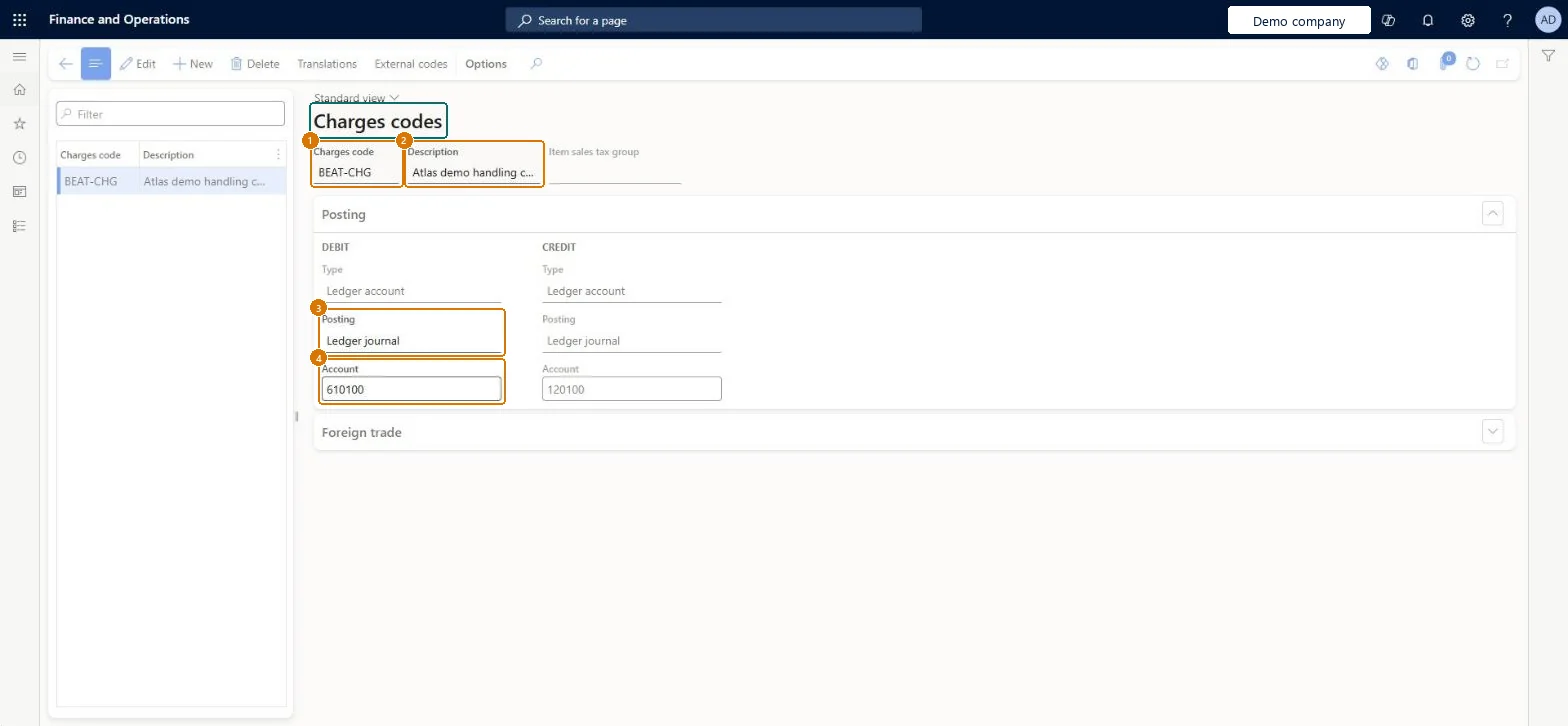
Enter the charges code and description
Under Posting, choose the debit type, posting type and account
Choose the credit type, posting type and account
Select Save
1Charges code
BEAT-CHG
2Description
Handling charge
Debit type
Ledger account
Debit posting
Ledger journal
Debit account
610100
Credit type
Ledger account
Credit posting
Ledger journal
Credit account
120100
Show the full screen page title tab to open what to set or check
How to use it
Go to Inventory management > Setup > Charges > Charges code.
Select New to add a charges code.
Enter the Charges code, Description and Item sales tax group.
Under Posting, set the Type, Posting and Account for Debit and for Credit.
Expand Foreign trade to review its settings.
Select Save.
Source: Checked in Dynamics 365
Fields on the page
Field
What it means
Example
Table column
Charges code
The code for the charge, such as freight or an invoice fee.Microsoft Learn
HANDLING
MarkupCode
Description
Handling charge
Txt
Debit type
Ledger account
CustType
Debit posting
Ledger journal
CustPosting
Debit account
610100
CustomerLedgerDimension
Credit type
Ledger account
VendType
Credit posting
Ledger journal
VendPosting
Credit account
120100
VendorLedgerDimension
Test checklist
Create a charges code FREIGHT with credit type Customer/Vendor and debit type Item.
Add the charge to a purchase order header, then use Allocate charges to move it to the lines.
Confirm the purchase order, post product receipt and invoice.
Check the voucher: the vendor is credited for the charge and the item cost includes it.
Customer/Vendor on one side and Ledger account or Item on the other: for purchase charges, credit Customer/Vendor and debit Ledger account (expense) or Item (add to item cost)These are the posting patterns Learn gives: the vendor is credited, and the debit either expenses the charge or adds it to the cost of the items.
To set it up or change itSales manager TradeSalesManagerRetail service RetailServiceRental sales manager RentalSalesManagerRental manager RentalManagerRental coordinator agent RentalCoordinatorAgentTo use itRetail store manager RetailStoreManagerProject manager ProjProjectManagerSales clerk TradeSalesClerkSales representative TradeSalesRepresentativeCustomer service representative TradeCustomerServiceRepresentativeGive people one of these roles. On this system, 19 roles can open this page.Checked in Dynamics 365
Actions on the page
Options: Personalize, Page options, ShareChecked in Dynamics 365
InventoryChargeEntity (Inventory charge codes): loaded for each company, in Microsoft's default template 405 - Transportation management.PurchProcurementChargeEntity (Procurement charge codes): loaded for each company, in Microsoft's default template 120 - Accounts payable.SalesChargeEntity (Sales charge codes): loaded for each company, in Microsoft's default template 140 - Accounts receivable.Load order: Microsoft's default template 405 - Transportation management loads Inventory charge codes at execution unit 1, level 30, sequence 10. Lower levels load first, and entities at the same level load in sequence order.Load first: the default templates at lower levels (System setup to General ledger)Microsoft Learn
Checked in a working Dynamics 365 system, version 10.0.49: the menu item, form, table and security, the page, the demo records and the values in the screenshots.
To cite this step: IM-SETUP-070, Set up Charges code. Beyond ERP Atlas Hub, 2026-11-11. https://www.beyonderp.cloud/atlas/step/IM-SETUP-070