About the examples: Examples and screenshots in this guide use BEAT, a demo company in a Dynamics 365 test environment. Use your own company's codes and values instead of copying them.
Step by step, with screenshots
Set up Tracking number groups1 screen
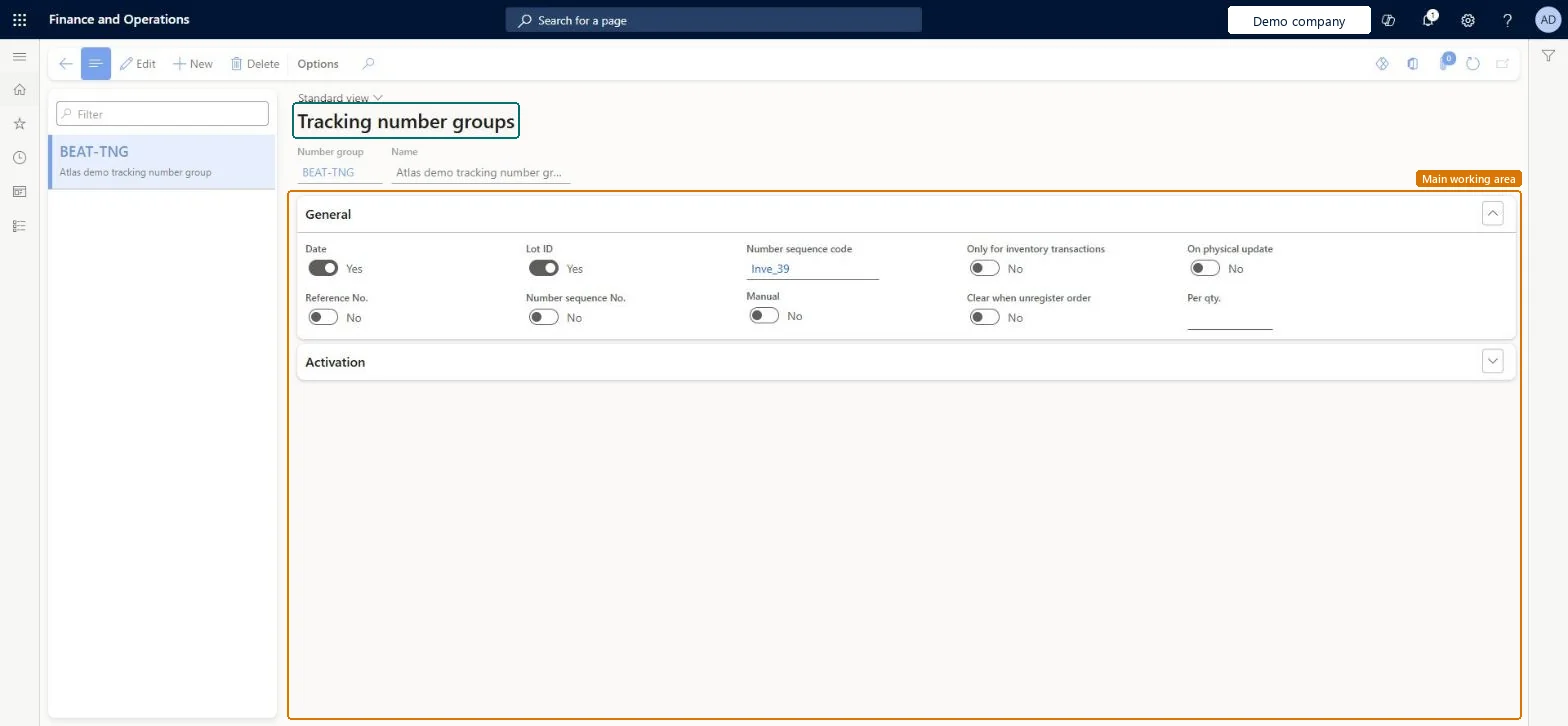
Use this page to control when and how serial and batch numbers are generated, and in which modules automatic numbering is turned on.
Screen 1
Create a tracking number group
Go to Inventory management > Setup > Dimensions > Tracking number groups
Select New
Enter the number group code and name
Under General, choose which segments make up the number (date, lot ID, reference, number sequence) and whether numbers are entered manually
Under Activation, choose the modules where automatic numbering is turned on
Select Save
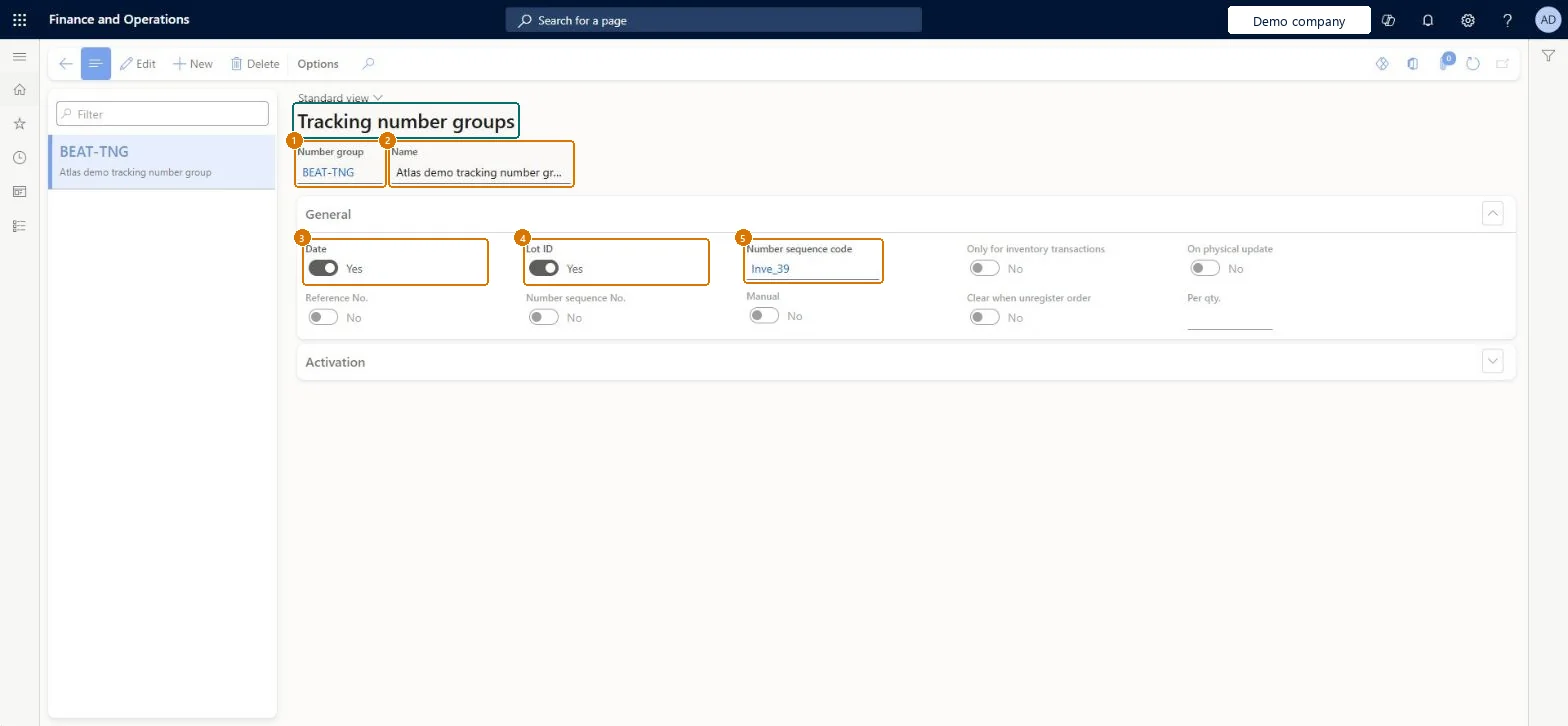
1Number group
BEAT-TNG
2Name
Tracking number group
3Date
Yes
4Lot ID
Yes
5Number sequence code
Inve_39 (the default)
Show the full screen page title tab to open what to set or check
How to use it
Go to Inventory management > Setup > Dimensions > Tracking number groups.
Select New to add a tracking number group.
Enter a Number group and a Name.
On the General tab, set options such as Date, Lot ID, Reference No., Number sequence No., Manual, Only for inventory transactions, Clear when unregister order and On physical update, and enter a Number sequence code and Per qty. if needed.
Expand Activation to review its settings.
Select Save.
Source: Checked in Dynamics 365
Fields on the page
Field
What it means
Example
Table column
Manual
Lets you assign serial and batch numbers manually for products in this group.Microsoft Learn
ManualAllocation
Only for inventory transactions
Assigns the numbers to the inventory transactions rather than to the order line.Microsoft Learn
OnlyInventTransaction
On physical update
Assigns the number only when a physical transaction, such as a packing slip, is posted.Microsoft Learn
PhysicalUpdate
Per qty.
How many products share one generated number; enter 1 for unique numbers.Microsoft Learn
PerQty
Order activation
Turns on automatic numbering in Accounts receivable and Sales and marketing.Microsoft Learn
SalesActivation
Purchase activation
Turns on automatic numbering in Accounts payable and Procurement and sourcing.Microsoft Learn
PurchActivation
Inventory activation
Turns on automatic numbering in inventory and warehouse management.Microsoft Learn
InventActivation
Production activation
Turns on automatic numbering in Production control.Microsoft Learn
ProdActivation
Kanban activation
Turns on automatic numbering in lean manufacturing.Microsoft Learn
KanbanActivation
Number group
SERIAL
NumGroupId
Name
The descriptive name of the tracking number group.Checked in Dynamics 365
Tracking number group
Name
Date
Yes
InclExpectedDate
Lot ID
Yes
InclInventTransId
Number sequence code
The number sequence that creates the batch or serial numbers for this group.Checked in Dynamics 365
Inve_39 (the default)
NumberSequence
Test checklist
Create a serial number group with Purchase activation on, Only for inventory transactions on and Per qty. 1, and assign it to a serial-tracked item.
Create a purchase order for 3 of the item.
Open Transactions for the line and check that three transactions each have their own serial number.
Create a sales return (credit note) for the item and check that no new serial number is generated while Order activation is off.
Turn on Purchase, Inventory, Production and Kanban activation and leave Order activation off; for unique serial numbers use Only for inventory transactions with Per qty. 1Learn describes this as the normal setup, because Order activation also generates new numbers when products are returned on credit notes. Per qty. 1 gives each unit its own number.
Using a Per qty. greater than 1 on a serial number group for items with Serial number control: posting the packing slip fails with an error.
Reversible: Group settings apply to numbers generated from then on. Numbers already on receipt transactions can only be changed with a Transfer journal, which moves on-hand from one dimension to another.
If you change it later
The usual setup turns on every activation except Order activation, so that returns don't change serial numbers. Microsoft Learn
Technical architect
6Technical
Menu item
InventNumGroupChecked in Dynamics 365
Form
InventNumGroupChecked in Dynamics 365
Table
InventNumGroupShown as “Number groups” in Record infoKey field: NumGroupId, NameChecked in Dynamics 365
PrivilegesMaintain batch and serial number groups InventNumGroupMaintainView batch and serial number groups InventNumGroupViewDutiesInquire into logistic policies InventLogisticPoliciesInquireEnable the logistic process InventLogisticProcessEnable7 security rolesProduct design manager BOMProductDesignManagerMaterials manager InventMaterialsManagerProduction manager ProdProductionManagerProduction supervisor ProdProductionSupervisorProcess engineer RouteProcessEngineerProcess engineering manager RouteProcessEngineeringManagerWarehouse manager WMSWarehouseManagerChecked in Dynamics 365
Roles to set it up and use it
To set it up or change itWarehouse manager WMSWarehouseManagerMaterials manager InventMaterialsManagerProduction manager ProdProductionManagerTo use itProduction supervisor ProdProductionSupervisorProcess engineer RouteProcessEngineerProduct design manager BOMProductDesignManagerProcess engineering manager RouteProcessEngineeringManagerGive people one of these roles. On this system, 7 roles can open this page.Checked in Dynamics 365
Actions on the page
Options: Personalize, Page options, ShareChecked in Dynamics 365
InventTrackingNumberGroupEntity (Tracking number groups): loaded for each company, in Microsoft's default template 300 - Inventory.Load order: Microsoft's default template 300 - Inventory loads Tracking number groups at execution unit 1, level 40, sequence 10. Lower levels load first, and entities at the same level load in sequence order.Load first: the default templates at lower levels (System setup to dependency bands 30 to 90)Microsoft Learn
Checked in a working Dynamics 365 system, version 10.0.49: the menu item, form, table and security, the page, the demo records and the values in the screenshots.
To cite this step: IM-SETUP-050, Set up Tracking number groups. Beyond ERP Atlas Hub, 2026-11-11. https://www.beyonderp.cloud/atlas/step/IM-SETUP-050