Compensation and benefits manager, Human resource assistant, Human resource manager and 3 more roles
Business process
Develop people strategy
Menu item
HcmLoanType
Main table
HcmLoanType
Data entity
HcmLoanTypeEntity
Setup steps
1 on this page
Show what matters for
SETUP GUIDEHow to set it up8 sections. Choose a role to highlight what matters to you.
Everyone
1What it is and why
What it is
A setup page where you define the types used to group loan items, each with a description and an allowed number of overdue days.
What you do here
Use this page to create loan types and set how many days items of each type can be overdue.
Example
For example, BEAT creates the loan types Keys, Access cards, Uniforms and Phones; Phones allows 5 overdue days, so a phone due on 1 June 2026 is still within the allowance on 5 June.
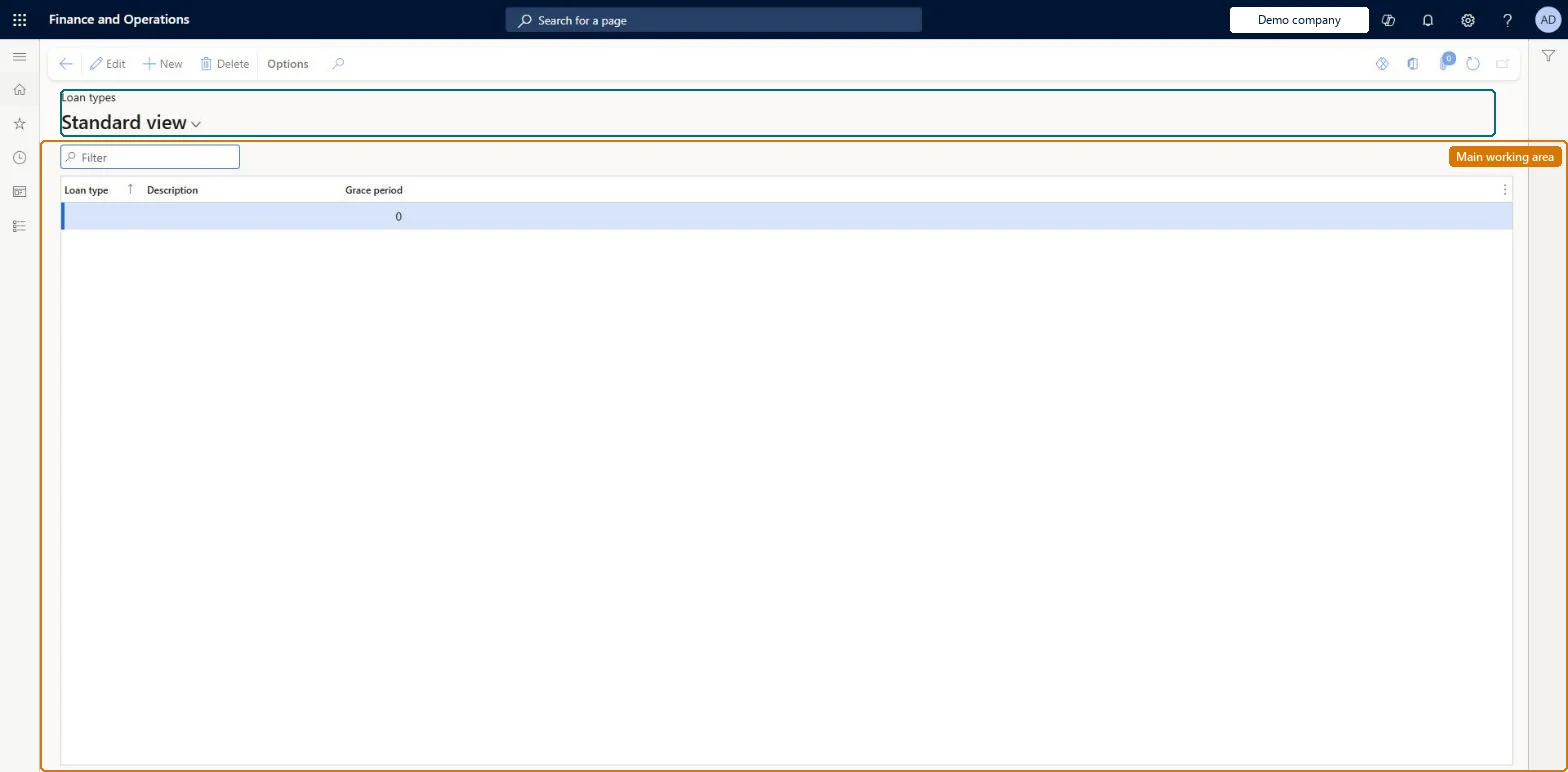
The page in Dynamics 365. page title tab to open what to set or check
About the examples: Examples and screenshots in this guide use BEAT, a demo company in a Dynamics 365 test environment. Use your own company's codes and values instead of copying them.
Setup steps on this page
Set up Loan types
Use this page to create loan types and set how many days items of each type can be overdue.
Steps from Microsoft
Go to Human resources > Workers > Loan items > Loan types.
Select New.
In the Loan type field, enter a value.
In the Description field, enter a value.
Enter the number of days that items assigned to this loan type can be overdue.
One loan type per class of item (for example keys, access cards, uniforms, phones), each with the number of days its items may be overdue.Loan items are grouped by loan type, and the type holds the number of days items of that type can be overdue.
Human resource manager and assistant, Compensation and benefits manager, Payroll administrator and manager, and Recruiter have access. No Feature management feature is needed for this page.
Shared: Data management lists the Loan types entity as shared. Checked in Dynamics 365
Can it be undone
Reversible: Descriptions and overdue days can be changed at any time; the overdue days apply to items assigned to the type.
If you change it later
Loan items are grouped by loan type, and the overdue days of the type apply to every item assigned to it. Microsoft Learn
Technical architect
6Technical
Menu item
HcmLoanTypeChecked in Dynamics 365
Form
HcmLoanTypeChecked in Dynamics 365
Table
HcmLoanTypeShown as “LOAN TYPES” in Record infoKey field: LoanTypeIdChecked in Dynamics 365
Data entities
HcmLoanTypeEntityLoan types Checked in Dynamics 365
Who can open it
PrivilegesMaintain loan types HcmLoanTypeMaintainView loan types HcmLoanTypeViewDutiesEnable workforce management process HcmWorkforceProcessEnableInquire into workforce management process HcmWorkforceProcessInquire6 security rolesCompensation and benefits manager HcmCompensationAndBenefitsManagerHuman resource assistant HcmHumanResourceAssistantHuman resource manager HcmHumanResourceManagerPayroll administrator HcmPayrollAdministratorPayroll manager HcmPayrollManagerRecruiter HcmRecruiterChecked in Dynamics 365
Roles to set it up and use it
To set it up or change itHuman resource assistant HcmHumanResourceAssistantTo use itHuman resource manager HcmHumanResourceManagerCompensation and benefits manager HcmCompensationAndBenefitsManagerRecruiter HcmRecruiterPayroll administrator HcmPayrollAdministratorPayroll manager HcmPayrollManagerGive people one of these roles. On this system, 6 roles can open this page.Checked in Dynamics 365
Developer
7Developer
Open it by URL
https://<your-environment>/?mi=HcmLoanType
Integrate with
HcmLoanTypeEntity data entity Checked in Dynamics 365
Data migration
HcmLoanTypeEntity Loan types. Shared.Load order: Load first in the Personnel management setup template, before Loan items.Microsoft Learn