SETUP GUIDEHow to set it up8 sections. Choose a role to highlight what matters to you.
Everyone
1What it is and why
What it is
A US-only report that lists recently hired workers to help prepare the new hire report that employers must send to the state.
What you do here
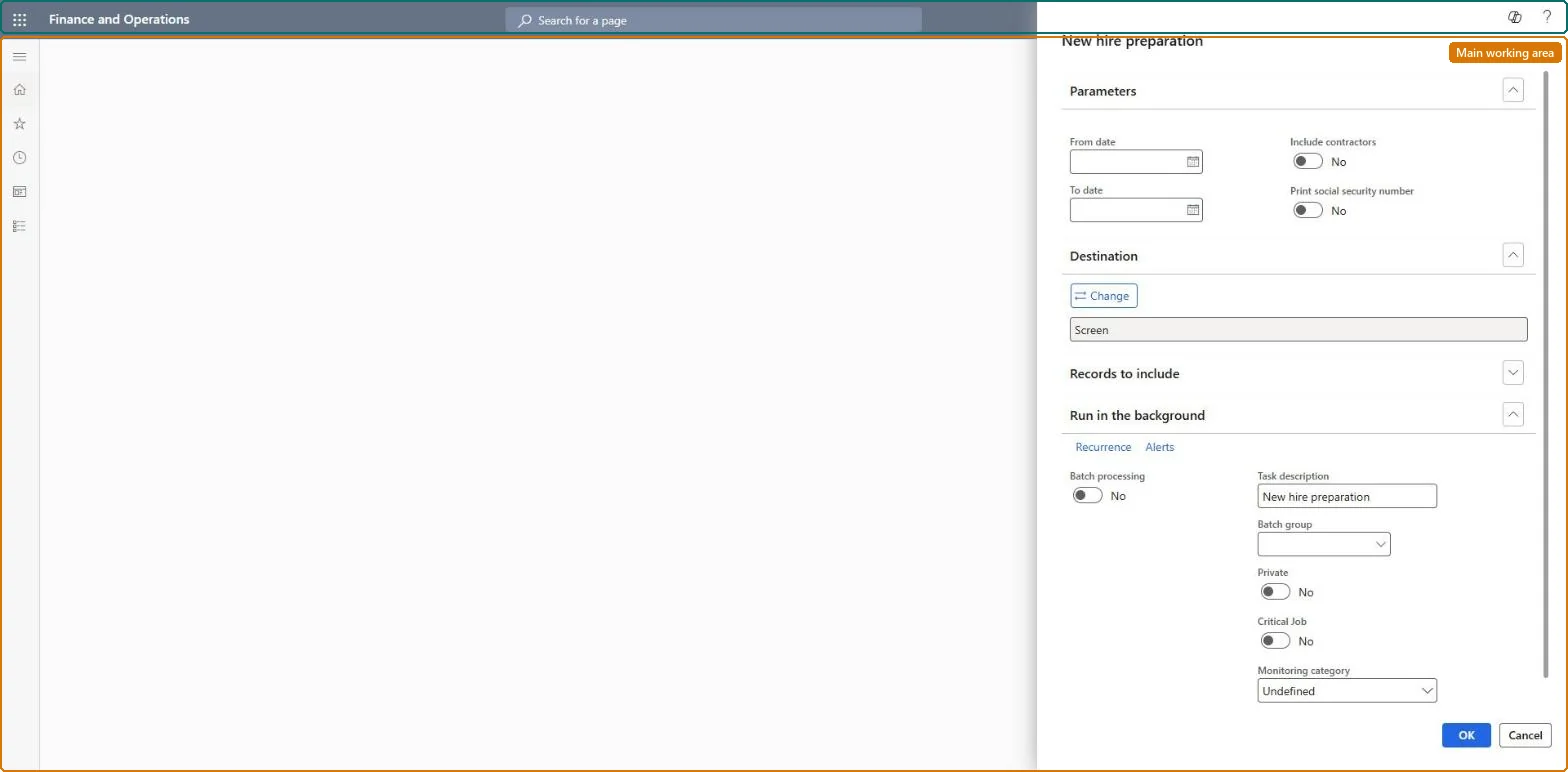
Use this page to produce a list of workers hired in a date range, optionally with contractors and Social Security numbers, for state new hire reporting.
Example
For example, on 3 November 2026 BEAT's US payroll clerk runs the report for 1 to 31 October 2026 with Include contractors off and Print social security number on, gets 6 new employees, and files them with the state new hire registry.
The page in Dynamics 365. page title tab to open what to set or check
About the examples: Examples and screenshots in this guide use BEAT, a demo company in a Dynamics 365 test environment. Use your own company's codes and values instead of copying them.
When to run it
When to run it
When you prepare the US state new hire report for workers hired in a period.
How often
On demand, at the interval your state requires for new hire reporting.
What the output shows
The workers hired in the period, with Social Security numbers when you chose to print them. A worker who is missing usually has a hire date outside the period, or is a contractor while Include contractors is off.
Prints workers' Social Security numbers; available only on the new hire version.Microsoft Learn
Yes, for the state filing
Common errors and fixes
Message
What to do
A worker hired in the period is missing from the list
The worker is a contractor while Include contractors is off, or the employment start date is outside From date and To date. Turn Include contractors on or correct the start date on the employment, then run it again. Microsoft Learn
Social Security numbers are not printed
Print social security number is off. Turn it on for the state filing only, and handle the printout as sensitive data. Microsoft Learn
Test checklist
Hire one employee and one contractor with start dates inside a test period.
Run the report for the period with Include contractors off.
Run it again with Include contractors on.
Check the first run lists 1 worker and the second 2.
Run it after each state reporting period with From date and To date set to that period; turn on Print social security number only for the filing copy.The Recent hires list in the Personnel management workspace shows only the last 7 days by default (Human resources parameters), so a filing period needs a report with explicit dates.
Shared worker data: Data management lists the Worker, Employment V2 and Person details entities as shared, so the report reads the same worker records from any legal entity; narrow it with Records to include. Checked in Dynamics 365
Can it be undone
Nothing to undo: The report reads worker data and changes nothing; printed Social Security numbers are sensitive data.
Feature or country
US
If you change it later
Hires are picked by their employment start date as it stands on the day the report runs, the date the Recent hires list of the Personnel management workspace also uses; a start date corrected later moves the worker into or out of the period on the next run, so keep the file of each filing. Microsoft Learn
Technical architect
6Technical
Menu item
HcmNewHirePreparationChecked in Dynamics 365
Form
SysOperationTemplateFormChecked in Dynamics 365
Roles to set it up and use it
To use itHuman resource manager HcmHumanResourceManagerHuman resource assistant HcmHumanResourceAssistantGive people one of these roles. On this system, 2 roles can run this page.Checked in Dynamics 365
Load order: The New hire prep report has no data entity in Data management, so it can't be loaded from a file or a configuration template. It reads the worker and employment records; load them with the Worker data migration template and run the report in each environment.Microsoft Learn
Checked in a working Dynamics 365 system, version 10.0.49: the menu item, form, table and security, the page.
To cite this step: HR-RWIR-010, Prepare the state new hire filing (US). Beyond ERP Atlas Hub, 2026-11-11. https://www.beyonderp.cloud/atlas/step/HR-RWIR-010