SETUP GUIDEHow to set it up8 sections. Choose a role to highlight what matters to you.
Everyone
1What it is and why
What it is
A report that lists applicants grouped by whether they have active applications, inactive applications or none, with a grace period that decides when an application counts as inactive.
What you do here
Use it to review the applicant pool and find applicants who have had no active application for a long time.
Example
For example, each quarter BEAT runs the report with a grace period of 6 months and finds 140 applicants with only inactive applications; 25 who asked to be kept in the pool stay, the rest are contacted.
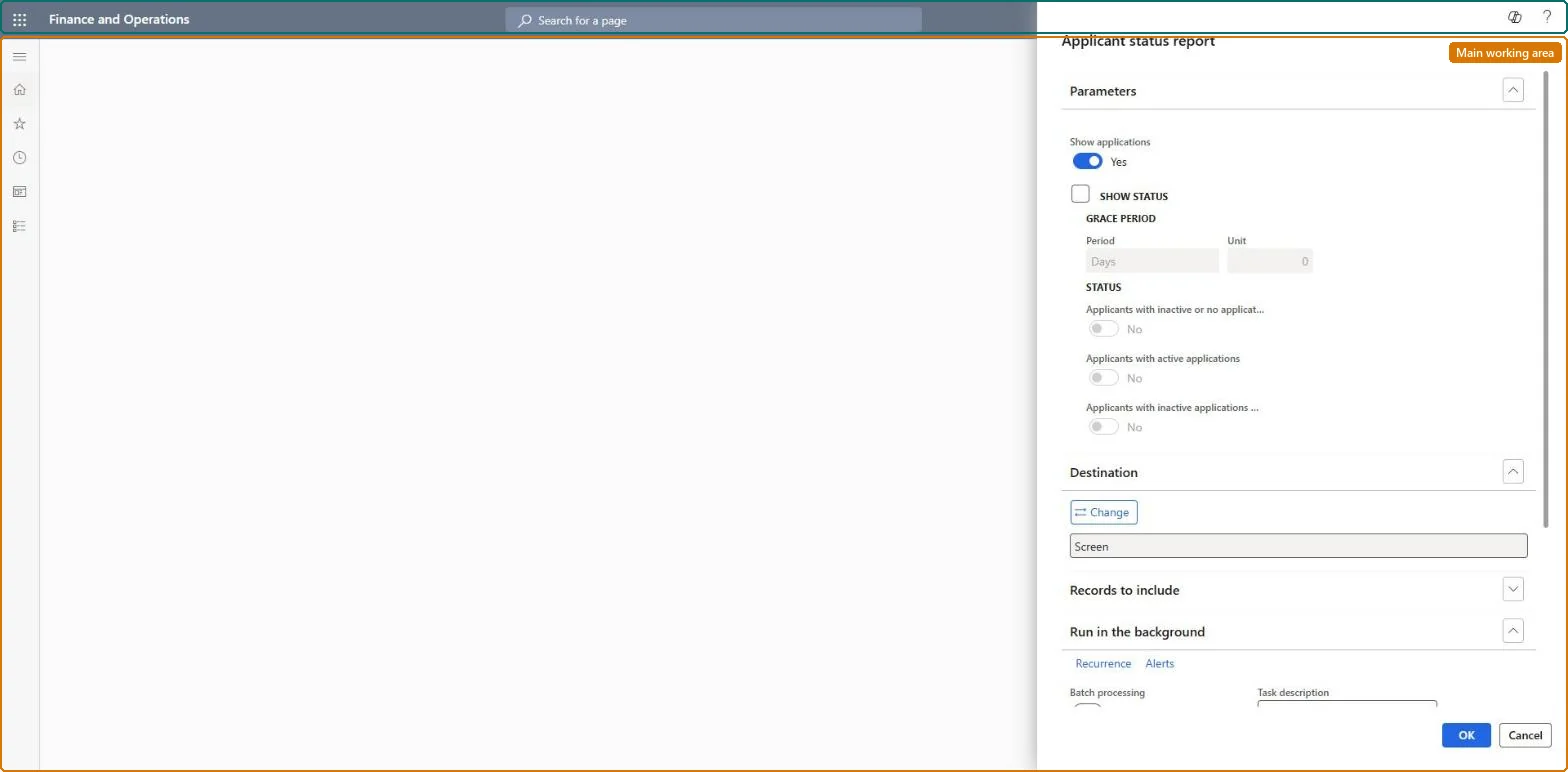
The page in Dynamics 365. page title tab to open what to set or check
About the examples: Examples and screenshots in this guide use BEAT, a demo company in a Dynamics 365 test environment. Use your own company's codes and values instead of copying them.
When to run it
When to run it
When you review the applicant pool, for example to clean up applicants who have had no active application for a long time.
How often
On demand, for example each quarter.
What the output shows
Applicants grouped by whether they have active, inactive or no applications. An applicant shown as inactive too early usually means the Grace period is too short.
Prints each applicant's applications under the applicant.Checked in Dynamics 365
Yes
Grace period
The Period and Unit after which an application counts as inactive.Checked in Dynamics 365
6 months
Status
Toggles for the groups to print: applicants with inactive or no applications, with active applications, or with inactive applications.Checked in Dynamics 365
Inactive or no applications on
Common errors and fixes
Message
What to do
Applicants with a recent application are listed as inactive
The grace period is too short. Set Period and Unit to the time your process allows between steps and run it again. Microsoft Learn
Run it each quarter with Show applications on and a grace period matching your retention policy, for example 6 months, and decide per applicant.Applicants are shared and kept for future openings; the report separates those with active, inactive and no applications.
Recruiters and HR managers use it: the live security grants it to the Human resource manager and Recruiter roles. No Feature management feature is needed for this page.
Shared: the applicants listed are not per company. Data management lists the Applicants entity as shared, so every legal entity sees the same records. Checked in Dynamics 365
Can it be undone
Nothing to undo: The report only reads applicants and applications.
If you change it later
Applicants are shared by all companies and one applicant can have applications in several companies, so an applicant can look inactive in one legal entity while active in another. Microsoft Learn
Technical architect
6Technical
Menu item
HRMApplicantStatusChecked in Dynamics 365
Form
SysOperationTemplateFormChecked in Dynamics 365
Roles to set it up and use it
To use itHuman resource manager HcmHumanResourceManagerRecruiter HcmRecruiterGive people one of these roles. On this system, 2 roles can run this page.Checked in Dynamics 365
Developer
7Developer
Open it by URL
https://<your-environment>/?mi=HRMApplicantStatus
Data migration
Load order: The Applicant status report has no data entity in Data management, so it can't be loaded from a file or a configuration template. It reads applicants and applications; load them with the Applicants and Applications entities and run the report in each environment.Microsoft Learn