SETUP GUIDEHow to set it up8 sections. Choose a role to highlight what matters to you.
Everyone
1What it is and why
What it is
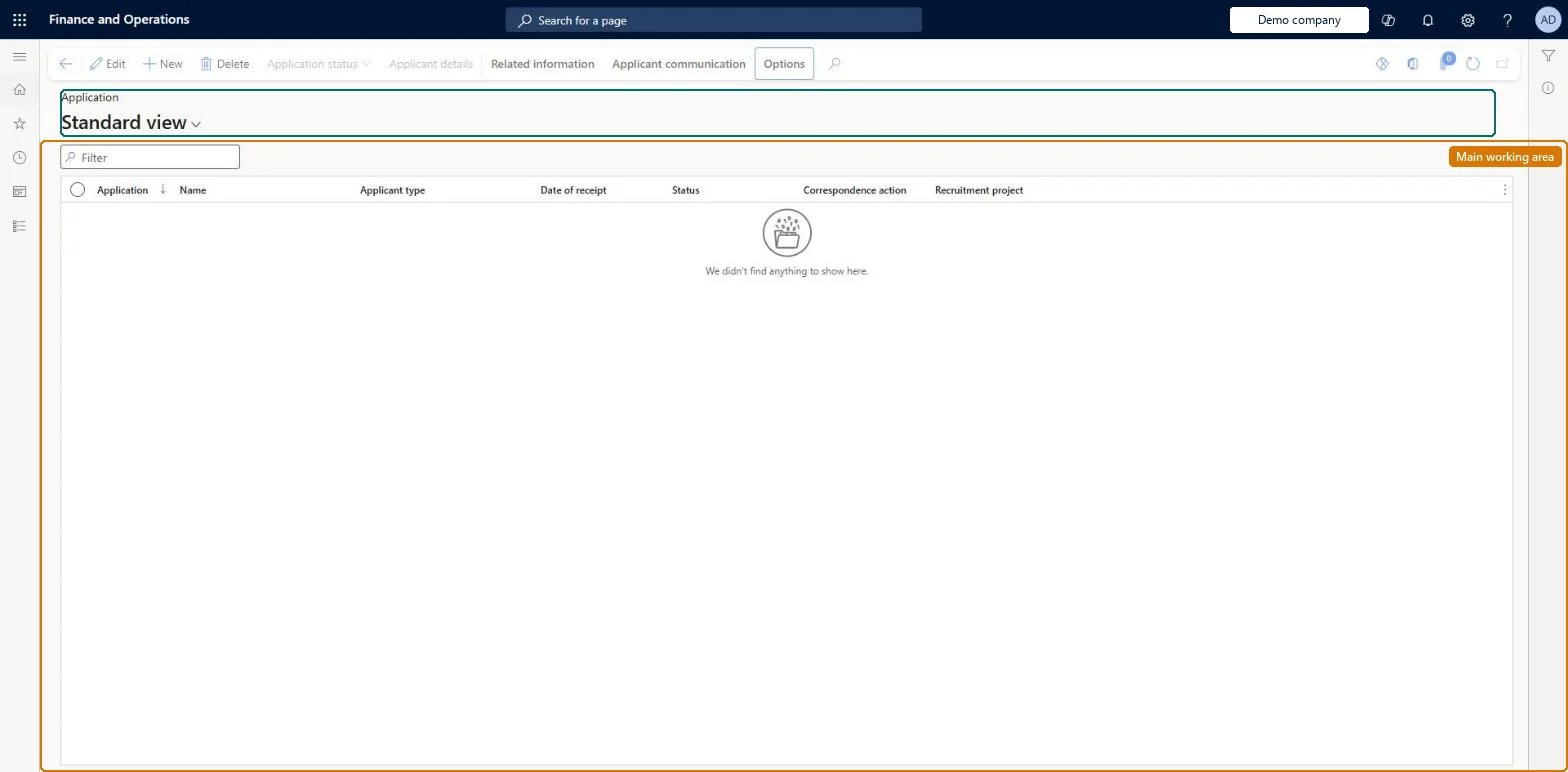
A list page where you record and manage employment applications, each of which is an applicant's expression of interest in a job opening and can be tied to a recruitment project.
What you do here
Use this page to create applications, update their status, schedule interviews, and hire the applicant or move an existing worker into a new position.
Example
For example, Sara Thomas applies to project REC-0042 through JobsOnline on 3 November; her application gets the job Sales representative and the Sales department from the project, moves from Received to Interview, and on 20 November Application status > Hire new worker creates her worker record and sets the application to Employed.
The page in Dynamics 365. page title tab to open what to set or check
About the examples: Examples and screenshots in this guide use BEAT, a demo company in a Dynamics 365 test environment. Use your own company's codes and values instead of copying them.
Setup steps on this page
Move applications through their status
Keep each application's status and correspondence action current, and hire from the application.
Steps from Microsoft
Go to Human resources > Recruitment > Applications > Applications.
Select an application for an external applicant.
Select Application status, and then select Hire new worker.
Enter the Employment start date and select the Position.
Tie every application to a recruitment project, update Status and Correspondence action at each step, and hire external applicants with Hire new worker and internal ones with Change position.The correspondence action picks the letter or email template, the status drives the group emails, and hiring from the application sets it to Employed and links the applicant's address book person to the new worker.
Recruiters and HR managers use it: the live security grants it to the Human resource manager and Recruiter roles. No Feature management feature is needed for this page.
Per company: applications belong to the legal entity you are signed in to. Data management lists the Applications entity as not shared. Checked in Dynamics 365
Can it be undone
Hard to reverse: Hire new worker creates a worker record and sets the application to Employed; the worker and the address book link stay.
If you change it later
Hiring from an application sets it to Employed and links the applicant's address book record to the new worker, so later changes to the worker's address book information also show on the applicant. Microsoft Learn
Technical architect
6Technical
Menu item
HRMApplicationListPageChecked in Dynamics 365
Form
HRMApplicationChecked in Dynamics 365
Table
HRMApplicationShown as “APPLICATIONS” in Record infoKey field: hrmApplicationIdChecked in Dynamics 365
Data entities
HcmApplicationEntityApplications Checked in Dynamics 365
Who can open it
PrivilegesMaintain application details HRMApplicationMaintainView application details HRMApplicationViewDutiesEnable recruitment process HcmRecruitmentProcessEnableInquire into recruitment process HcmRecruitmentProcessInquire2 security rolesHuman resource manager HcmHumanResourceManagerRecruiter HcmRecruiterChecked in Dynamics 365
Roles to set it up and use it
To set it up or change itRecruiter HcmRecruiterTo use itHuman resource manager HcmHumanResourceManagerGive people one of these roles. On this system, 2 roles can open this page.Checked in Dynamics 365
Actions on the page
Related informationApplicant communication: Applicant communication(Action Pane without tabs): Application status, Applicant detailsChecked in Dynamics 365
HcmApplicationEntity data entity Checked in Dynamics 365
Data migration
HcmApplicationEntity Applications: one row per application, per company.Load order: Learn's default Data management templates don't include this recruitment entity, so add it to your own project. Load applications after the applicants, the recruitment projects and the media they refer to.Load first: HcmApplicantEntity, HcmRecruitingProjectEntity, HcmMediaEntityMicrosoft Learn
Checked in a working Dynamics 365 system, version 10.0.49: the menu item, form, table and security, the page.
To cite this step: HR-RREC-040, Move applications through their status. Beyond ERP Atlas Hub, 2026-11-11. https://www.beyonderp.cloud/atlas/step/HR-RREC-040