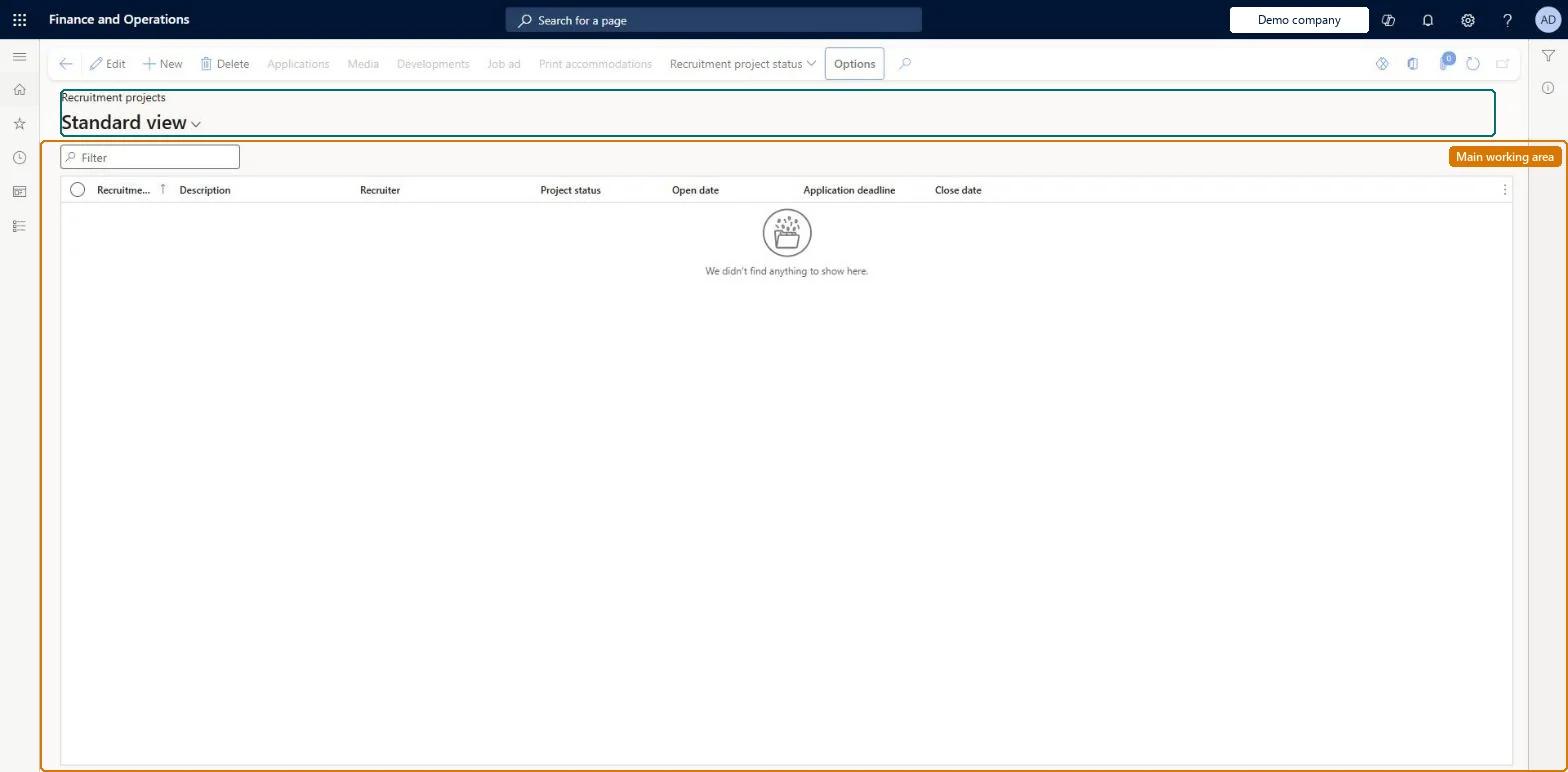
A page where recruiters create and maintain recruitment projects, which track progress toward filling one or more open positions for a job in a department.
PAGE GUIDEWhat the page does and how to use it8 sections. Choose a role to highlight what matters to you.
Everyone
1What it is and why
What it is
A page where recruiters create and maintain recruitment projects, which track progress toward filling one or more open positions for a job in a department.
What you do here
Use this page to record the job, department, number of openings, hiring manager and application deadline for an opening, publish a job ad, record the media used, and change the project status.
Example
For example, BEAT opens project REC-0042 for 3 Sales representative openings in the Sales department with an application deadline of 30 November. With a job ad, Display on employee self service set to Yes and the status Started, employees see the opening on Employee self service; on 1 December the deadline has passed and the opening no longer shows.
The page in Dynamics 365. page title tab to open what to set or check
About the examples: Examples and screenshots in this guide use BEAT, a demo company in a Dynamics 365 test environment. Use your own company's codes and values instead of copying them.
Setup steps on this page
Open a recruitment project per opening
Give each opening a project with job, department, openings and deadline, and start it only when the ad is ready.
Steps from Microsoft
Go to Human resources > Recruitment > Recruitment projects > Recruitment projects.
Select New and enter the Recruitment project and Description.
Select the Recruiter, Department and Job, and enter the Number of openings.
Select the Hiring manager and enter the Application deadline.
Select Media and add the media outlets, with start and end dates, used to advertise the opening.
Select Job ads to enter the advertisement, then select the Display on Employee self service checkbox.
Select Recruitment project status > Start, and then select OK.
The worker who is the contact person for the project.Microsoft Learn
Charlie Carson
Application deadline
The last date on which applications are accepted.Microsoft Learn
30 November
finalDate
Project status
Where the project is: Scheduled, Started, Finished or Canceled.Microsoft Learn
Started
status
Common errors and fixes
Message
What to do
An opening doesn't show on Employee self service
All four conditions must hold: a Job ad value, Display on employee self service set to Yes, an Application deadline in the future and Project status Started. Check each one on the project. Microsoft Learn
Unsolicited web applications land on an unexpected recruitment project
Unsolicited applications go to the recruitment project named on the Recruitment tab of Human resources parameters. Set the project you use for them there. Microsoft Learn
Test checklist
Create a recruitment project with a Recruiter, Department, Job, Number of openings, Hiring manager and an Application deadline in the future.
Select Media and add a media line with a start and end date.
Select Job ads, enter the ad and save, then select the Display on Employee self service checkbox.
Select Recruitment project status > Start and check the Project status shows Started.
Sign in as an employee and check the opening shows on Employee self service; then set the Application deadline to a past date and check it no longer shows.
One project per job and department being filled, with Number of openings, Hiring manager and Application deadline set; keep it Scheduled while the ad is written, set Started to accept applications, and Finished once every opening is filled.The status says where recruiting stands (Scheduled, Started, Finished, Canceled), and the opening is shown on Employee self service only with a job ad, the display option, a future deadline and the status Started.
Recruiters and HR managers use it: the live security grants it to the Human resource manager and Recruiter roles. No Feature management feature is needed for this page.
Per company: recruitment projects belong to the legal entity you are signed in to. Data management lists the Recruitment projects entity as not shared. Checked in Dynamics 365
Can it be undone
Reversible: Project details, the job ad, the Display on Employee self service setting, the application deadline and the project status can all be updated on the project. An opening shows on Employee self service only while all four hold: a Job ad value, Display on employee self service set to Yes, an Application deadline in the future and a Project status of Started. Change any one of them and the opening drops off Employee self service. Microsoft Learn
If you change it later
The project status, together with the job ad, application deadline and display setting, controls whether the opening is shown to employees on Employee self service. Microsoft Learn
Technical architect
6Technical
Menu item
HRMRecruitingListPageChecked in Dynamics 365
Form
HRMRecruitingTableChecked in Dynamics 365
Table
HRMRecruitingTableShown as “RECRUITMENT PROJECTS” in Record infoKey field: hrmRecruitingIdChecked in Dynamics 365
Data entities
HcmRecruitingProjectEntityRecruitment projects Checked in Dynamics 365HcmRecruitingMediaEntityRecruitment media (The media lines of a project: the media used to advertise the opening, with start and end dates.)
Who can open it
PrivilegesMaintain recruitment projects HRMRecruitingListMaintainView recruitment projects from the Recruitment projects list page HRMRecruitingListViewDutiesEnable recruitment process HcmRecruitmentProcessEnableInquire into recruitment process HcmRecruitmentProcessInquire2 security rolesHuman resource manager HcmHumanResourceManagerRecruiter HcmRecruiterChecked in Dynamics 365
Roles to set it up and use it
To set it up or change itRecruiter HcmRecruiterTo use itHuman resource manager HcmHumanResourceManagerGive people one of these roles. On this system, 2 roles can open this page.Checked in Dynamics 365
Actions on the page
(Action Pane without tabs): Applications, Media, Developments, Job ad, Print accommodations, Recruitment project statusChecked in Dynamics 365
HcmRecruitingProjectEntity data entity Checked in Dynamics 365
Data migration
HcmRecruitingProjectEntity Recruitment projects: one row per project, per company.HcmRecruitingMediaEntity Recruitment media: the media lines of each project.Load order: Learn's default Data management templates don't include this recruitment entity, so add it to your own project. Load recruitment projects after the jobs, departments and workers they point to (Job, Department, Recruiter, Hiring manager), then the project media lines after Media, and the projects before Applications.Load first: HcmJobEntity, OMOperatingUnitEntity, HcmWorkerEntity, HcmMediaEntityMicrosoft Learn