BeyondERP.Newsletter
Menu

Setup step on the Application status by project report page · Human resources

Track application progress per project

Count applications by status for each project to find the ones waiting for a reply.

Business process
Recruit new talent
Menu item
HRMRecruitingApplicationStatus
Setup steps
1 on this page
Show what matters for
SETUP GUIDEHow to set it up8 sections. Choose a role to highlight what matters to you.
Everyone

1What it is and why

What it isA report that counts the applications of each recruitment project by application status, for the statuses you turn on.
What you do hereUse it to see how far the applications for each project have moved: received, confirmed, invited to interview, rejected, canceled or employed.
ExampleFor example, for project REC-0042 BEAT turns off Canceled and Rejection and sees 12 applications still Received, 5 at Interview and 1 Employed, so confirmations go out to the 12 that afternoon.
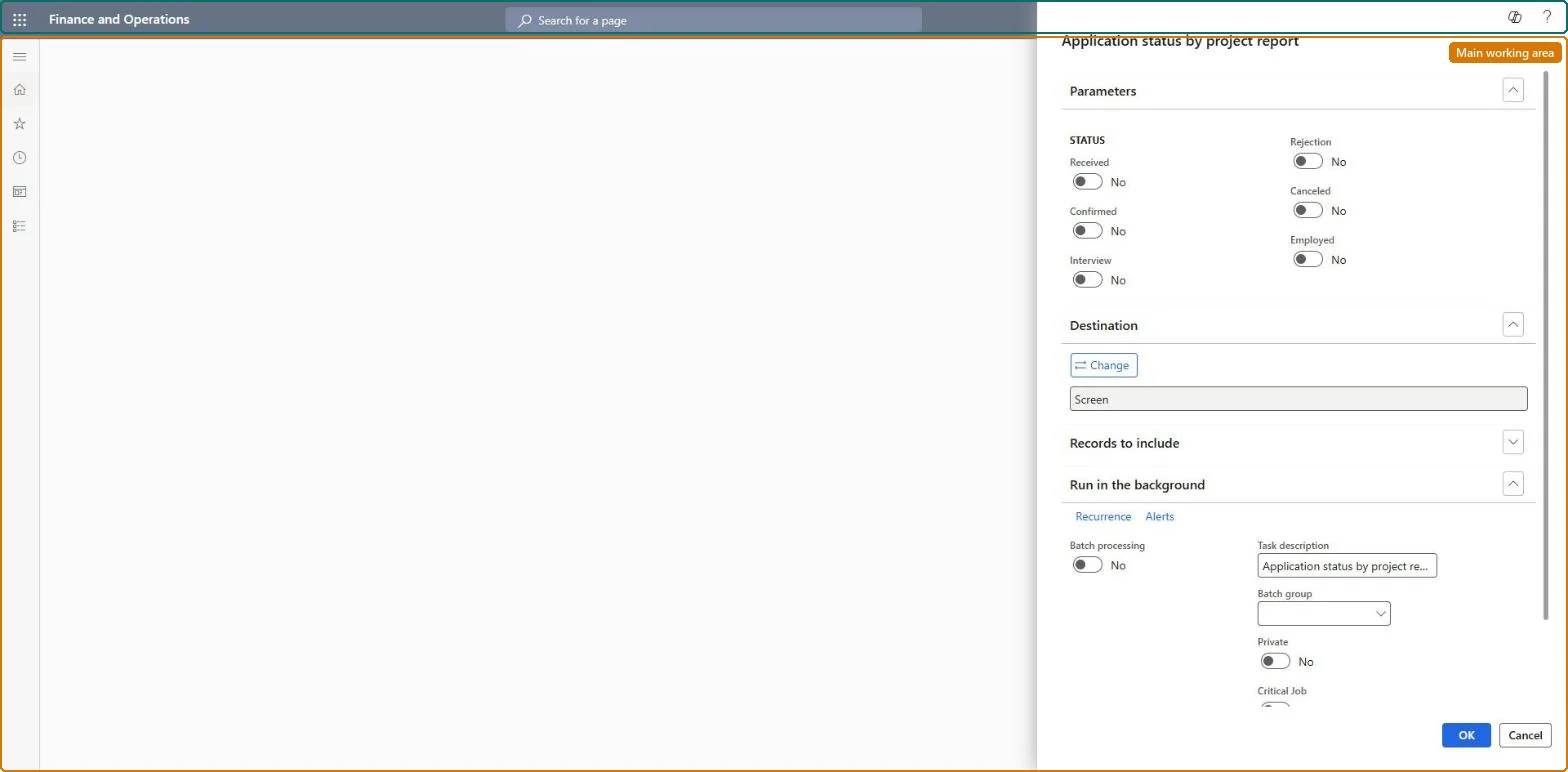
Application status by project report page in Dynamics 365
The page in Dynamics 365. page title tab to open what to set or check
Functional consultant · Solution architect

2Where it fits

Business processRecruit and onboard talent › Recruit new talent
Menu pathHuman resources › Recruitment › Recruitment projects › Application status by project report
Set up firstApplications (update the status) Microsoft Learn
Used next byEmail applicant Microsoft Learn
Related pagesRecruitment projects report Microsoft Learn
In this process Review open recruitment projects · Screen the application inbox
End user · Functional consultant

3How to do it

About the examples: Examples and screenshots in this guide use BEAT, a demo company in a Dynamics 365 test environment. Use your own company's codes and values instead of copying them.

When to run it

When to run itWhen you track how far applications for each recruitment project have progressed.
How oftenOn demand, during active recruiting.
What the output showsApplications grouped by recruitment project and status. Many applications stuck in Received usually mean confirmations or interviews were not sent.

Source: Microsoft Learn

Setup steps on this page

Track application progress per project

Count applications by status for each project to find the ones waiting for a reply.

Steps from Microsoft

  1. Go to Human resources > Recruitment > Recruitment projects > Application status by project report.
  2. Under Parameters, turn on the Status toggles Received, Confirmed, Interview, Rejection, Canceled and Employed for the applications you want to count.
  3. Turn off the statuses you don't need, for example Canceled and Rejection, to see only active applications.
  4. In Records to include, filter on the recruitment project.
  5. Read the applications per project and status, and follow up on applications that are still Received.

Source: Microsoft Learn

Fields on the page

FieldWhat it meansExample
StatusToggles for the application statuses to count: Received, Confirmed, Interview, Rejection, Canceled and Employed.Microsoft Learn Received, Confirmed and Interview on
Recruitment projectThe project whose applications are counted, set under Records to include.Checked in Dynamics 365REC-0042

Common errors and fixes

MessageWhat to do
Many applications stay in Received although confirmations were sentThe status is updated only if you chose to update it after sending the emails. Update the applications' status. Microsoft Learn
Functional consultant

4Setup decisions

Setup stepRecommended value and whyDecision, common mistake and test
Track application progress per projectRun it twice a week per Started project with Canceled and Rejection turned off, and act on every application still Received.Each status means a step of the process (Received, Confirmed, Interview, Rejection, Canceled, Employed), so the Received count is the applications nobody has answered yet.Which statuses should the routine run show?Reading the count as the number of applicants: one applicant can have several applications.Test: Counts follow the status toggles

Feature management and licence

Licence or add-inRecruiters and HR managers use it: the live security grants it to the Human resource manager and Recruiter roles. No Feature management feature is needed for this page.

Microsoft Learn

Solution architect

5Design impact

Shared or per companyPer company: the applications counted belong to the legal entity you are signed in to. Data management lists the Applications entity as not shared. Checked in Dynamics 365
Can it be undoneNothing to undo: The report only reads applications.
If you change it laterStatuses change when a recruiter updates them or chooses to update them after sending template emails, so the counts reflect the last update, not what was sent. Microsoft Learn
Technical architect

6Technical

Menu itemHRMRecruitingApplicationStatus Checked in Dynamics 365
FormSysOperationTemplateForm Checked in Dynamics 365
Roles to set it up and use itTo use itHuman resource manager HcmHumanResourceManagerRecruiter HcmRecruiterPayroll administrator HcmPayrollAdministratorPayroll manager HcmPayrollManagerChief executive officer CompanyChiefExecutiveOfficerGive people one of these roles. On this system, 5 roles can run this page.Checked in Dynamics 365
Developer

7Developer

Open it by URLhttps://<your-environment>/?mi=HRMRecruitingApplicationStatus
Data migrationLoad order: The Application status by project report has no data entity in Data management, so it can't be loaded from a file or a configuration template. It counts the applications; load applications with the Applications entity and run the report in each environment.Microsoft Learn
Everyone

8Sources

To cite this step: HR-RREC-030, Track application progress per project. Beyond ERP Atlas Hub, 2026-11-11. https://www.beyonderp.cloud/atlas/step/HR-RREC-030