PAGE GUIDEWhat the page does and how to use it8 sections. Choose a role to highlight what matters to you.
Everyone
1What it is and why
What it is
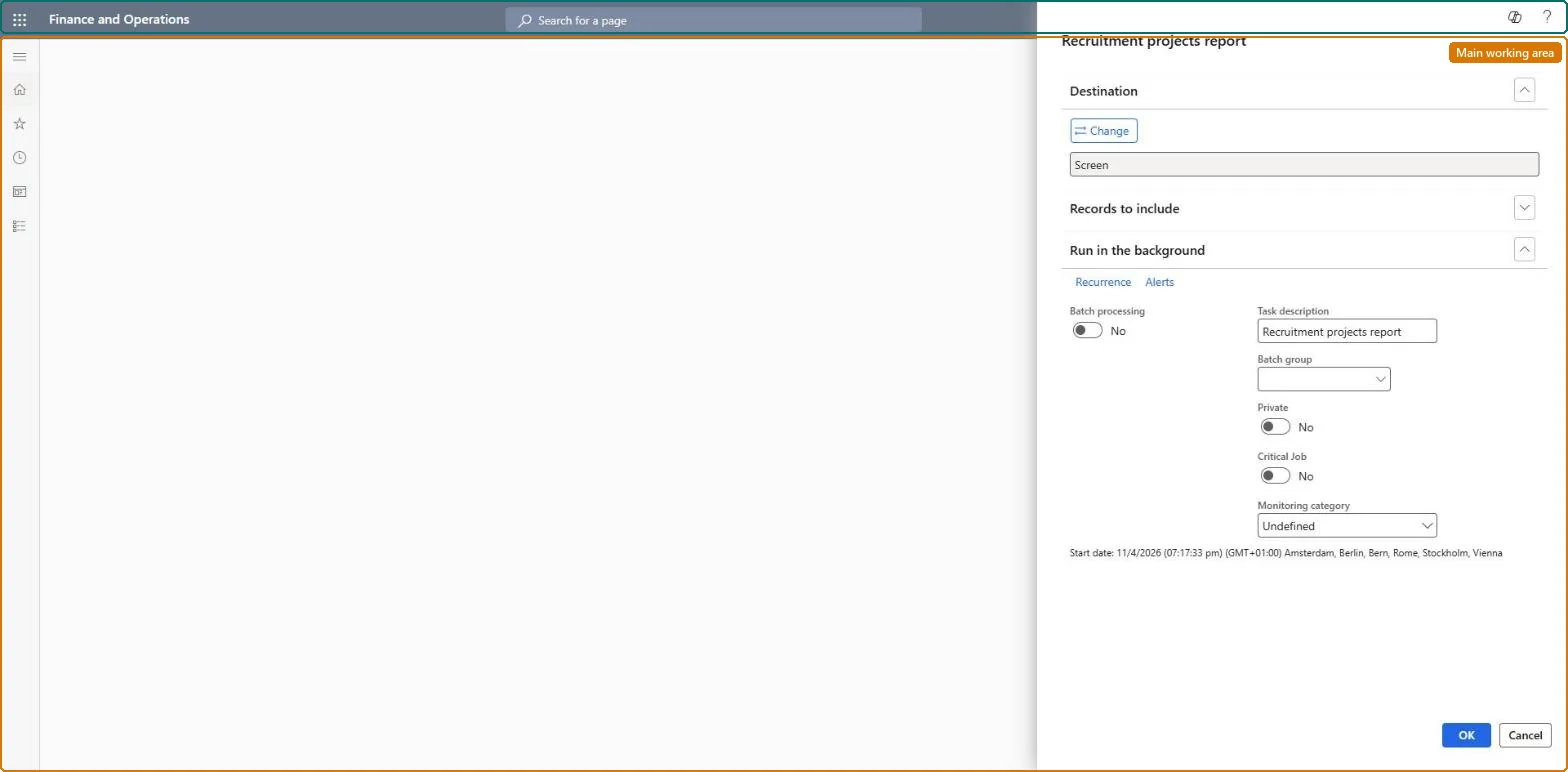
A report that prints an overview of information about recruitment projects.
What you do here
Use this report to print a summary of your recruitment projects.
Example
For example, at BEAT's Monday hiring meeting the recruiter prints the report for the 6 Started projects and finds REC-0042 still Started with 3 openings although its deadline was 30 November; the project is set to Finished after the hires.
The page in Dynamics 365. page title tab to open what to set or check
About the examples: Examples and screenshots in this guide use BEAT, a demo company in a Dynamics 365 test environment. Use your own company's codes and values instead of copying them.
When to run it
When to run it
When you review open recruiting, for example in a weekly hiring meeting.
How often
On demand, during active recruiting.
What the output shows
An overview of each recruitment project with its department, job, openings and status. A project that is still Started after all positions are filled should be set to Finished.
Run it weekly during active recruiting, filtered on Project status Started, and set every project whose openings are filled to Finished.The status records where each project is (Scheduled, Started, Finished, Canceled), so the report is only as current as the statuses.
Recruiters and HR managers use it: the live security grants it to the Human resource manager and Recruiter roles. No Feature management feature is needed for this page.
Per company: the projects printed belong to the legal entity you are signed in to. Data management lists the Recruitment projects entity as not shared. Checked in Dynamics 365
Can it be undone
Nothing to undo: The report only reads recruitment projects; it changes nothing. Microsoft Learn
If you change it later
The report reads the project status as it is; a project whose openings are filled stays in the Started list until its status is changed to Finished. Microsoft Learn
Technical architect
6Technical
Menu item
HRMRecruitingChecked in Dynamics 365
Form
SysOperationTemplateFormChecked in Dynamics 365
Roles to set it up and use it
To use itHuman resource manager HcmHumanResourceManagerRecruiter HcmRecruiterPayroll administrator HcmPayrollAdministratorPayroll manager HcmPayrollManagerChief executive officer CompanyChiefExecutiveOfficerGive people one of these roles. On this system, 5 roles can run this page.Checked in Dynamics 365
Developer
7Developer
Open it by URL
https://<your-environment>/?mi=HRMRecruiting
Data migration
Load order: The Recruitment projects report has no data entity in Data management, so it can't be loaded from a file or a configuration template. It prints the recruitment projects; load the projects with the Recruitment projects entity and run the report in each environment.Microsoft Learn