SETUP GUIDEHow to set it up8 sections. Choose a role to highlight what matters to you.
Everyone
1What it is and why
What it is
A report that prints the workers of each department as of a date, placed in departments through their position assignments, with contractors optional.
What you do here
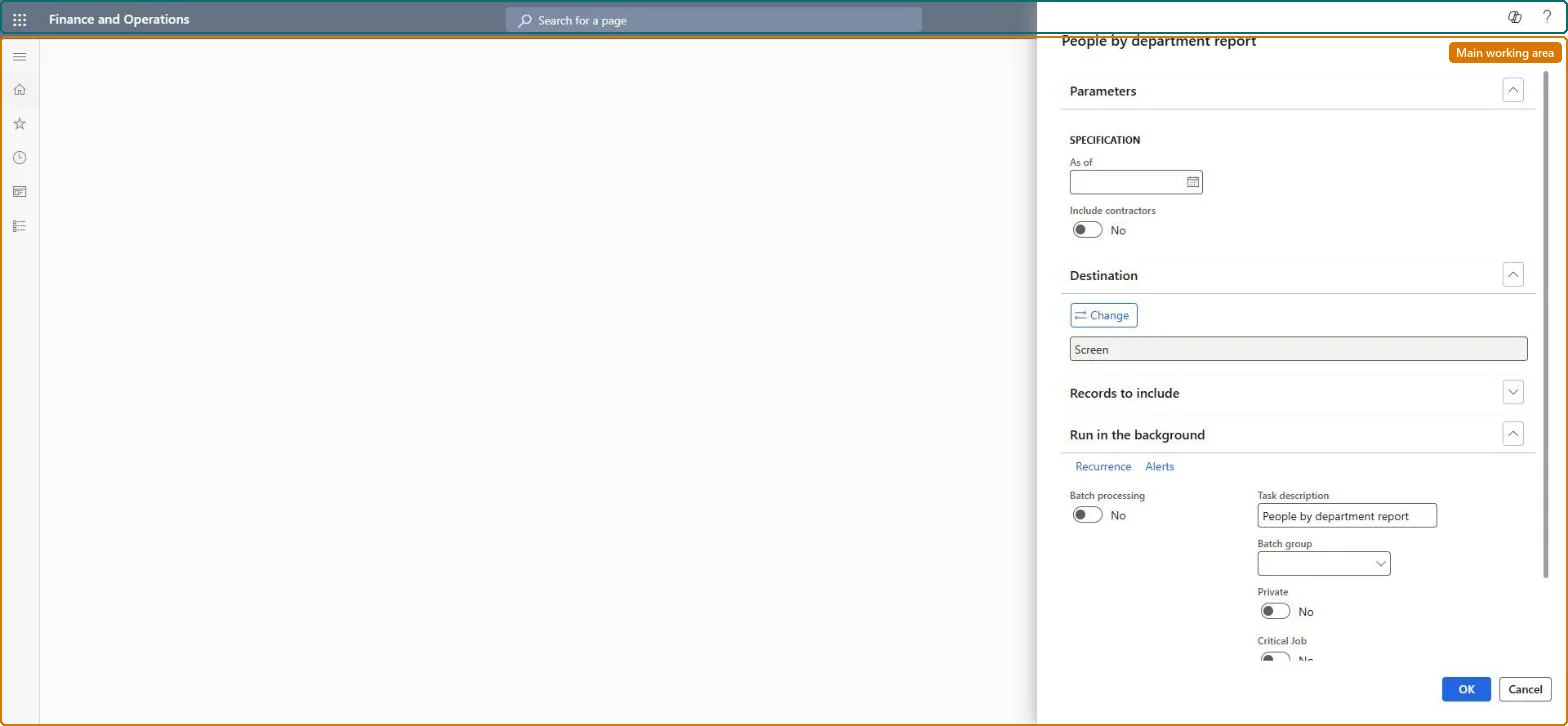
Use this page to print a list of workers by department.
Example
For example, BEAT prints the report as of January 31, 2027 with Include contractors set to No and gets 11 employees under Sales; a contractor working in Sales appears only when Include contractors is Yes.
The page in Dynamics 365. page title tab to open what to set or check
About the examples: Examples and screenshots in this guide use BEAT, a demo company in a Dynamics 365 test environment. Use your own company's codes and values instead of copying them.
When to run it
When to run it
When a manager or HR needs a list of who works in each department on a given date, for example before a reorganization or a department meeting.
How often
On demand, when you need a current or past staff list by department.
What the output shows
Workers grouped by department as of the date you entered. A worker who is missing usually has no position assignment on that date, or is a contractor while Include contractors is off.
The worker has no position assignment on the As of date, or is a contractor and Include contractors is No. Assign a position or include contractors. Microsoft Learn
Test checklist
Assign an employee and a contractor to positions in one department.
Run the report with Include contractors No, then Yes.
Check the first run lists one worker and the second lists two.
Set the As of date first, then Include contractors; run it per department when a department meeting or reorganization needs the list.Workers are placed in departments only through their position assignment on that date.
On BEAT the page is run by Human resource manager, Human resource assistant, Compensation and benefits manager, Recruiter and Payroll administrator; the full list is under the page's security roles. No Feature management feature is needed for this page.
Shared data: positions and departments are shared by all companies (Data management lists Positions V2 and Operating unit as shared). Checked in Dynamics 365
Can it be undone
Nothing to undo: The report reads data and changes nothing.
If you change it later
Workers are placed in departments through their position assignment on the As of date, so a transfer prints under the new department only for dates from the new assignment. Microsoft Learn
Technical architect
6Technical
Menu item
HRMPeopleDepartmentChecked in Dynamics 365
Form
SysOperationTemplateFormChecked in Dynamics 365
Roles to set it up and use it
To use itHuman resource manager HcmHumanResourceManagerHuman resource assistant HcmHumanResourceAssistantCompensation and benefits manager HcmCompensationAndBenefitsManagerRecruiter HcmRecruiterPayroll administrator HcmPayrollAdministratorGive people one of these roles. On this system, 9 roles can run this page.Checked in Dynamics 365
Load order: The People by department report has no data entity in Data management, so it can't be loaded from a file or a configuration template. It prints worker and position data; load positions and Position worker assignments V2, then run the report in each environment.Microsoft Learn
Checked in a working Dynamics 365 system, version 10.0.49: the menu item, form, table and security, the page.
To cite this step: HR-RORG-110, List staff by department as of a date. Beyond ERP Atlas Hub, 2026-11-11. https://www.beyonderp.cloud/atlas/step/HR-RORG-110