SETUP GUIDEHow to set it up8 sections. Choose a role to highlight what matters to you.
Everyone
1What it is and why
What it is
A report that prints an overview of each job with its skills, certificates, education, job tasks, areas of responsibility and positions.
What you do here
Use this page to print a summary of job requirements and the positions linked to each job.
Example
For example, before BEAT opens recruitment for 2 Senior accountant positions, HR prints the report for the job family Accounting and finds that the Senior accountant job has no certificate lines while the Accountant job requires CPA.
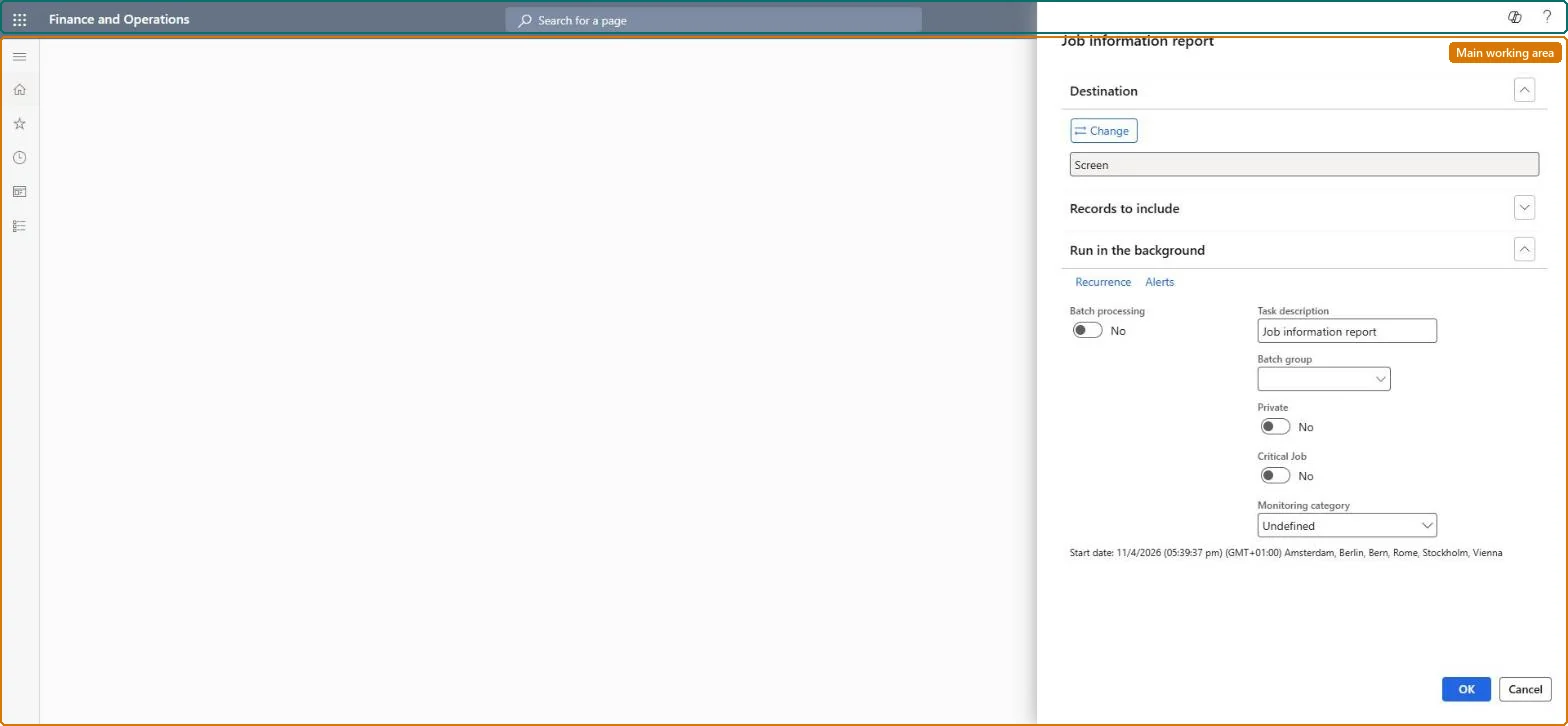
The page in Dynamics 365. page title tab to open what to set or check
About the examples: Examples and screenshots in this guide use BEAT, a demo company in a Dynamics 365 test environment. Use your own company's codes and values instead of copying them.
When to run it
When to run it
When you review job requirements, for example before you open a recruitment project for a job or update its required skills.
How often
On demand, when job requirements change or a job is reviewed.
What the output shows
One overview per job with its skills, certificates, education, job tasks, areas of responsibility and positions. An empty section means nothing is set up on the job; a missing position means it is linked to another job.
Check every job carries its skills, certificates, education and tasks before positions are filled.
Steps from Microsoft
Go to Human resources > Jobs > Job information report.
Before you run it, complete the job records: skills, certificates, education, job tasks and areas of responsibility are printed from the job, not from the position.
In Records to include, filter on the job or jobs you want to print, for example one job family you are reviewing.
Under Destination, keep Screen to read it, or pick a file destination when you need to hand the job profiles to a hiring manager.
Read each job's requirements and the positions linked to it, and look for jobs with empty requirement sections.
Nothing is set up on the job for that section. Add the skills, certificates or education on the job, or copy them from a job template, and run the report again. Microsoft Learn
The report prints no jobs
Records to include filters out every job. Clear the filter or filter on one job family and run it again. Microsoft Learn
Test checklist
Give one job a skill, a certificate and an education line.
Run the report filtered on that job.
Check the three lines and the job's positions are printed.
Run it per job family before a recruitment project opens, and fix every job that prints an empty section.Skill mapping, skill gap analysis and recruitment read the requirements from the job, so a gap on the job becomes a gap in every search.
Shared data: jobs are shared by all companies, so the report prints the same jobs from any legal entity. Checked in Dynamics 365
Can it be undone
Reversible: The report reads data and changes nothing.
If you change it later
The report reads the job records as they are; requirements added to positions only, or copied from a template after the run, aren't on it until it is run again. Microsoft Learn
Technical architect
6Technical
Menu item
HRMJobInformationChecked in Dynamics 365
Form
SysOperationTemplateFormChecked in Dynamics 365
Roles to set it up and use it
To use itHuman resource manager HcmHumanResourceManagerHuman resource assistant HcmHumanResourceAssistantCompensation and benefits manager HcmCompensationAndBenefitsManagerPayroll administrator HcmPayrollAdministratorPayroll manager HcmPayrollManagerGive people one of these roles. On this system, 8 roles can run this page.Checked in Dynamics 365
Developer
7Developer
Open it by URL
https://<your-environment>/?mi=HRMJobInformation
Data migration
Load order: The Job information report has no data entity in Data management, so it can't be loaded from a file or a configuration template. It prints the job records; load the jobs and their requirements with the Jobs and positions template and run the report in each environment.Microsoft Learn