Chief executive officer, Chief financial officer, Compensation and benefits manager and 6 more roles
Business process
Develop people strategy
Menu item
HcmJobList
Main table
HcmJob
Data entity
HcmJobEntity
Setup steps
1 on this page
Show what matters for
SETUP GUIDEHow to set it up8 sections. Choose a role to highlight what matters to you.
Everyone
1What it is and why
What it is
A page where you create and maintain jobs, which hold the title, classification, compensation level, skills and other details that positions based on the job inherit.
What you do here
Use this page to define jobs so that their details become default values for the positions assigned to them.
Example
For example, BEAT creates the job Sales manager with the title Sales manager, Maximum positions 4, job function Mid-level Manager, job type Salaried and compensation level Manager; when the fifth position is assigned to the job, the assignment is refused.
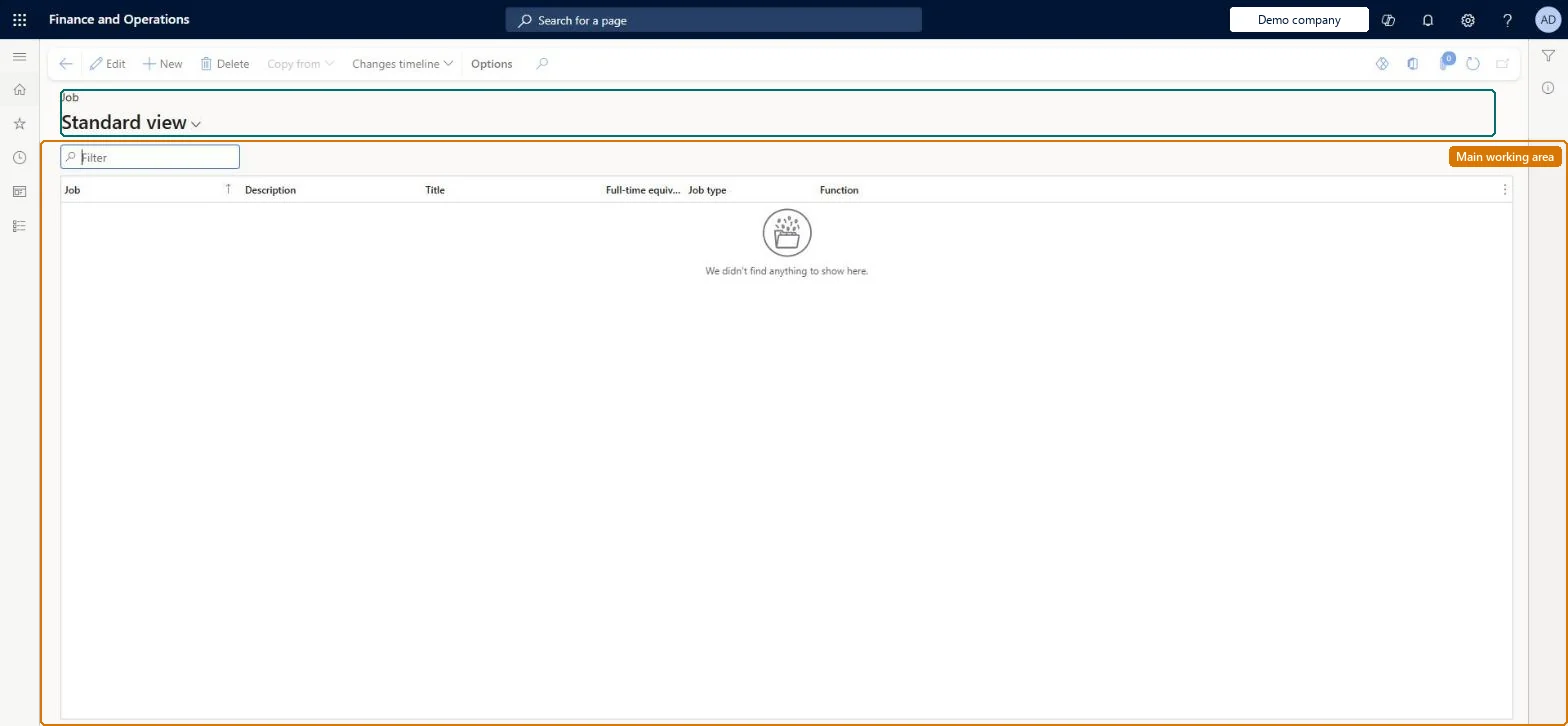
The page in Dynamics 365. page title tab to open what to set or check
About the examples: Examples and screenshots in this guide use BEAT, a demo company in a Dynamics 365 test environment. Use your own company's codes and values instead of copying them.
Setup steps on this page
Create jobs before positions
Create each job once with its title, classification and compensation level so positions inherit them.
Steps from Microsoft
Go to Human resources > Jobs > Jobs.
Select New.
In the Job and Description fields, enter values and select a standard title.
Under Maximum number of positions, select Maximum positions and enter the number.
In the Job classification section, select a job function and a job type.
In the Compensation section, select a compensation level.
The job has Maximum positions set and the number is reached. Raise Maximum positions on the job, or end an old position assignment, then assign again. Microsoft Learn
A job type, function or title added today doesn't show when the job is viewed as of an earlier date
These details are date effective. Set them up before you create jobs, or enter them with the right effective date on the job. Microsoft Learn
A worker can't be enrolled in a fixed compensation plan at the expected level
The levels offered come from the job of the worker's position. Set Compensation level on the job, and check the job type and function match the plan's eligibility rule. Microsoft Learn
Test checklist
Create a job with a title, Maximum positions, job function, job type and compensation level.
Create positions for the job up to the maximum and check that one more position assignment is refused.
Create a position for the job and check the title and job family fill in from the job.
Enroll a worker in that position in a fixed compensation plan and check only the job's compensation levels are offered.
One job per distinct role, with title, job function, job type and compensation level set on the day the job is created; Maximum positions only where headcount is capped.Positions take their title, description, full-time equivalent and job family from the job, and the compensation levels offered to a worker come from the job.
Shared: jobs are not per company. Data management lists the Jobs entity as shared, so every legal entity uses the same job list and positions in any company can point to it. Checked in Dynamics 365
Can it be undone
Hard to reverse: Jobs can't be deleted once positions use them; Learn's way out is to expire the job and its title (Ability to expire jobs, and job titles).
If you change it later
Job title, type and function are date-effective, so details added later do not show when the job is viewed as of its creation date. Microsoft Learn
Technical architect
6Technical
Menu item
HcmJobListChecked in Dynamics 365
Form
HcmJobChecked in Dynamics 365
Table
HcmJobShown as “JOBS” in Record infoKey field: JobIdChecked in Dynamics 365
PrivilegesMaintain jobs using a list page in human resources HcmJobListMaintainView jobs using a list page in human resources HcmJobListViewDutiesInquire into jobs and positions HcmJobPositionInquireMaintain job and position master HcmJobPositionMaintainReview organizational information HcmOrganizationalReview9 security rolesChief executive officer CompanyChiefExecutiveOfficerChief financial officer CompanyChiefFinancialOfficerCompensation and benefits manager HcmCompensationAndBenefitsManagerHuman resource assistant HcmHumanResourceAssistantHuman resource manager HcmHumanResourceManagerPayroll administrator HcmPayrollAdministratorPayroll manager HcmPayrollManagerRecruiter HcmRecruiterTraining manager HcmTrainingManagerChecked in Dynamics 365
Roles to set it up and use it
To set it up or change itHuman resource assistant HcmHumanResourceAssistantCompensation and benefits manager HcmCompensationAndBenefitsManagerRecruiter HcmRecruiterTo use itHuman resource manager HcmHumanResourceManagerPayroll administrator HcmPayrollAdministratorPayroll manager HcmPayrollManagerTraining manager HcmTrainingManagerChief executive officer CompanyChiefExecutiveOfficerGive people one of these roles. On this system, 9 roles can open this page.Checked in Dynamics 365
Actions on the page
(Action Pane without tabs): Copy from, Changes timelineChecked in Dynamics 365
HcmJobEntity Jobs: the job header. Shared by all companies.HcmJobDetailEntity Job detail: the date-effective title, function, type and description.Load order: Load in the order of the Jobs and positions template: Compensation job type, Compensation job function, Job family, Job tasks, then Jobs and Job detail, then the job's skills, certificates, education and tasks, then positions. Titles and compensation levels come from the Personnel management setup template, so load that first.Load first: HcmJobTypeEntity, HcmJobFunctionEntity, HcmJobFamilyEntity, HcmTitleEntity, HcmCompensationLevelEntityMicrosoft Learn