Setup step on the Cash position parameters page · General ledger
Set up Cash position parameters
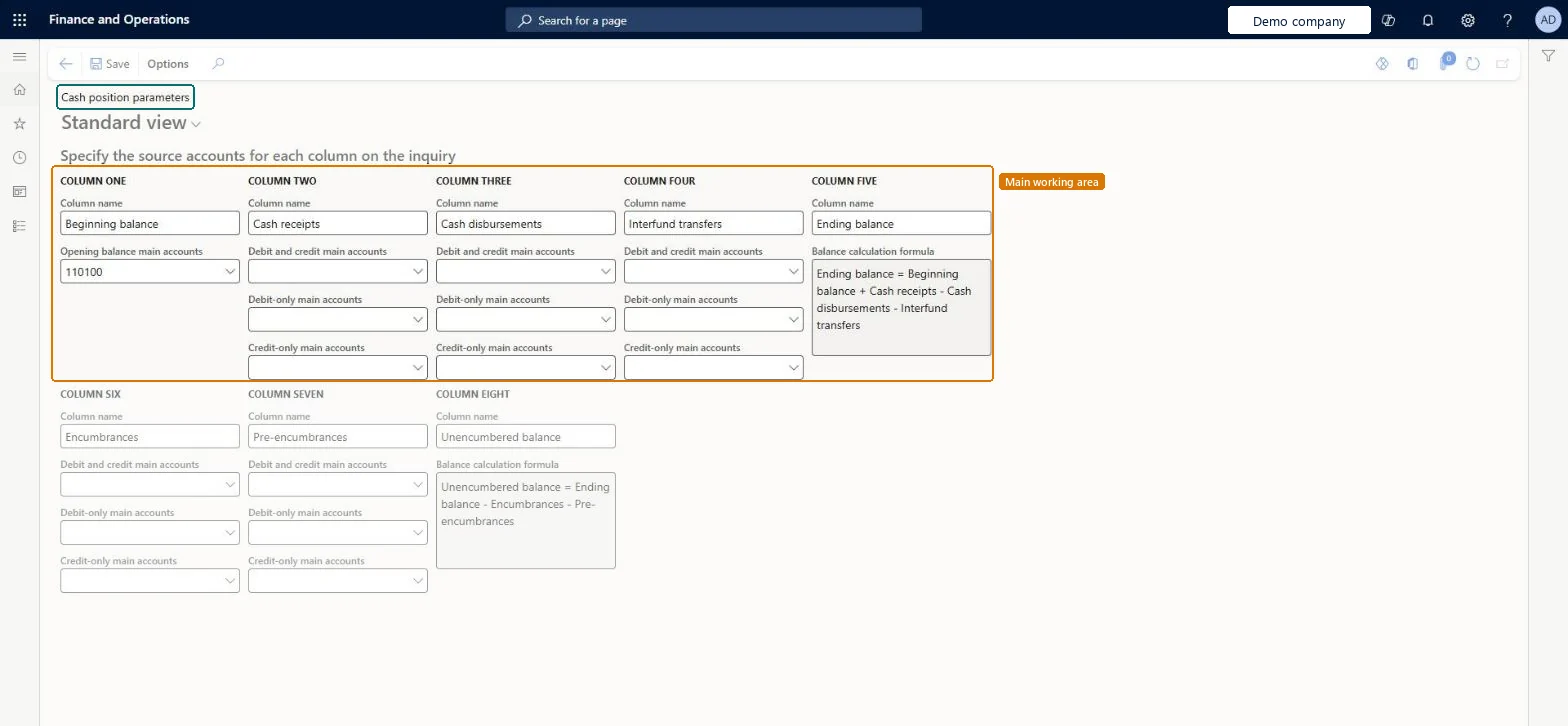
Used to customize the column names and the main accounts used to derive the amounts in each column of the inquiry.
- Used by
- Accounting manager, Accounting supervisor
- Business process
- Analyze cash position in Dynamics 365 Finance
- Menu item
PSNCashPositionColumnSetup- Main table
PSNCashPositionColumnSetup- Data entity
PSNCashPositionColumnSetupEntity- Setup steps
- 1 on this page
Show what matters for
Everyone
1What it is and why
| What it is | The setup page for the public sector Cash position inquiry. |
|---|---|
| What you do here | Used to customize the column names and the main accounts used to derive the amounts in each column of the inquiry. |
| Example | Label column eight Unencumbered balance, which is calculated as the ending balance minus encumbrances and pre-encumbrances. |
Functional consultant · Solution architect
2Where it fits
| Business process | Manage cash › Track cash position › Analyze cash position in Dynamics 365 Finance |
|---|---|
| Menu path | General ledger › Ledger setup › Cash position parameters |
| Set up first | — |
| Used next by | Cash position Microsoft Learn ↗ |
| Related pages | — |
| In this process | — |
End user · Functional consultant
3How to do it
Step by step, with screenshots
Set up Cash position parameters1 screen
Used to customize the column names and the main accounts used to derive the amounts in each column of the inquiry.
Screen 1
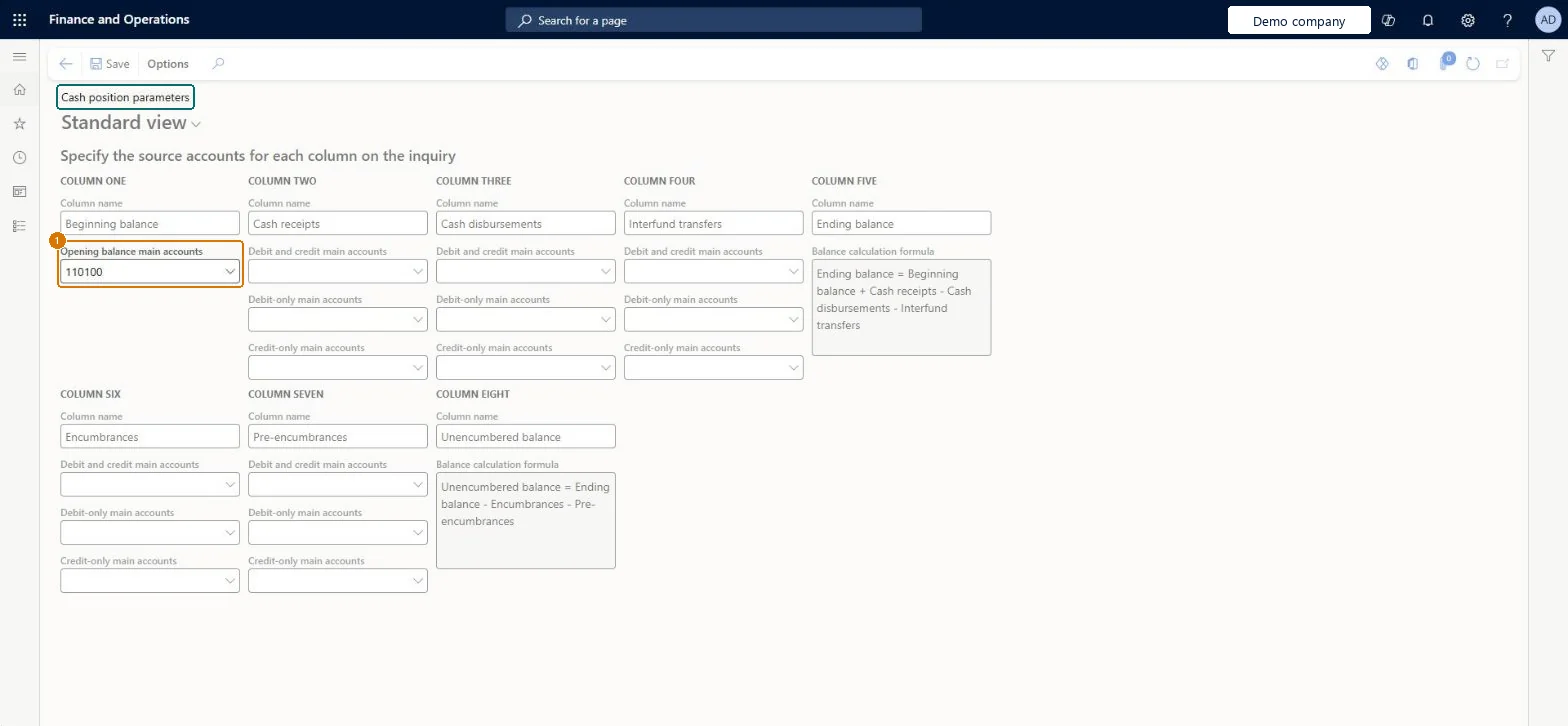
Set the cash position opening balance account
Go to General ledger > Ledger setup > Cash position parameters
- Under COLUMN ONE, check the column name
- Choose the opening balance main account
- Select Save
1Opening balance main accounts 110100 Column name Beginning balance 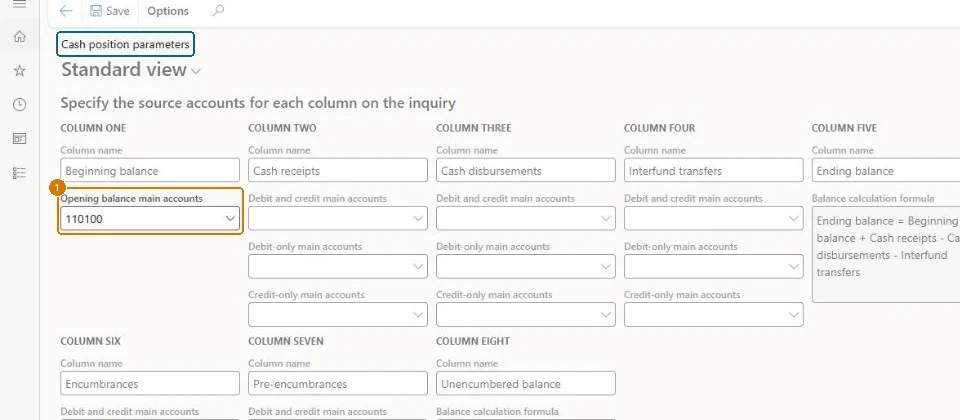
Show the full screen
page title tab to open what to set or check
Microsoft's steps
- Go to General ledger > Ledger setup > Cash position parameters.
- In the Column one section, enter a column name, such as Beginning balance, and select the opening balance main accounts.
- In the Column two section, enter a name, such as Cash receipts, and select the debit and credit, debit-only and credit-only main accounts.
- Do the same for columns three and four, such as Cash disbursements and Interfund transfers.
- In the Column five section, enter a name for the calculated ending balance.
- In the Column six and Column seven sections, enter names and main accounts, such as for encumbrances and pre-encumbrances.
- In the Column eight section, enter a name for the calculated unencumbered balance.
- Select Save.
Source: Microsoft Learn ↗
Field guide
| Field | What it means | Worked example | Table column |
|---|---|---|---|
| Column name | The heading shown for that column in the Cash position inquiry.Microsoft Learn ↗ | Beginning balance | ColumnEightLabel |
| Opening balance main accounts | The accounts whose opening balance fills the first column.Microsoft Learn ↗ | 110100 | ColumnOneRange |
| Debit and credit main accounts | Accounts whose net debit and credit amounts are used for the column.Microsoft Learn ↗ | — | ColumnSevenRange |
| Debit-only main accounts | Accounts whose debit amounts only are used for the column.Microsoft Learn ↗ | — | ColumnSevenDebitRange |
| Credit-only main accounts | Accounts whose credit amounts only are used for the column.Microsoft Learn ↗ | — | ColumnSevenCreditRange |
Functional consultant
4Setup decisions
| Setup step | Recommended value and why | Decision · common mistake · test |
|---|---|---|
| Set up Cash position parameters | — | — |
Solution architect
5Design impact
| Shared or per company | Per company: each legal entity has its own records. Microsoft data model ↗ |
|---|---|
| Can it be undone | — |
| Feature or country | — |
| If you change it later | — |
Technical architect
6Technical
| Menu item | PSNCashPositionColumnSetup Checked in Dynamics 365 |
|---|---|
| Form | PSNCashPositionSetup Checked in Dynamics 365 |
| Table | PSNCashPositionColumnSetupShown as “Cash position parameters” in Record infoKey field: KeyChecked in Dynamics 365 |
| Data entities | PSNCashPositionColumnSetupEntityCash position parameters Microsoft data model ↗ |
| Who can open it | PrivilegesMaintain accounts for cash position report PSNCashPositionSetupDutiesEnable general ledger process LedgerGeneralLedgerProcessEnable2 security rolesAccounting managerLedgerAccountingManagerAccounting supervisor LedgerAccountingSupervisor |
| Actions on the page | Options: Personalize, Page options, Edit, ShareChecked in Dynamics 365 |
Developer
7Developer
| Open it directly | https://<your-environment>/?mi=PSNCashPositionColumnSetup |
|---|---|
| Integrate with | PSNCashPositionColumnSetupEntity data entity Microsoft data model ↗ |
| Table definition | PSNCashPositionColumnSetup columns and relations Microsoft data model ↗ |
Everyone
8Sources and checks
- learn.microsoft.com/dynamics365/finance/public-sector/cash-position-inquiry
- learn.microsoft.com/dynamics365/finance/public-sector/cash-position-inquiry
- learn.microsoft.com/common-data-model/schema/core/operationscommon/tables/finance/bank/parameter/psncashpositioncolumnsetup
- Checked in a working Dynamics 365 system, version 10.0.49: the menu item, form, table and security, the page, the demo records and the values in the screenshots.
GL-SETUP-080 — Set up Cash position parameters. Beyond ERP Atlas Hub, snapshot 2026-10-16, partly verified. https://www.beyonderp.cloud/atlas/step/GL-SETUP-080