Setup step on the Year-end close template setup page · General ledger
Set up Year-end close template setup
Used to add or modify the templates that the Year-end close process runs.
- Used by
- Accountant, Accounting manager, Accounting supervisor
- Business process
- Roll balances forward in Dynamics 365 Finance
- Menu item
LedgerFiscalCloseGroup- Main table
LedgerFiscalCloseGroup- Data entity
LedgerFiscalCloseGroupEntity- Setup steps
- 1 on this page
Show what matters for
Everyone
1What it is and why
| What it is | The setup page for year-end close templates. |
|---|---|
| What you do here | Used to add or modify the templates that the Year-end close process runs. |
| Example | For example, templates can be set up by geography, with separate groups for North American, EMEA, and APAC legal entities. |
Functional consultant · Solution architect
2Where it fits
| Business process | Close financial periods › Close periods › Roll balances forward in Dynamics 365 Finance |
|---|---|
| Menu path | General ledger › Ledger setup › Year-end close template setup |
| Set up first | Fiscal calendars Microsoft Learn ↗Main accounts Microsoft Learn ↗ |
| Used next by | Year end close Microsoft Learn ↗ |
| Related pages | — |
| In this process | — |
End user · Functional consultant
3How to do it
Step by step, with screenshots
Set up Year-end close template setup1 screen
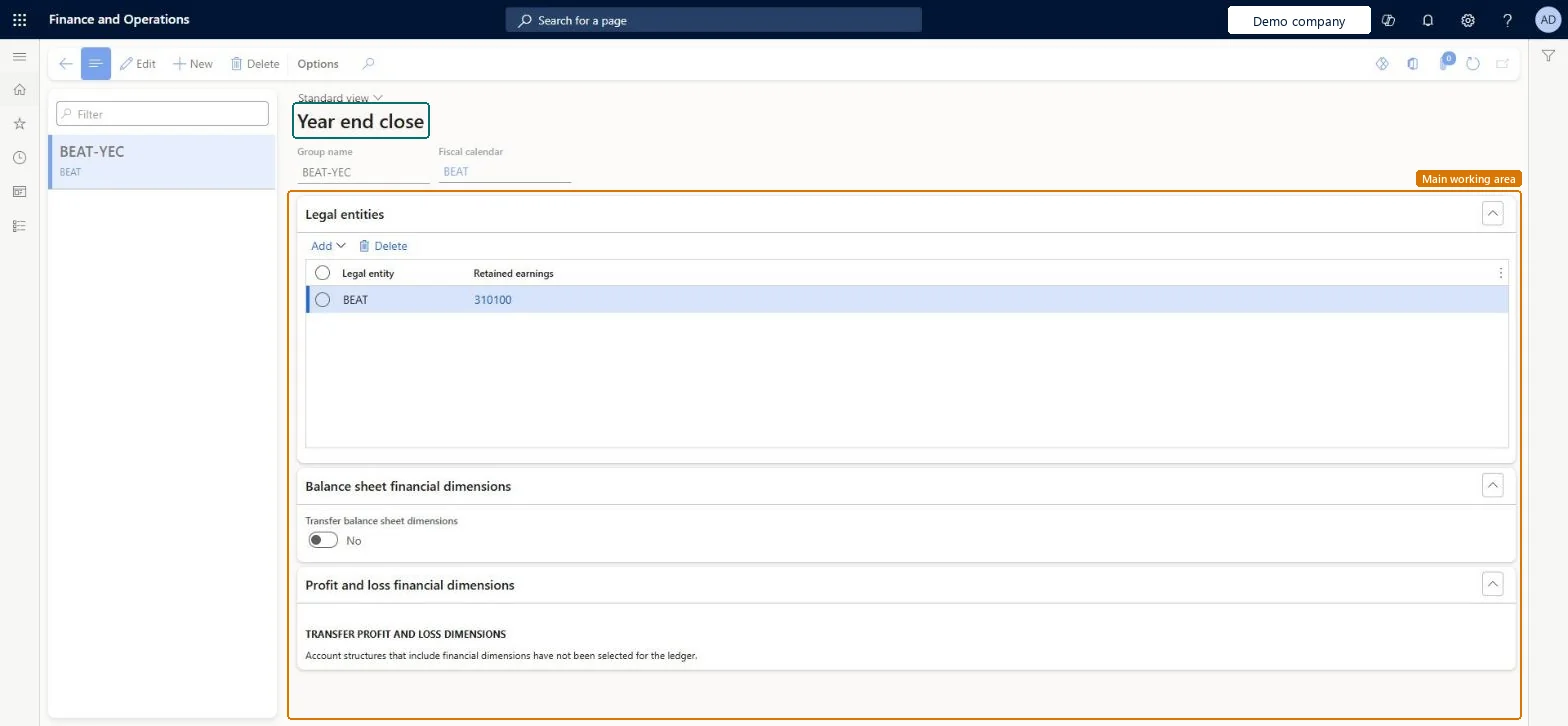
Used to add or modify the templates that the Year-end close process runs.
Screen 1
Create the year-end close template
Go to General ledger > Ledger setup > Year-end close template setup
- Select New and enter the group name
- Choose the fiscal calendar
- On the Legal entities FastTab, select Add and enter the retained earnings account
1Group name BEAT-YEC 2Fiscal calendar BEAT 3Retained earnings 310100 Legal entity BEAT 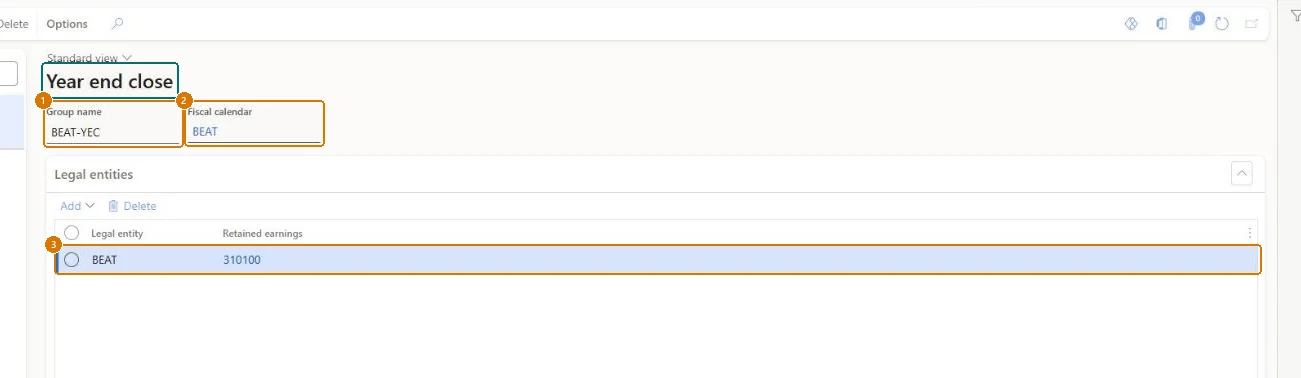
Show the full screen
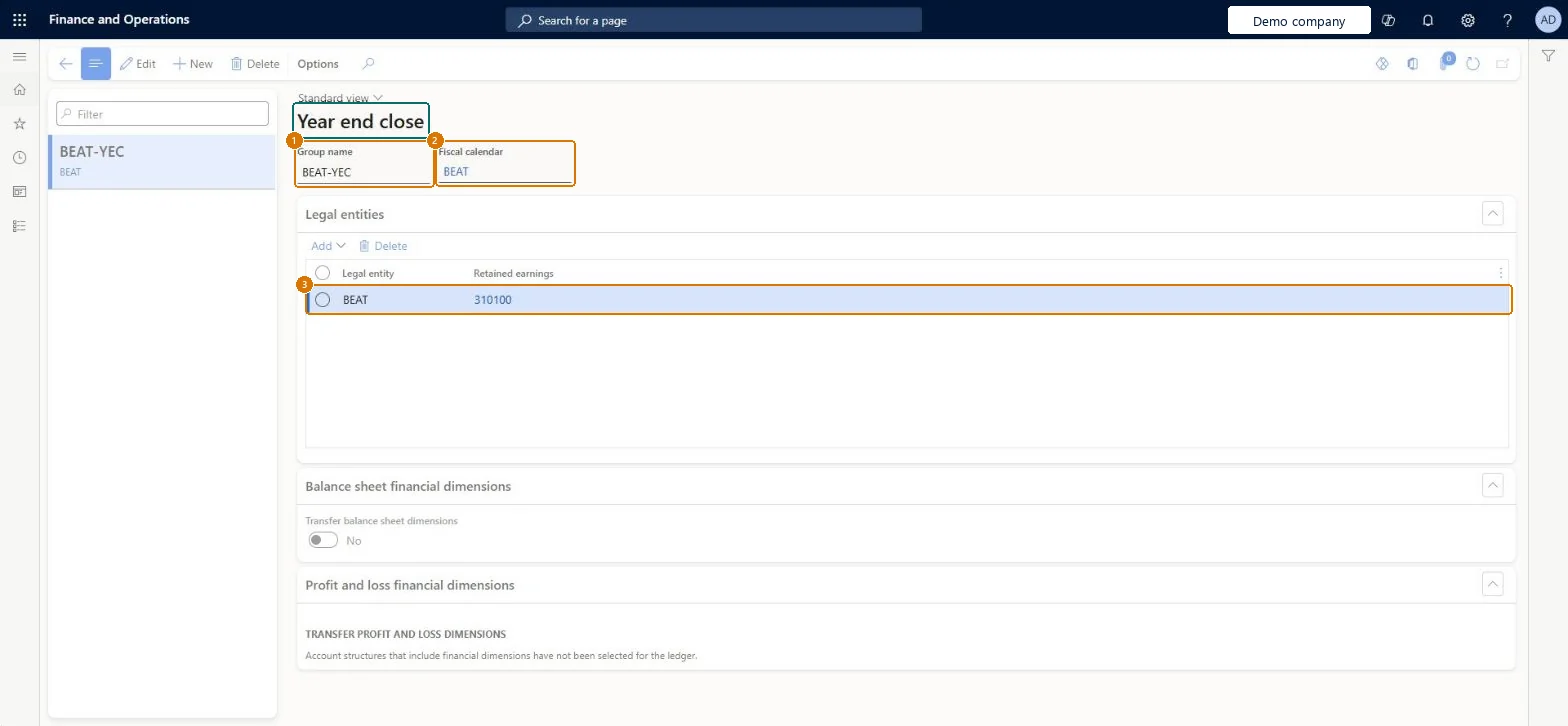
page title tab to open what to set or check
Microsoft's steps
- Go to General ledger > Ledger setup > Year-end close template setup.
- Select New, enter a Group name, and select the fiscal calendar.
- Add the legal entities, either one by one or through an organizational hierarchy.
- For each legal entity, define the retained earnings main account.
- On the Financial dimension tab, set Transfer balance sheet dimensions, usually to Yes.
- For the profit and loss dimensions, set each dimension to Close all or Close single.
- Save the template.
Source: Microsoft Learn ↗
Field guide
| Field | What it means | Worked example | Table column |
|---|---|---|---|
| Group name | The template name, which should identify the group of legal entities it covers.Microsoft Learn ↗ | BEAT-YEC | — |
| Fiscal calendar | The calendar shared by every legal entity in the template; only entities on the same calendar can be grouped.Microsoft Learn ↗ | BEAT | FiscalCalendar |
| Transfer balance sheet dimensions | Keeps the financial dimensions of balance sheet postings on the opening balances; Yes is recommended.Microsoft Learn ↗ | — | — |
| Close all | The default: keeps the original dimension values when profit and loss is moved to retained earnings.Microsoft Learn ↗ | — | — |
| Close single | Summarizes all values of a dimension into one retained earnings balance for the value entered, or blank.Microsoft Learn ↗ | — | — |
| Legal entity | — | BEAT | — |
| Retained earnings | — | 310100 | — |
Functional consultant
4Setup decisions
| Setup step | Recommended value and why | Decision · common mistake · test |
|---|---|---|
| Set up Year-end close template setup | — | — |
Solution architect
5Design impact
| Shared or per company | Shared: the same records are used by every legal entity. Microsoft data model ↗ |
|---|---|
| Can it be undone | — |
| Feature or country | — |
| If you change it later | The year-end close follows the template's dimension settings, not the account structures, so opening balances can include dimensions that are no longer in the current structures. Microsoft Learn ↗ |
Technical architect
6Technical
| Menu item | LedgerFiscalCloseGroup Checked in Dynamics 365 |
|---|---|
| Form | LedgerFiscalCloseGroup Checked in Dynamics 365 |
| Table | LedgerFiscalCloseGroupShown as “Fiscal close group” in Record infoKey field: RecIdChecked in Dynamics 365 |
| Data entities | LedgerFiscalCloseGroupEntityFiscal close group Microsoft data model ↗ |
| Who can open it | PrivilegesTransfer the closing balance of one year to the opening balance of another LedgerTransferOpeningMAProcessDutiesMaintain closing transactions LedgerClosingTransactionsMaintain3 security rolesAccountantLedgerAccountantAccounting manager LedgerAccountingManagerAccounting supervisor LedgerAccountingSupervisor |
| Actions on the page | Options: Personalize, Page options, ShareChecked in Dynamics 365 |
Developer
7Developer
| Open it directly | https://<your-environment>/?mi=LedgerFiscalCloseGroup |
|---|---|
| Integrate with | LedgerFiscalCloseGroupEntity data entity Microsoft data model ↗ |
| Table definition | LedgerFiscalCloseGroup columns and relations Microsoft data model ↗ |
Everyone
8Sources and checks
- learn.microsoft.com/dynamics365/finance/general-ledger/year-end-close
- learn.microsoft.com/dynamics365/finance/general-ledger/year-end-close
- learn.microsoft.com/common-data-model/schema/core/operationscommon/tables/finance/ledger/main/ledgerfiscalclosegroup
- learn.microsoft.com/training/modules/configure-periodic-processes-dyn365-finance/05-end-year-close
- Checked in a working Dynamics 365 system, version 10.0.49: the menu item, form, table and security, the page, the demo records and the values in the screenshots.
GL-SETUP-030 — Set up Year-end close template setup. Beyond ERP Atlas Hub, snapshot 2026-10-16, partly verified. https://www.beyonderp.cloud/atlas/step/GL-SETUP-030