SETUP GUIDEHow to set it up8 sections. Choose a role to highlight what matters to you.
Everyone
1What it is and why
What it is
A report that shows the per diems given to an employee over a period or on a specific expense report.
What you do here
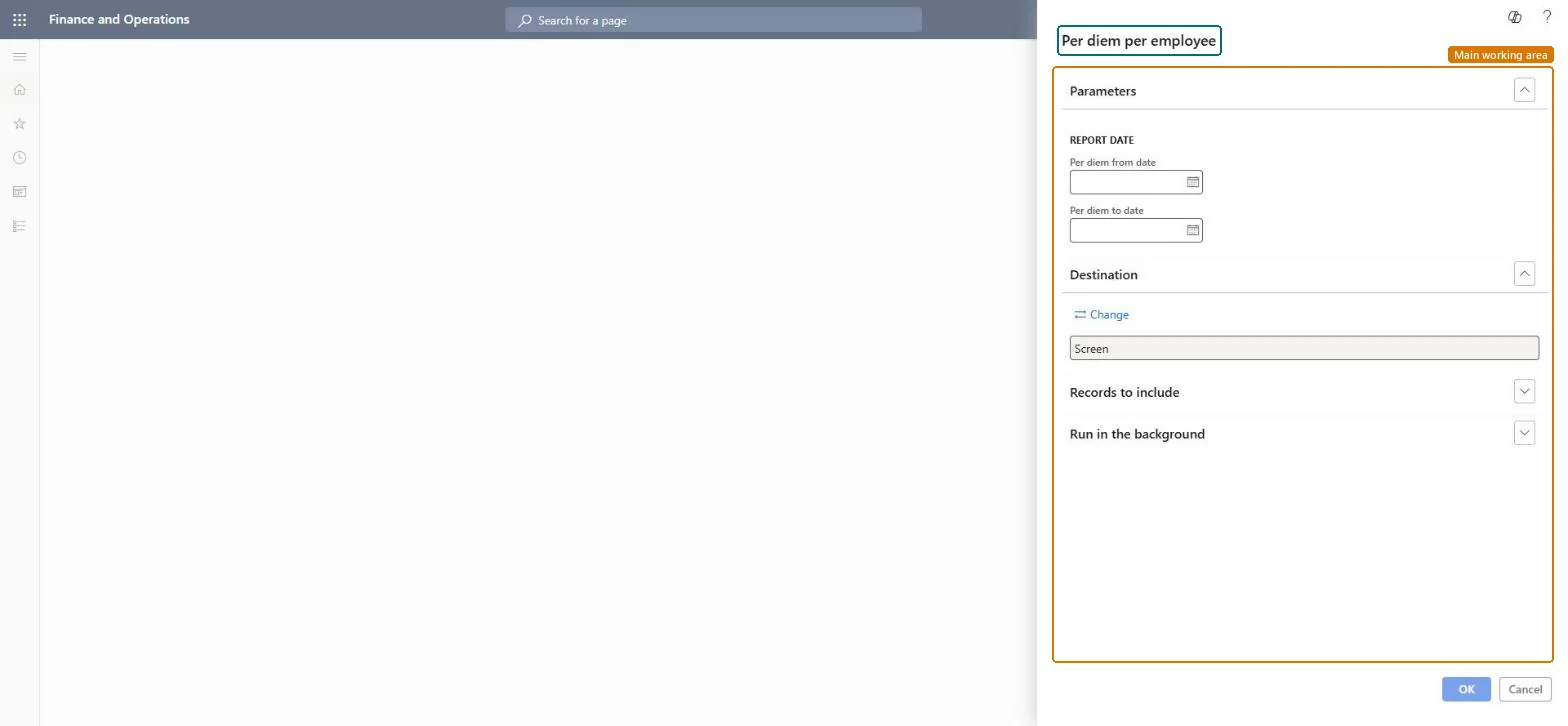
Use this report to list per diems by date range, expense report and expense category.
Example
For example, for a five-day Redmond trip at 150.00 lodging, 75.00 meals and 5.00 incidentals, the daily total is 230.00 and five days come to 1,150.00; with three breakfasts and two lunches provided, the report shows 1,037.50 paid.
The page in Dynamics 365. page title tab to open what to set or check
About the examples: Examples and screenshots in this guide use BEAT, a demo company in a Dynamics 365 test environment. Use your own company's codes and values instead of copying them.
When to run it
When to run it
When you review per diem allowances paid to employees, for example in an audit or after changing per diem rates.
How often
On demand, for example monthly.
What the output shows
Per diems given to employees for the date range or expense report. An amount that is higher than expected usually means meal reductions were not entered for provided meals.
Run it for the period after a rate change and compare with the rates on Per diems.The amount is the daily allowance of the location minus the reduction for provided meals.
In this system Employee and Contractor enter their own expenses, and Expense administrator sets up the module and processes documents. The expense mobile app needs the Employee role, a company on the user account and a link to an employee with active employment. The expense administrator runs this report; no Feature management feature is needed.
Load order: The report has no data entity in Data management, so it can't be loaded from a file or a configuration template. It reads posted or entered expense data and prints it; nothing on it is loaded or migrated. Run it in each environment after the data is there.Microsoft Learn