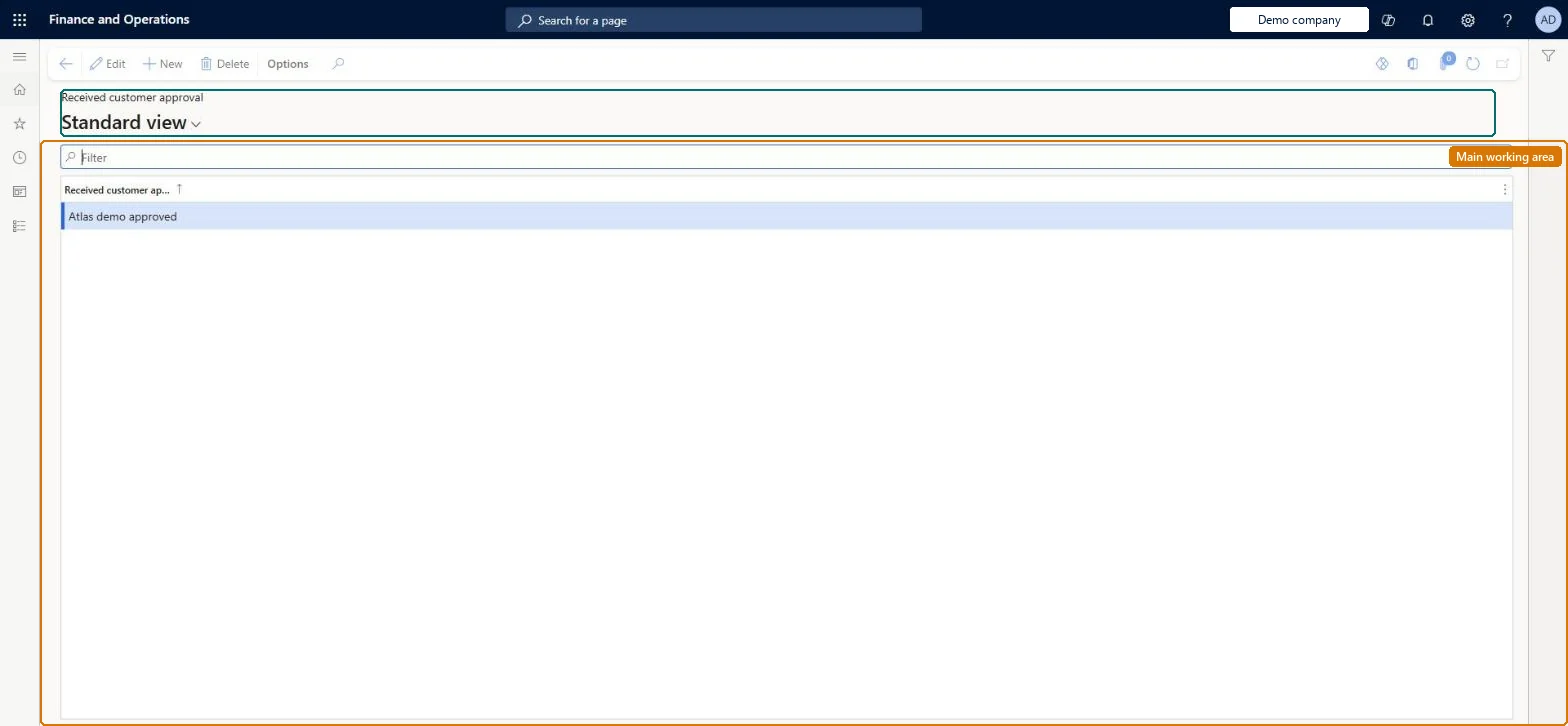
Setup step on the Received customer approval page · Engineering change management
Set up Received customer approval
Use this page to add, edit, remove and order the values shown in the Received customer approval field on an engineering change order, for products designed for a specific customer.
SETUP GUIDEHow to set it up8 sections. Choose a role to highlight what matters to you.
Everyone
1What it is and why
What it is
A setup page where you maintain the status values that record how far a customer's approval of a product design has progressed, or whether it has been received.
What you do here
Use this page to add, edit, remove and order the values shown in the Received customer approval field on an engineering change order, for products designed for a specific customer.
Example
For example, when a product is designed for a specific customer, the design and specifications often must be validated by that customer before the product can be set as ready.
The page in Dynamics 365. page title tab to open what to set or check
About the examples: Examples and screenshots in this guide use BEAT, a demo company in a Dynamics 365 test environment. Use your own company's codes and values instead of copying them.
Setup steps on this page
Set up Received customer approval
Use this page to add, edit, remove and order the values shown in the Received customer approval field on an engineering change order, for products designed for a specific customer.
Steps from Microsoft
Go to Engineering change management > Setup > Engineering change management > Received customer approval.
Select New on the Action Pane to add a value.
Enter the value and its description.
Use Edit or Delete on the Action Pane to change or remove a value.
Use the Action Pane buttons to arrange the values in the order they should appear in drop-down lists.
One value per step of your customer approval process (for example sent, under review, approved), ordered in process sequence.The field shows how far the customer approval of a design has progressed or whether it has been received, and the page order is the drop-down order on change orders.
Solution architect
5Design impact
Can it be undone
Reversible: Values can be added, removed, edited and reordered at any time.
If you change it later
The order of the values on this page is the order they appear in the drop-down lists on change orders. Microsoft Learn
Technical architect
6Technical
Menu item
EngChgEcmCustApprovalReceivedChecked in Dynamics 365
Form
EngChgEcmCustApprovalReceivedChecked in Dynamics 365
Table
EngChgEcmCustApprovalRecShown as “CUSTOMER APPROVALS” in Record infoKey field: NameChecked in Dynamics 365
Data entities
EngChgEngineeringChangeCustomerApprovalTypeEntityEngineering change customer approval types Checked in Dynamics 365
Who can open it
PrivilegesMaintain Received customer approval EngChgEcmCustApprovalReceivedMaintainView Received customer approval EngChgEcmCustApprovalReceivedViewView engineering change requests EngChgEcmRequestViewDutiesInquire into engineering change management reference data EngChgEngineeringChangeManagementReferenceDataInquireMaintain engineering change master EngChgEngineeringChangeMasterMaintainInquire into engineering change request progress EngChgEngineeringChangeRequestProgressInquire2 security rolesProduct engineer EngChgProductEngineerProduct engineering manager EngChgProductEngineeringManagerChecked in Dynamics 365
Roles to set it up and use it
To set it up or change itProduct engineering manager EngChgProductEngineeringManagerTo use itProduct engineer EngChgProductEngineerGive people one of these roles. On this system, 2 roles can open this page.Checked in Dynamics 365