SETUP GUIDEHow to set it up8 sections. Choose a role to highlight what matters to you.
Everyone
1What it is and why
What it is
A registration page where a time registration worker enters time registrations after the fact, such as time on projects, indirect activities, or production orders, instead of registering in real time on a terminal.
What you do here
Use this page to enter a worker's time consumption, project fees, and project items at any time, for example daily or weekly, for later calculation and approval.
Example
For example, a BEAT consultant who worked 6.5 hours on project PRJ-0042 and 1.5 hours on an internal meeting enters both lines on the electronic timecard for Tuesday when back in the office on Friday; the supervisor then calculates and approves them.
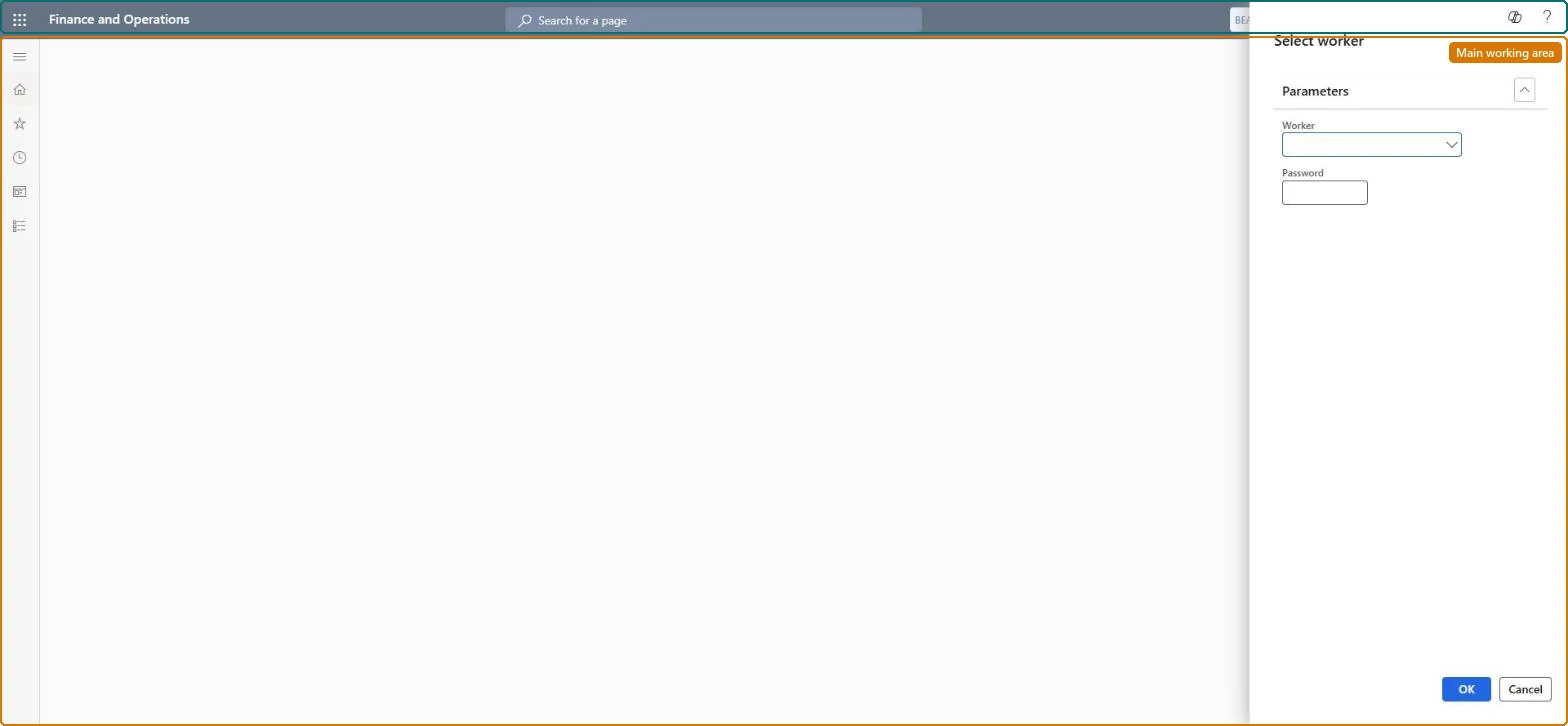
The page in Dynamics 365. page title tab to open what to set or check
About the examples: Examples and screenshots in this guide use BEAT, a demo company in a Dynamics 365 test environment. Use your own company's codes and values instead of copying them.
Setup steps on this page
Enter time on the electronic timecard
Register worked time on projects, indirect activities or production orders after the fact.
How to use it
Go to Common > Common > Time and attendance > Electronic timecard.
In the Select worker dialog, under Parameters, select the Worker.
Enter the worker password if one is required.
Select OK to open the electronic timecard of that worker.
Enter timecards at least weekly, before the weekly calculation and approvalRegistrations are paid and posted only after calculation and approval, so late timecards delay project costs and pay.
On the live system, these roles can open the page: Time registration user, Contractor, Employee.
Checked in Dynamics 365
Solution architect
5Design impact
Shared or per company
Per company: timecard registrations belong to time registration workers of the legal entity (the timecard entities are not shared). Checked in Dynamics 365
Can it be undone
Hard to reverse: Corrections are possible until transfer; after transfer they are reversed, not edited.
If you change it later
Registrations must be calculated and approved before they transfer; the transfer posts them to the project or production order and creates payroll transactions. Microsoft Learn
To set it up or change itTime registration user Contractor HcmContractorEmployee HCMEmployeeGive people one of these roles. On this system, 3 roles can open this page.Checked in Dynamics 365
Developer
7Developer
Open it by URL
https://<your-environment>/?mi=JmgTimecard
Integrate with
JmgElectronicTimecardActivityRegistrationHeaderEntity data entity
Data migration
JmgElectronicTimecardActivityRegistrationHeaderEntity (Electronic timecard headers): loaded for each company.JmgElectronicTimecardActivityRegistrationLineEntity (Electronic timecard lines): loaded for each company.Load order: Load time registration workers first, then timecard headers, then lines. Load only open, not yet approved registrations.Load first: time registration workers, projects, indirect activitiesChecked in Dynamics 365
Checked in a working Dynamics 365 system, version 10.0.49: the menu item, form, table and security, the page.
To cite this step: CMN-TA-020, Enter time on the electronic timecard. Beyond ERP Atlas Hub, 2026-11-11. https://www.beyonderp.cloud/atlas/step/CMN-TA-020