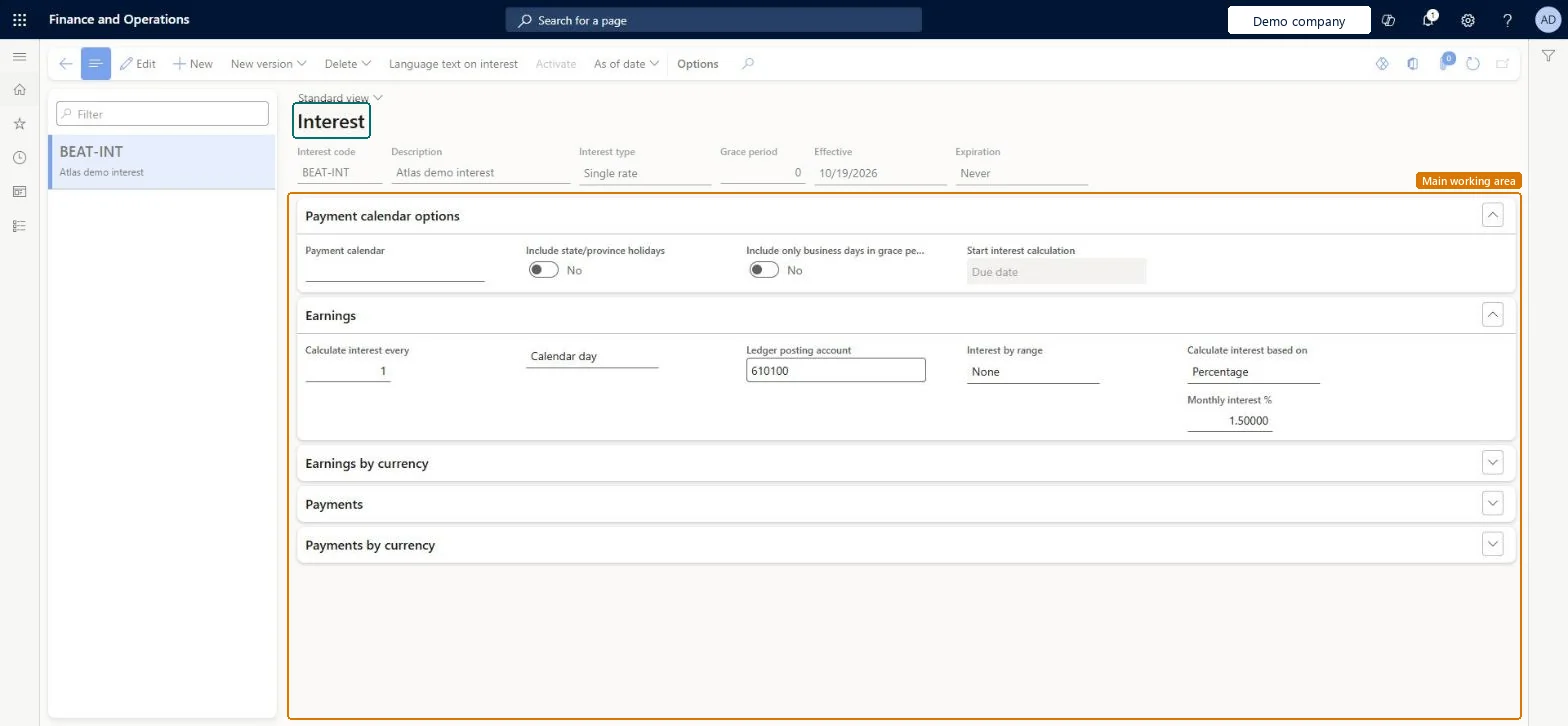
Setup step on the Set up interest codes page · Credit and collections
Set up interest codes
Use this page to set up the interest rates you earn and pay, as a percentage, an amount or by range, and apply one code to several customer posting profiles.
SETUP GUIDEHow to set it up8 sections. Choose a role to highlight what matters to you.
Everyone
1What it is and why
What it is
A setup page for interest codes, which hold the settings for when interest is charged on overdue accounts and how it is calculated.
What you do here
Use this page to set up the interest rates you earn and pay, as a percentage, an amount or by range, and apply one code to several customer posting profiles.
Example
For example, an interest code can charge 5 percent for every two months that an invoice payment is past its due date.
The page in Dynamics 365. page title tab to open what to set or check
About the examples: Examples and screenshots in this guide use BEAT, a demo company in a Dynamics 365 test environment. Use your own company's codes and values instead of copying them.
Step by step, with screenshots
Set up interest codes1 screen
Use this page to set up the interest rates you earn and pay, as a percentage, an amount or by range, and apply one code to several customer posting profiles.
Screen 1
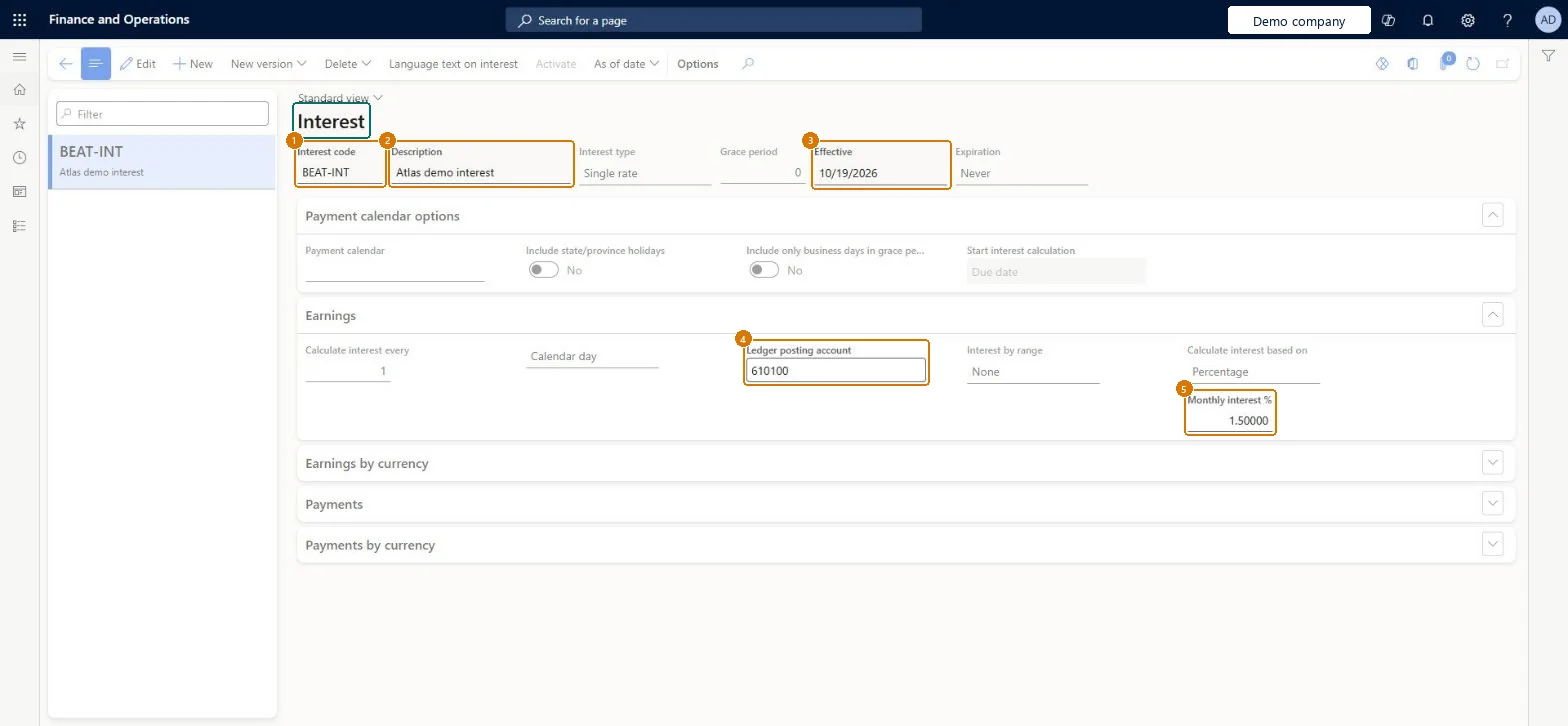
Create an interest code
Go to Credit and collections > Interest > Set up interest codes
Select New
Enter the interest code and description
Leave the interest type as Single rate and the effective date as today
Under Earnings, enter the monthly interest percentage
Select the ledger posting account for interest
Select Save
1Interest code
BEAT-INT
2Description
Interest
4Ledger posting account
610100
5Monthly interest %
1.5
Show the full screen page title tab to open what to set or check
Steps from Microsoft
Go to Credit and collections > Interest > Set up interest codes.
Select New, and enter the interest code and a description.
Expand the Earnings and Earnings by currency sections.
In the Ledger posting account field, select the account.
In the Interest by range field, select Months, then select Add and enter a description for the currency and range.
Save, and then select Ranges.
Add a line for each range with its From value and interest percent per month, for example 0 and 1.5, 4 and 2.0, and 7 and 2.5.
One interest code per interest policy, attached to the customer posting profiles that should bear interest. Change a rate by creating a new version effective from a future date, not by editing the current one.One code can serve several posting profiles, billing codes or invoice lines, and changes apply automatically to new transactions. Interest codes are date effective, so a new version keeps the old rate for the period it applied to.
Reversible: Rates can be changed at any time through a new dated version; changes apply to new transactions. Interest notes already created keep their amounts.
If you change it later
Interest codes are date effective: to change a rate, create a new version that takes effect from a future date. Changes apply to new transactions. Microsoft Learn
Technical architect
6Technical
Menu item
InterestChecked in Dynamics 365
Form
InterestChecked in Dynamics 365
Table
CustInterestShown as “Customer interest codes” in Record infoKey field: InterestCodeChecked in Dynamics 365
To set it up or change itCollections manager CollectionLetterCollectionsManagerAccounts receivable manager CustInvoiceAccountsReceivableManagerRental manager RentalManagerAccounting supervisor LedgerAccountingSupervisorCollections agent CollectionLetterCollectionsAgentTo use itAccounting manager LedgerAccountingManagerAccounts receivable payments clerk PaymAccountsReceivablePaymentsClerkAccounts receivable clerk CustInvoiceAccountsReceivableClerkAccounts receivable centralized payments clerk PaymAccountsReceivableCentralPaymClerkAuditor AuditPolicyManagerGive people one of these roles. On this system, 14 roles can open this page.Checked in Dynamics 365
Actions on the page
Options: Personalize, Page options, ShareChecked in Dynamics 365
CustInterestCodeEntity (Interest codes): loaded for each company, in Microsoft's default template 140 - Accounts receivable.CustInterestCodeWithFeeEntity (Interest codes with fees): loaded for each company, in Microsoft's default template 140 - Accounts receivable.CustInterestCodeWithRangeEntity (Interest codes with ranges): loaded for each company, in Microsoft's default template 140 - Accounts receivable.Load order: Microsoft's default template 140 - Accounts receivable loads Interest codes at execution unit 1, level 30, sequence 10. Lower levels load first, and entities at the same level load in sequence order.Load first: the default templates at lower levels (System setup to General ledger)Microsoft Learn
Checked in a working Dynamics 365 system, version 10.0.49: the menu item, form, table and security, the page, the demo records and the values in the screenshots.
To cite this step: CC-SETUP-010, Set up interest codes. Beyond ERP Atlas Hub, 2026-11-11. https://www.beyonderp.cloud/atlas/step/CC-SETUP-010