Setup step on the Bank reasons page · Cash and bank management
Set up Bank reasons
Used to explain why transactions were entered or changed, including why a letter of guarantee was cancelled.
- Used by
- Chief financial officer, Accountant, Accounting manager and 2 more roles
- Business process
- Manage supplier letters of guarantee for payment in Dynamics 365 Finance
- Menu item
BankReasons- Main table
ReasonTable- Data entity
VendVendorReasonsEntity- Setup steps
- 1 on this page
Show what matters for
Everyone
1What it is and why
| What it is | A setup page where you create reason codes for Cash and bank management transactions. |
|---|---|
| What you do here | Used to explain why transactions were entered or changed, including why a letter of guarantee was cancelled. |
| Example | For example, you can create reason codes to use when you create or cancel a letter of guarantee. |
Functional consultant · Solution architect
2Where it fits
| Business process | Manage accounts payable › Issue and settle supplier payments › Manage supplier letters of guarantee for payment in Dynamics 365 Finance |
|---|---|
| Menu path | Cash and bank management › Setup › Bank reasons |
| Set up first | — |
| Used next by | — |
| Related pages | Payment purpose codes Microsoft Learn ↗ |
| In this process | ← Set up Bank facilities |
End user · Functional consultant
3How to do it
Step by step, with screenshots
Set up Bank reasons1 screen
Used to explain why transactions were entered or changed, including why a letter of guarantee was cancelled.
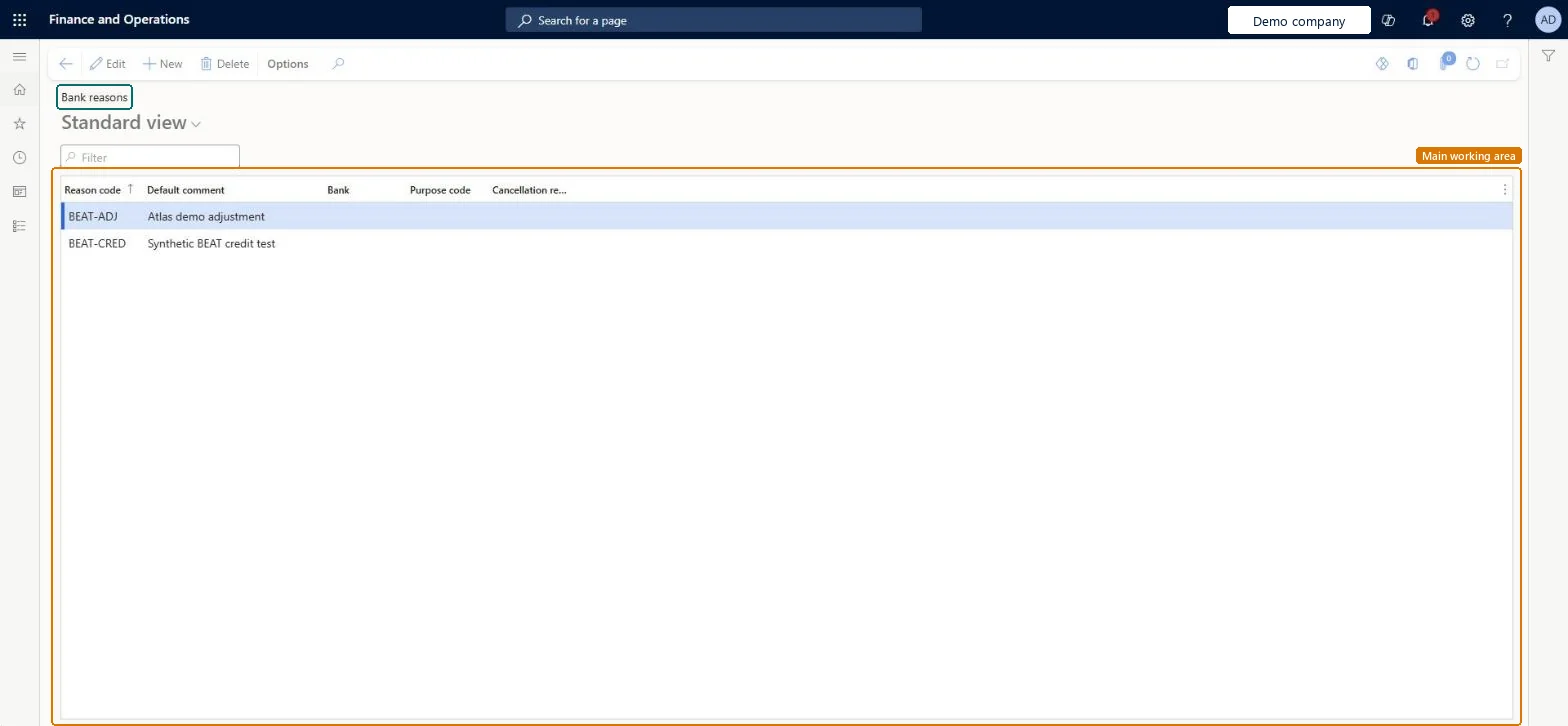
Screen 1
Create the bank reason
Go to Cash and bank management > Setup > Bank reasons
- Select New
- Enter the Reason code and Default comment
- Select Bank
- Select Save
1Reason code BEAT-BNK Default comment Atlas demo bank correction Bank Yes 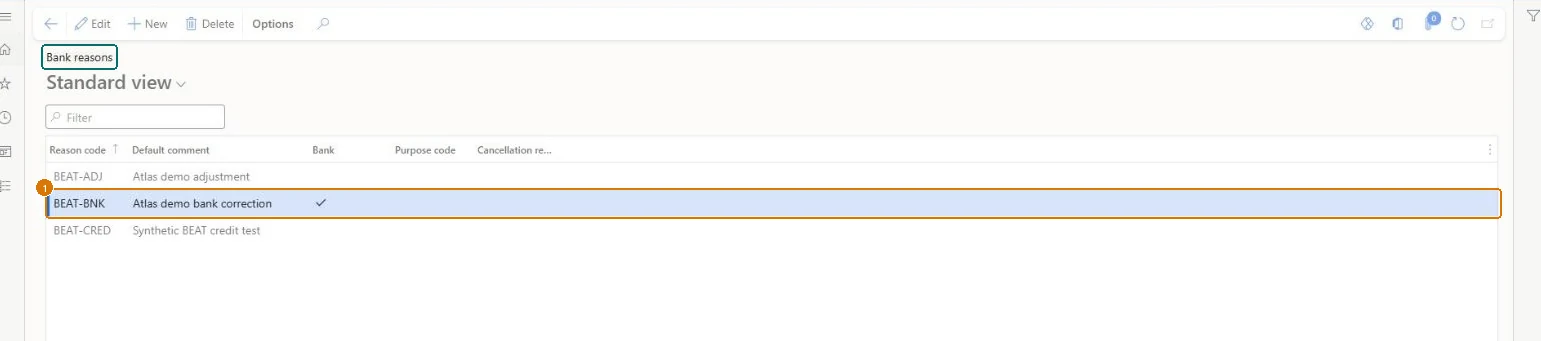
Show the full screen
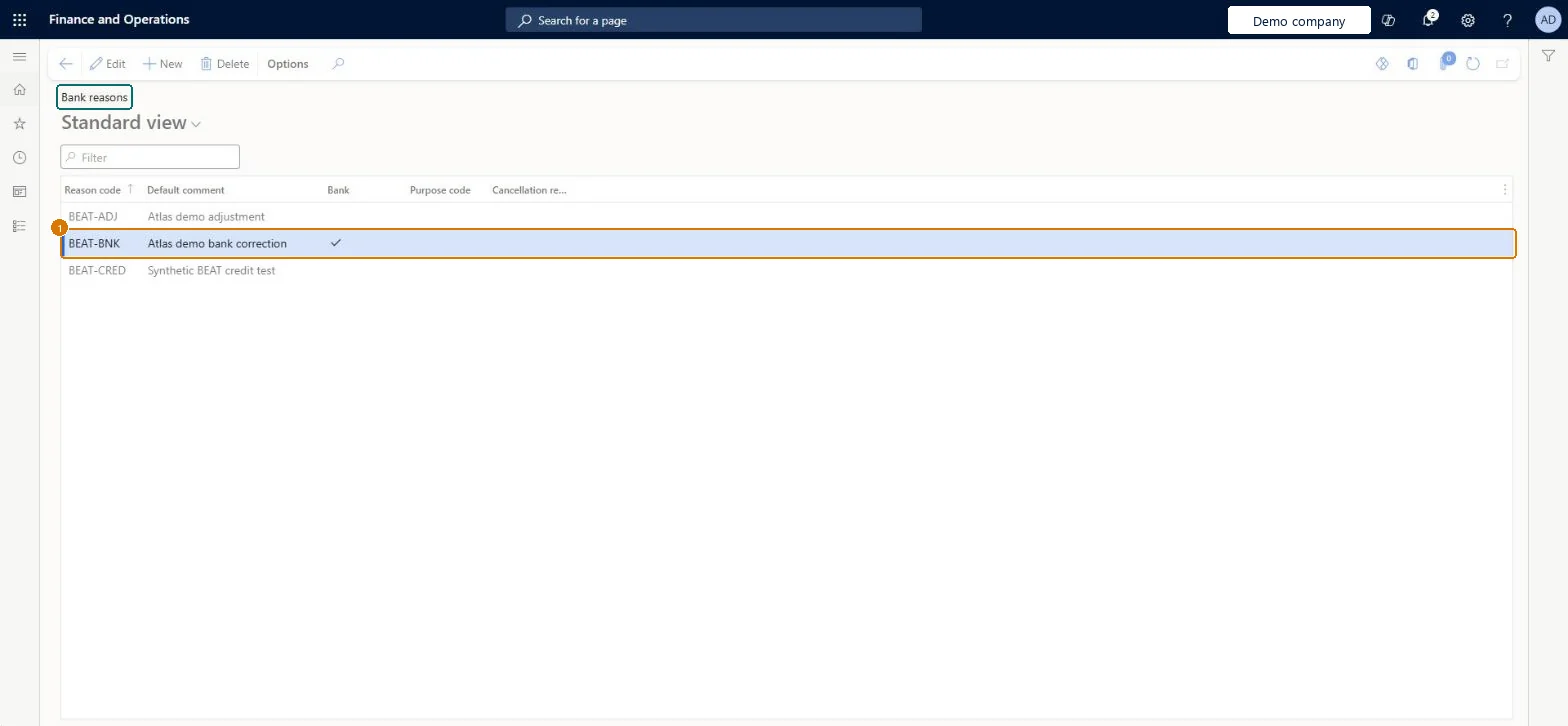
page title tab to open what to set or check
Microsoft's steps
- Go to Cash and bank management > Setup > Bank reasons.
- Create a new bank reason.
- In the Reason code field, enter the code.
- In the Default comment field, enter a description.
- Select Bank so the code can be used for bank transactions.
- Select Purpose code or Cancellation reason if the code is for letters of guarantee.
- Save the record.
Source: Microsoft Learn ↗
Field guide
| Field | What it means | Worked example | Table column |
|---|---|---|---|
| Reason code | A unique ID for the reason code.Microsoft Learn ↗ | BEAT-BNK | — |
| Default comment | The comment shown by default when the code is chosen; users can change it.Microsoft Learn ↗ | Atlas demo bank correction | Description |
| Bank | Lets the code be used for Cash and bank management transactions.Microsoft Learn ↗ | Yes | Bank |
| Purpose code | Lets the code be used as the purpose code of a letter of guarantee.Microsoft Learn ↗ | — | BankLGPurposeCode |
| Cancellation reason | Lets the code be used to cancel a letter of guarantee.Microsoft Learn ↗ | — | BankLGCancellationReason |
Functional consultant
4Setup decisions
| Setup step | Recommended value and why | Decision · common mistake · test |
|---|---|---|
| Set up Bank reasons | — | — |
Solution architect
5Design impact
| Shared or per company | Per company: each legal entity has its own records. Microsoft data model ↗ |
|---|---|
| Can it be undone | — |
| Feature or country | — |
| If you change it later | — |
Technical architect
6Technical
| Menu item | BankReasons Checked in Dynamics 365 |
|---|---|
| Form | Reasons Checked in Dynamics 365 |
| Table | ReasonTableShown as “Reasons” in Record infoKey field: Reason, DescriptionChecked in Dynamics 365 |
| Data entities | VendVendorReasonsEntityVendor reasons Microsoft data model ↗LedgerFinancialReasonEntityFinancial reasons Microsoft data model ↗ |
| Who can open it | PrivilegesMaintain bank reason codes BankReasonsMaintainView bank reason codes BankReasonsViewDutiesEnable bank management process BankBankManagementProcessEnableInquire into bank management reference data BankBankMgmtReferenceDataInquire5 security rolesChief financial officerCompanyChiefFinancialOfficerAccountant LedgerAccountantAccounting manager LedgerAccountingManagerFinancial controller LedgerFinancialControllerTreasurer PaymTreasurer |
| Actions on the page | Options: Personalize, Page options, ShareChecked in Dynamics 365 |
Developer
7Developer
| Open it directly | https://<your-environment>/?mi=BankReasons |
|---|---|
| Integrate with | VendVendorReasonsEntity data entity Microsoft data model ↗ |
| Table definition | ReasonTable columns and relations Microsoft data model ↗ |
Everyone
8Sources and checks
- learn.microsoft.com/previous-versions/dynamicsax-2012/reasons-form
- learn.microsoft.com/previous-versions/dynamicsax-2012/appuser-itpro/set-up-letter-of-guarantee-cancellation-reasons-and-purpose-code-types
- learn.microsoft.com/common-data-model/schema/core/operationscommon/tables/finance/ledger/group/reasontable
- learn.microsoft.com/dynamics365/finance/cash-bank-management/letters-of-guarantee
- Checked in a working Dynamics 365 system, version 10.0.49: the menu item, form, table and security, the page, the demo records and the values in the screenshots.
CB-SETUP-070 — Set up Bank reasons. Beyond ERP Atlas Hub, snapshot 2026-10-16, partly verified. https://www.beyonderp.cloud/atlas/step/CB-SETUP-070