SETUP GUIDEHow to set it up8 sections. Choose a role to highlight what matters to you.
Everyone
1What it is and why
What it is
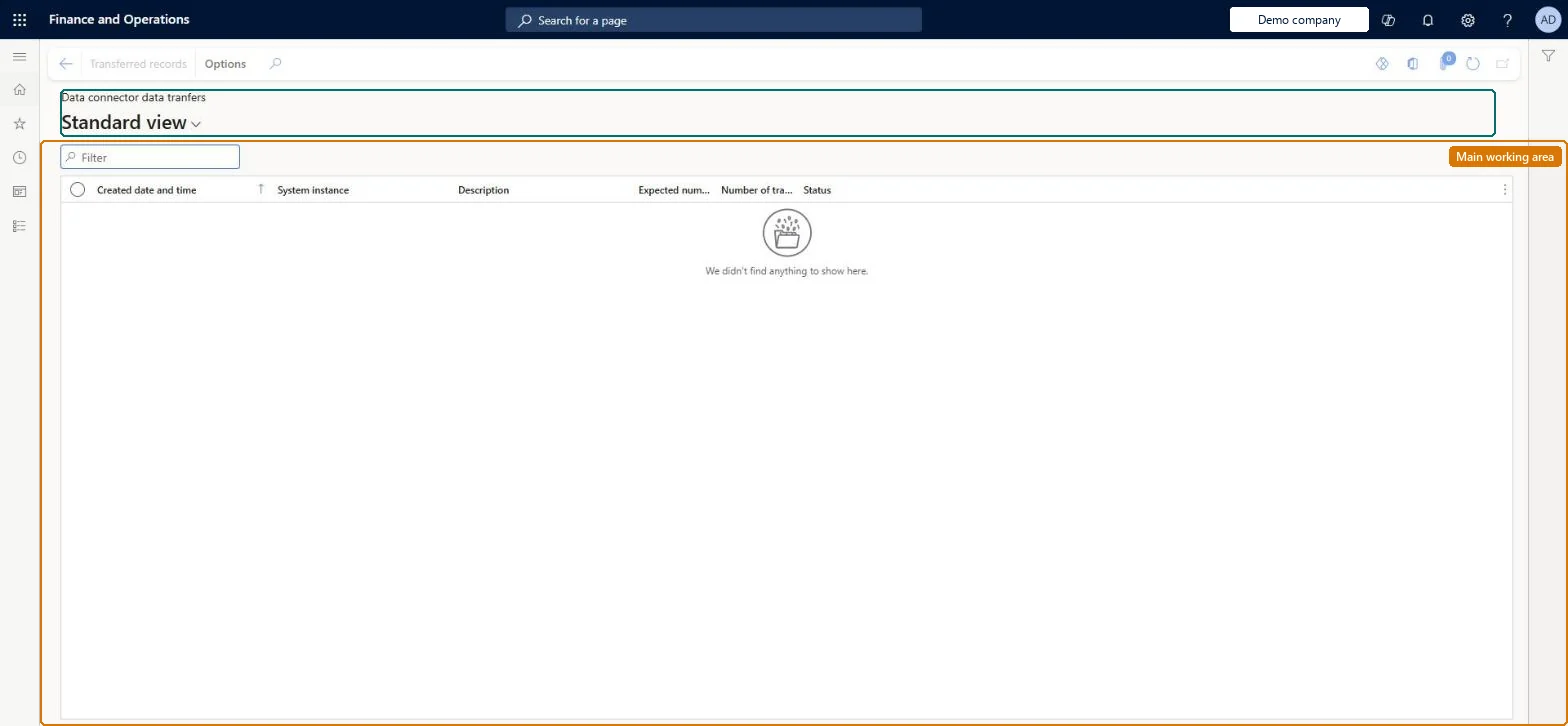
An inquiry page that lists each data transfer an external system instance has made into Cost accounting through the Dynamics AX data connector, with the expected and transferred number of records and the status.
What you do here
Use this page to check that a transfer from a registered system instance has finished and brought in every record before you process the source data for the period.
Example
For example, a transfer from the subsidiary's Dynamics AX system shows 1,200 expected and 1,180 transferred records, so you rerun it before processing the period instead of reporting incomplete costs.
The page in Dynamics 365. page title tab to open what to set or check
About the examples: Examples and screenshots in this guide use BEAT, a demo company in a Dynamics 365 test environment. Use your own company's codes and values instead of copying them.
Setup steps on this page
Confirm an external transfer is complete
Check a Dynamics AX data connector transfer before its data is processed.
Steps from Microsoft
Go to Cost accounting > Inquiries and reports > Data connector data transfers.
Filter on the System instance and sort by Created date and time.
Compare Expected number of records with Number of transferred records.
Check the Status of the latest transfer.
Select Transferred records to see the records of the selected transfer.
The external system instance the data came from, as registered on Data connector system instances.Microsoft Learn
Description
What the transfer carried.Checked in Dynamics 365
Expected number of records
How many records the system instance reported for the transfer.Checked in Dynamics 365
Number of transferred records
How many records arrived. A lower number than expected means the transfer is incomplete.Checked in Dynamics 365
Status
Whether the transfer has finished.Checked in Dynamics 365
Common errors and fixes
Message
What to do
The page is empty
Transfers are listed only for the Dynamics AX data connector. Data from this system comes through the built-in Dynamics 365 Finance connector and is checked in Journals instead. Checked in Dynamics 365
Test checklist
Run a transfer from the system instance.
Open this page and find the transfer.
Check that the expected and transferred counts match before processing the period.
Before each period's processing, filter on the system instance and confirm the latest transfer has finished with the expected number of records.Processing an incomplete transfer leaves costs out of the period, and the gap only shows later in the Cost control workspace.
Cost accounting has four roles: Cost accounting manager (Activity licence), Cost accountant and Cost accountant clerk (Operations licence), and Cost object controller (Team members licence). Cost accountants and cost accountant clerks check transfers. No Feature management feature needs to be turned on for this page.
Shared: Cost accounting setup isn't kept per legal entity. It is the same from every company, and one cost accounting ledger can collect data from several legal entities. Checked in Dynamics 365
Can it be undone
Reversible: The inquiry changes no data.
If you change it later
The page only lists transfers. Data from a transfer reaches cost entries only when the source data is processed on the cost accounting ledger. Microsoft Learn
Technical architect
6Technical
Menu item
CAMDataConnectorDataTransferChecked in Dynamics 365
Form
CAMDataConnectorDataTransferChecked in Dynamics 365
Table
CAMDataDataConnectorDataTransferShown as “DATA CONNECTOR DATA TRANFERS” in Record infoKey field: DataConnectorSystemInstance_Name, SurrogateKeyChecked in Dynamics 365
Who can open it
2 security roles. Select a role to see its duties and privileges.
RoleCost accountantCAMCostAccountant
DutyView data connector source entriesCAMDataConnectorSourceEntriesInquire
PrivilegeView data connector data transfersCAMDataConnectorDataTransferView
DutyView data connector source entriesCAMDataConnectorSourceEntriesInquire
PrivilegeView data connector data transfersCAMDataConnectorDataTransferView
Checked in Dynamics 365
Roles to set it up and use it
To use itView data connector source entries CAMDataConnectorSourceEntriesInquireGive people a role that holds these duties. On this system, 2 roles give access to this page.Checked in Dynamics 365
Actions on the page
(Action Pane without tabs): Transferred recordsChecked in Dynamics 365
Load order: A data transfer record has no data entity in Data management, so it can't be loaded from a file or a configuration template. Transfers are created by the connector; run the transfer again in the new environment.Microsoft Learn
Checked in a working Dynamics 365 system, version 10.0.49: the menu item, form, table and security, the page.
To cite this step: CA-INQ-040, Confirm an external transfer is complete. Beyond ERP Atlas Hub, 2026-11-11. https://www.beyonderp.cloud/atlas/step/CA-INQ-040