Setup step on the Sales agreement classifications page · Accounts receivable
Set up Sales agreement classifications
Defines the categories that every sales agreement must be assigned to when it is created, optionally carrying the number sequence and associated purchase classification for agreements of that type.
Accounts receivable clerk, Accounts receivable manager, Accounts receivable centralized payments clerk and 8 more roles
Business process
Manage blanket sales orders
Menu item
SalesAgreementClassification
Main table
AgreementClassification
Data entity
SalesAgreementClassificationEntity
Setup steps
1 on this page
Show what matters for
SETUP GUIDEHow to set it up8 sections. Choose a role to highlight what matters to you.
Everyone
1What it is and why
What it is
A setup page for the classifications into which sales agreements are grouped.
What you do here
Use it to create sales agreement classifications, each with an associated classification group and the number sequence used to number agreements in that classification.
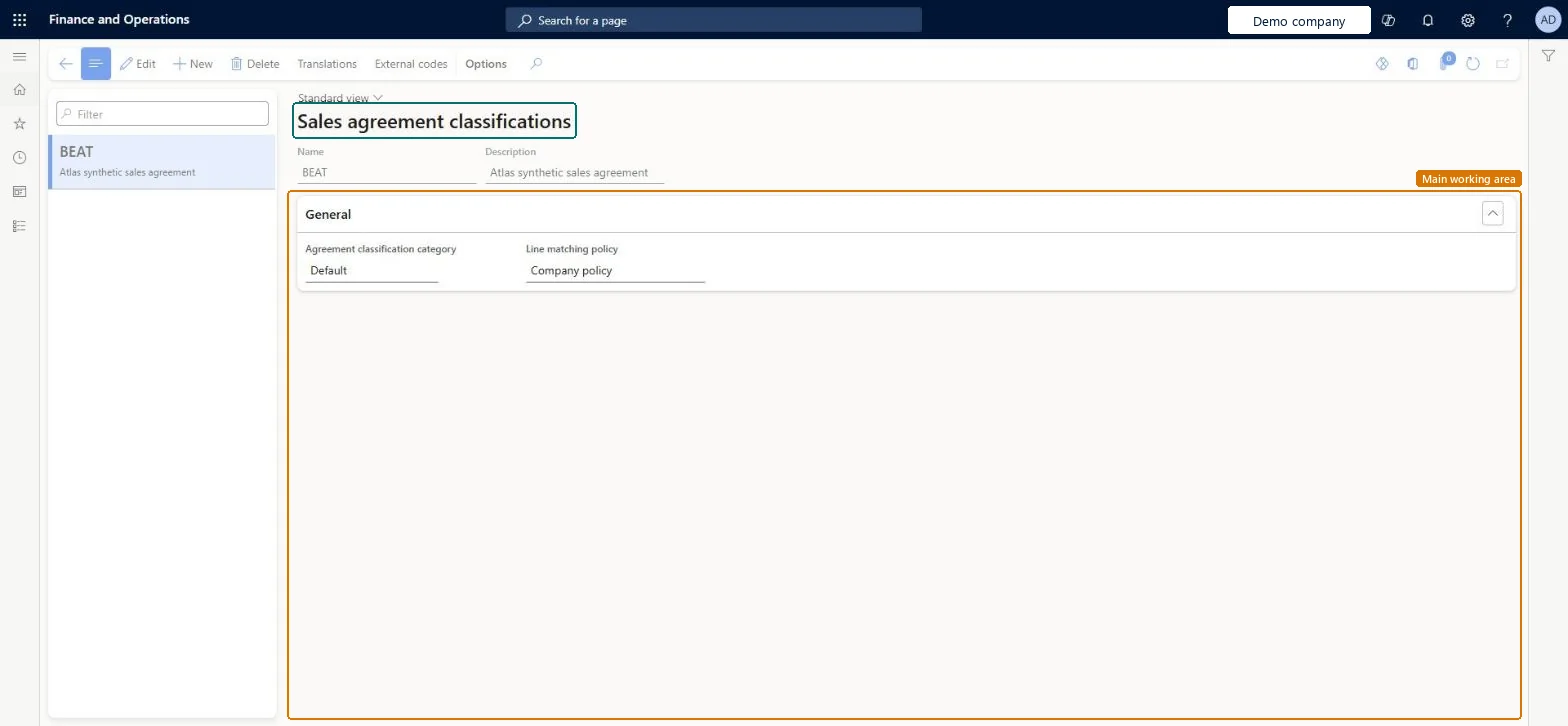
The page in Dynamics 365. page title tab to open what to set or check
About the examples: Examples and screenshots in this guide use BEAT, a demo company in a Dynamics 365 test environment. Use your own company's codes and values instead of copying them.
Step by step, with screenshots
Set up Sales agreement classifications1 screen
Defines the categories that every sales agreement must be assigned to when it is created, optionally carrying the number sequence and associated purchase classification for agreements of that type.
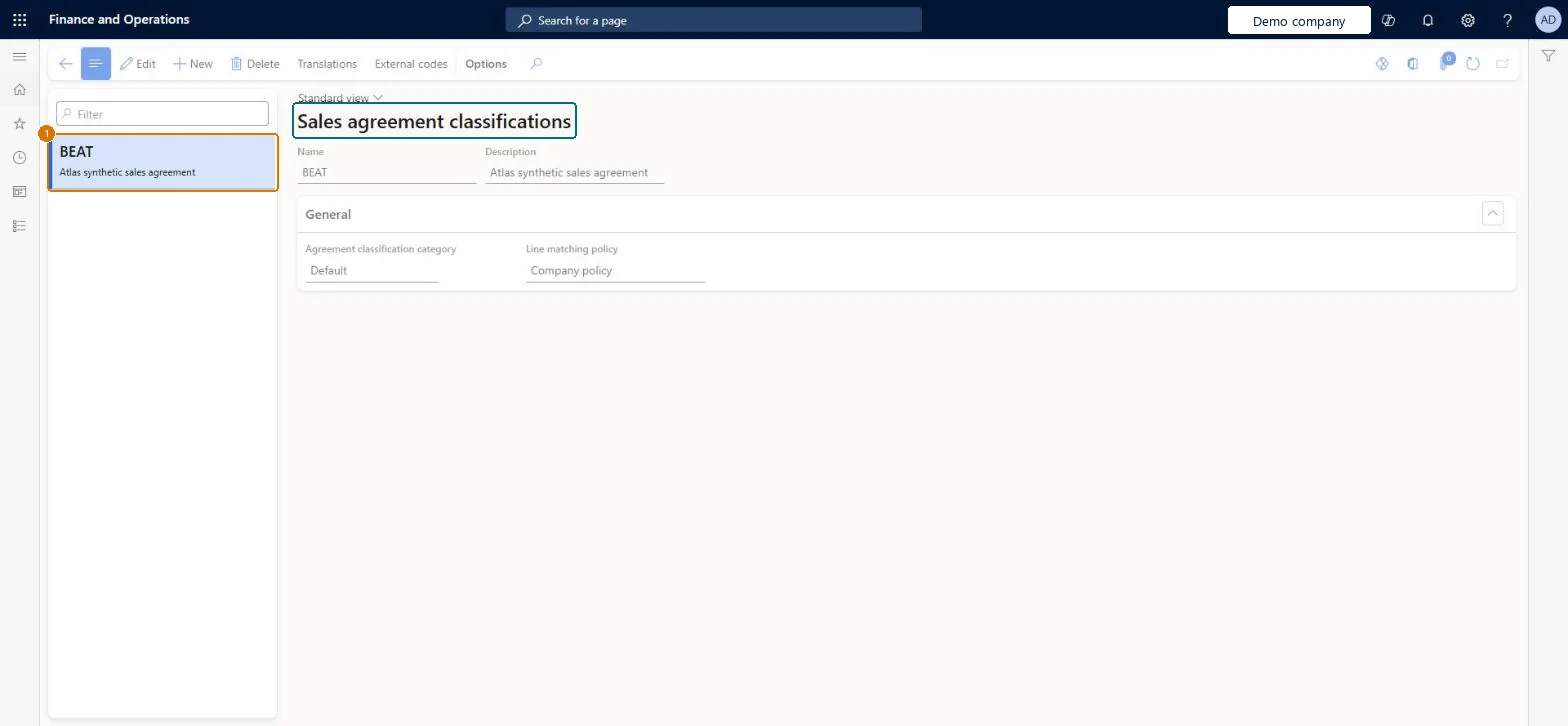
Screen 1
Create the sales agreement classification
Go to Accounts receivable > Setup > Sales agreement classifications
Select New and enter the name and description
On the General FastTab, set the classification category and line matching policy
1Name
BEAT
Description
Sales agreement
Agreement classification category
Default
Line matching policy
Company policy
Show the full screen page title tab to open what to set or check
Steps from Microsoft
Go to Accounts receivable > Setup > Sales agreement classifications.
Create a sales agreement classification.
On the General FastTab, in the Associated classification field, select the agreement classification group.
In the Number sequence code field, select the number sequence for agreements in this classification.
The agreement classification group linked to this classification.Microsoft Learn
Number sequence code
The number sequence used to number agreements in this classification.Microsoft Learn
Name
The name of the agreement classification.Checked in Dynamics 365
Annual volume
Name
Description
A short text that describes the agreement classification.Checked in Dynamics 365
Sales agreement
Description_PSN
Agreement classification category
Default
ClassificationCategory
Line matching policy
Company policy
MatchingPolicy
Test checklist
Create a classification with an Associated classification and a Number sequence code.
Create a sales agreement, select the classification in the Create sales agreement dialog and check that Sales agreement ID comes from its number sequence.
Set the agreement Status to Effective and check that transactions can be posted against it.
Try to delete the classification and check that it's refused.
One classification per type of sales agreement, each with its Associated classification and its own Number sequence code.Every sales agreement belongs to a classification, and the Sales agreement ID is set from the number sequence on the classification. Separate classifications give separate numbering and grouping per agreement type.
Creating test classifications in the live company and using them on agreements. A classification that's used on existing agreements can't be deleted.
Hard to reverse: Once a classification is used on an agreement it can't be deleted; it stays in the list for good.
If you change it later
A classification that is used on existing agreements can't be deleted. Microsoft Learn
Technical architect
6Technical
Menu item
SalesAgreementClassificationChecked in Dynamics 365
Form
AgreementClassificationChecked in Dynamics 365
Table
AgreementClassificationShown as “Agreement classification” in Record infoKey field: RecIdChecked in Dynamics 365
Data entities
SalesAgreementClassificationEntitySales agreement classification Microsoft data model PurchAgreementClassificationEntityPurchase agreement classification Microsoft data model
Who can open it
PrivilegesMaintain sales agreement classifications SalesAgreementClassificationMaintainView sales agreement classifications SalesAgreementClassificationViewDutiesEnable purchase order to invoice process PurchOrderToInvoiceProcessEnableEnable quotation to sales order process RentalSalesQuotationToSlsOrdProcessEnableEnable quotation to sales order process SalesQuotationToSalesOrderProcessEnableInquire into quotation to sales order reference data SalesQuotationToSalesOrderRefDataInquir11 security rolesAccounts receivable clerk CustInvoiceAccountsReceivableClerkAccounts receivable manager CustInvoiceAccountsReceivableManagerAccounts receivable centralized payments clerk PaymAccountsReceivableCentralPaymClerkAccounts receivable payments clerk PaymAccountsReceivablePaymentsClerkRental coordinator agent RentalCoordinatorAgentRental manager RentalManagerRental sales manager RentalSalesManagerRetail service RetailServicePurchasing manager TradePurchasingManagerSales manager TradeSalesManagerAccounts payable manager VendInvoiceAccountsPayableManagerChecked in Dynamics 365
Roles to set it up and use it
To set it up or change itRental manager RentalManagerAccounts receivable manager CustInvoiceAccountsReceivableManagerRental coordinator agent RentalCoordinatorAgentSales manager TradeSalesManagerRetail service RetailServiceTo use itAccounts receivable clerk CustInvoiceAccountsReceivableClerkAccounts receivable payments clerk PaymAccountsReceivablePaymentsClerkAccounts receivable centralized payments clerk PaymAccountsReceivableCentralPaymClerkGive people one of these roles. On this system, 11 roles can open this page.Checked in Dynamics 365
Actions on the page
Options: Personalize, Page options, ShareChecked in Dynamics 365
SalesAgreementClassificationEntity (Sales agreement classification): shared by all companies, in Microsoft's default template 330 - Sales and marketing.PurchAgreementClassificationEntity (Purchase agreement classification): shared by all companies, in Microsoft's default template 320 - Procurement and sourcing.Load order: Microsoft's default template 330 - Sales and marketing loads Sales agreement classification at execution unit 1, level 30, sequence 10. Lower levels load first, and entities at the same level load in sequence order.Load first: the default templates at lower levels (System setup to General ledger)Microsoft Learn
Checked in a working Dynamics 365 system, version 10.0.49: the menu item, form, table and security, the page, the demo records and the values in the screenshots.
To cite this step: AR-SETUP-220, Set up Sales agreement classifications. Beyond ERP Atlas Hub, 2026-11-11. https://www.beyonderp.cloud/atlas/step/AR-SETUP-220