Setup step on the Invoice capture page · Accounts payable
Set up Invoice capture
Selects the legal entities synchronised with Invoice capture, controls vendor and attachment synchronisation, and maps captured invoice types to the Finance invoice framework.
SETUP GUIDEHow to set it up8 sections. Choose a role to highlight what matters to you.
Everyone
1What it is and why
What it is
The setup page in Finance for the Invoice capture solution, available when the Invoice Capture for Dynamics 365 Finance feature is enabled.
What you do here
Use this page to select the legal entities to onboard, control vendor synchronization and invoice attachment transfer, and map Invoice capture invoice types to the invoice framework used to create the invoice in Finance.
Example
Cost invoices captured in Invoice capture are mapped to the Invoice journal framework, and a default invoice journal name is assigned for creating them in Finance.
The page in Dynamics 365. page title tab to open what to set or check
About the examples: Examples and screenshots in this guide use BEAT, a demo company in a Dynamics 365 test environment. Use your own company's codes and values instead of copying them.
Step by step, with screenshots
Set up Invoice capture1 screen
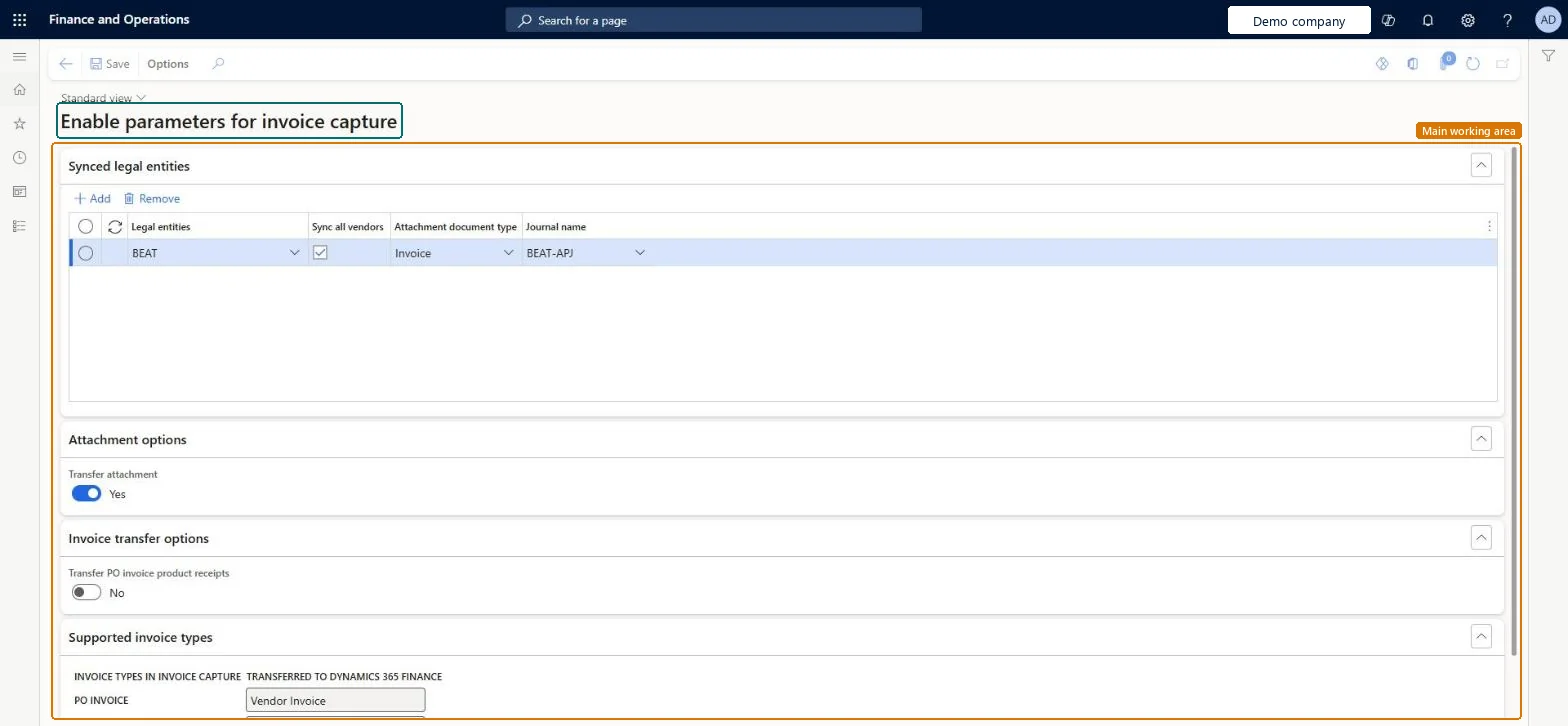
Selects the legal entities synchronised with Invoice capture, controls vendor and attachment synchronisation, and maps captured invoice types to the Finance invoice framework.
Screen 1
Enable invoice capture for the legal entity
Go to Accounts payable > Setup > Invoice capture
On the Synced legal entities FastTab, select Add
Choose the legal entity, tick Sync all vendors, and pick the attachment document type and journal name
Set Transfer attachment to Yes and Transfer PO invoice product receipts to No
Select Save
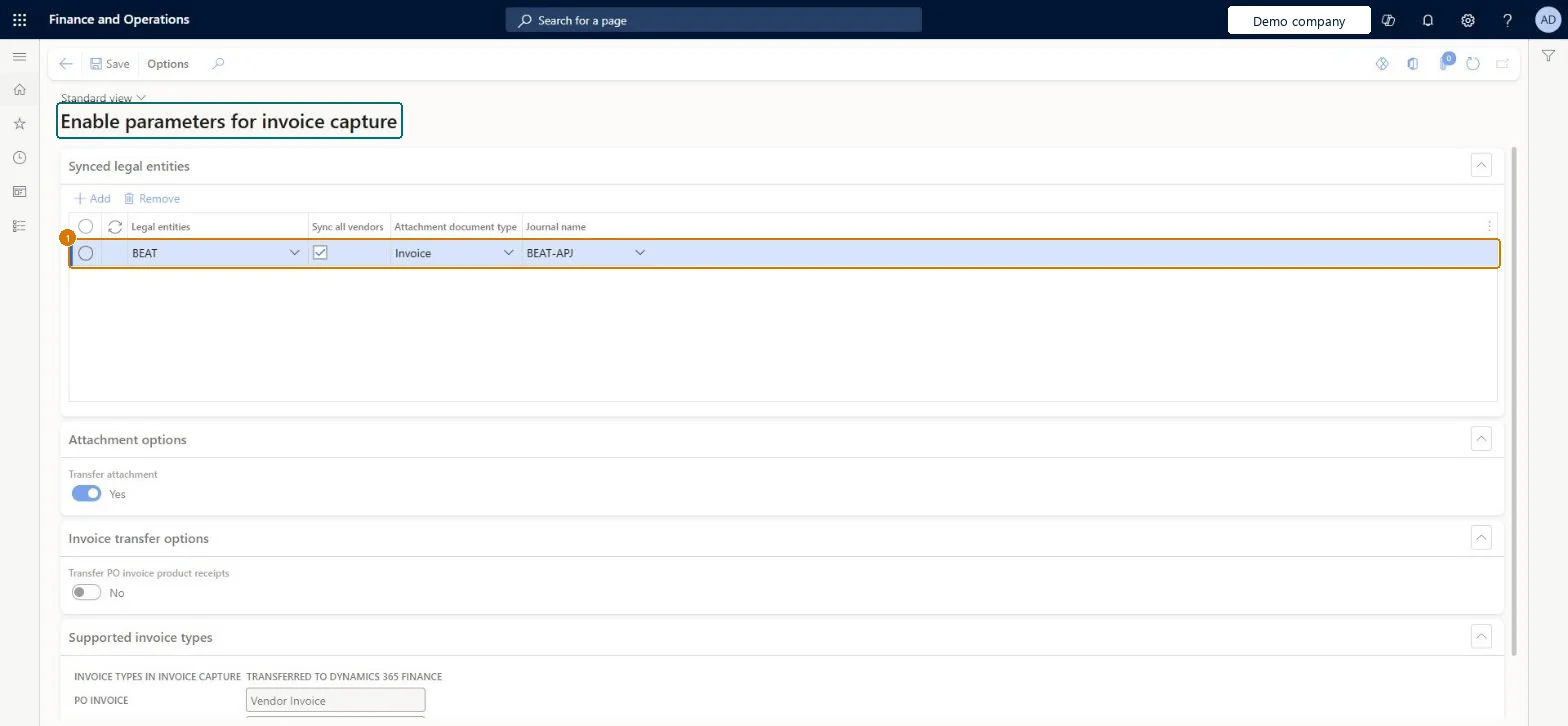
1Journal name
BEAT-APJ
Legal entities
BEAT
Sync all vendors
Yes
Attachment document type
Invoice
Transfer attachment
Yes
Transfer PO invoice product receipts
No
Show the full screen page title tab to open what to set or check
Steps from Microsoft
Turn on the Invoice Capture for Dynamics 365 Finance feature.
Go to Accounts payable > Setup > Invoice capture.
In the Synced legal entities list, select the legal entities to onboard.
Decide whether to keep Sync all vendors on; with large data volumes, sync vendors for each legal entity manually.
Choose whether invoice attachments are transferred, and select the Document type to use.
Map each invoice type in Invoice capture to the invoice framework in Finance, and pick the Invoice journal name for cost invoices sent to the invoice journal.
Onboard only the legal entities that will use Invoice capture; with large vendor volumes, turn off Sync all vendors and synchronise vendors per legal entity manuallySync all vendors is on by default and pushes every vendor change in real time; Learn says larger data volumes need manual synchronisation per legal entity to avoid failures from the virtual entity bottleneck.
Installing Invoice capture in a Power Platform environment that isn't integrated with Finance: only integrated environments are supported, and the finance and operations virtual entity must be installed.
Feature management and licence
Feature to turn on
Invoice capture for Dynamics 365 Finance (Must be on)
Reversible: The settings on this page can be changed at any time. Removing the solution itself is different: deleting the Dynamics 365 Invoice capture Base solution removes its data.
Technical architect
6Technical
Menu item
InvoiceCaptureChecked in Dynamics 365
Form
CapturedInvoiceParametersChecked in Dynamics 365
Table
CapturedInvoiceLegalEntityShown as “Capturedinvoicelegalentity” in Record infoChecked in Dynamics 365
Data entities
CapturedInvoiceLegalEntityEntityCapturedInvoiceLegalEntityEntity Checked in Dynamics 365CapturedInvoiceParametersEntityCapturedInvoiceParametersEntity Checked in Dynamics 365
Developer
7Developer
Open it by URL
https://<your-environment>/?mi=InvoiceCapture
Integrate with
CapturedInvoiceLegalEntityEntity data entity Checked in Dynamics 365
Checked in a working Dynamics 365 system, version 10.0.49: the menu item, form, table and security, the page, the demo records and the values in the screenshots.
To cite this step: AP-SETUP-120, Set up Invoice capture. Beyond ERP Atlas Hub, 2026-11-11. https://www.beyonderp.cloud/atlas/step/AP-SETUP-120