Setup step on the Payment calendar configuration page · Accounts payable
Set up Payment calendar configuration
A setup page for payment calendar rules (Specific, Customer/vendor location or Company location) that select which payment calendar to use, with priorities.
Accounts payable clerk, Accounts payable manager, Chief financial officer and 6 more roles
Business process
Defining payment policies in Dynamics 365 Finance
Menu item
PaymCalendarRuleVendor
Main table
PaymCalendarRule
Data entity
PaymentCalendarRuleEntity
Setup steps
1 on this page
Show what matters for
SETUP GUIDEHow to set it up8 sections. Choose a role to highlight what matters to you.
Everyone
1What it is and why
What it is
A setup page for payment calendar rules (Specific, Customer/vendor location or Company location) that select which payment calendar to use, with priorities.
What you do here
Use this page to choose payment calendars other than those specified by interest codes; due dates can't be adjusted unless a rule is set up here.
Example
A Specific rule assigns a payment calendar to customers and vendors whose method of payment is CHECK, regardless of terms of payment.
The page in Dynamics 365. page title tab to open what to set or check
About the examples: Examples and screenshots in this guide use BEAT, a demo company in a Dynamics 365 test environment. Use your own company's codes and values instead of copying them.
Step by step, with screenshots
Set up Payment calendar configuration1 screen
Screen 1
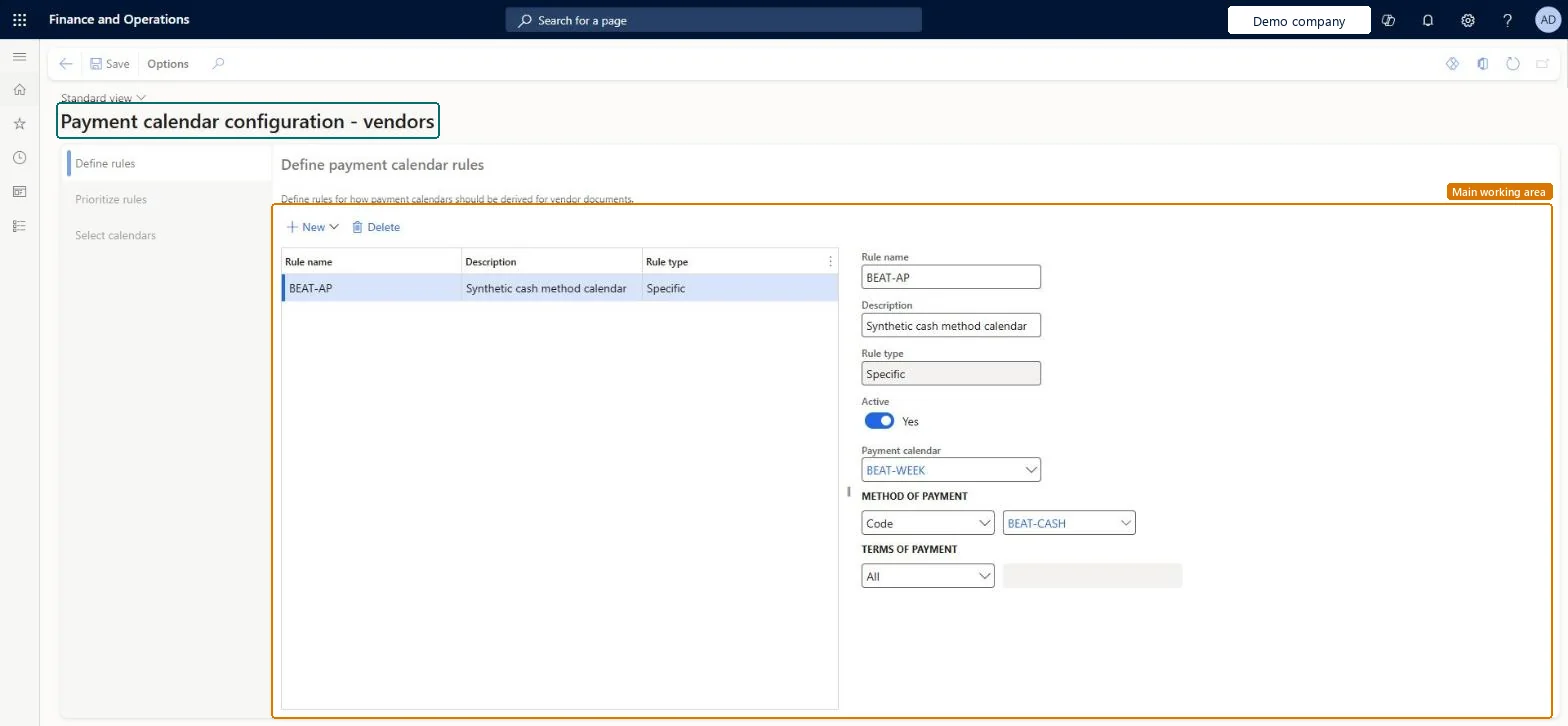
Create the payment calendar rule for vendors
Go to Accounts payable > Payment setup > Payment calendar configuration, Define rules
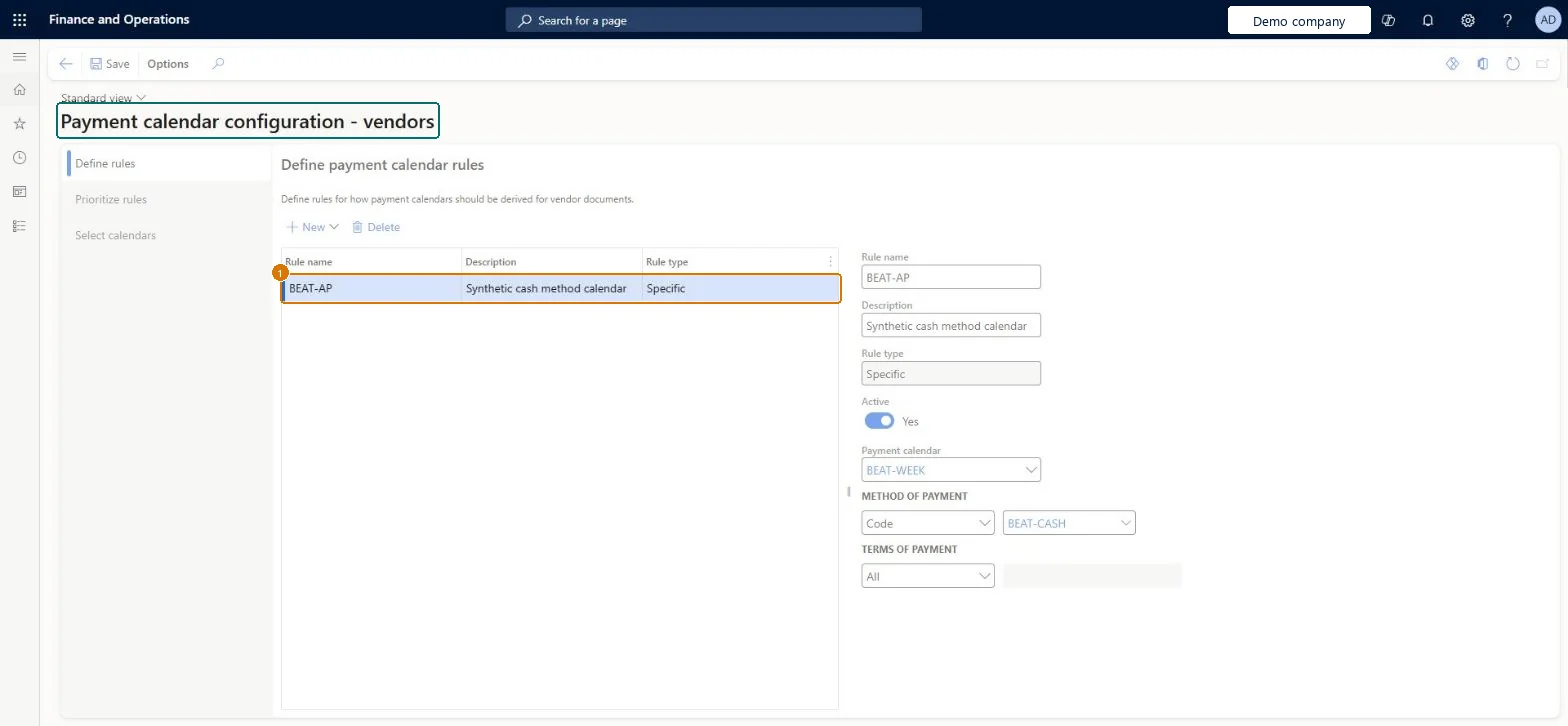
On Define rules, select New
Enter Rule name and Description
Turn on Active and set Payment calendar, Method of payment and Terms of payment
Select Save
1Rule name
BEAT-AP
Description
Cash method calendar
Rule type
Specific
Active
Yes
Payment calendar
BEAT-WEEK
Method of payment
Code, BEAT-CASH
Terms of payment
All
Show the full screen page title tab to open what to set or check
Steps from Microsoft
Open Payment calendar configuration.
Create a rule and enter a name, a description and a type: Specific, Customer/vendor location or Company location.
Enter the values the rule uses to choose a calendar, such as the method of payment and terms of payment, or the order of addresses to check.
Select Prioritize rules and use Move up or Move down to set the order in which active rules are evaluated.
Active rules for each case (Specific, Customer/vendor location, Company location), ordered with Prioritize rules so the most specific rule is evaluated firstWhen several rules match, the calendar from the highest-priority rule is used, and due dates aren't adjusted unless a rule exists here.
Using a location rule when no calendar is valid for the address: the system then selects no payment calendar.
To set it up or change itAccounts payable manager VendInvoiceAccountsPayableManagerAccounting supervisor LedgerAccountingSupervisorTo use itAccounting manager LedgerAccountingManagerAccounts payable clerk VendInvoiceAccountsPayableClerkChief financial officer CompanyChiefFinancialOfficerFinancial controller LedgerFinancialControllerAccountant LedgerAccountantGive people one of these roles. On this system, 9 roles can open this page.Checked in Dynamics 365
Actions on the page
Options: Personalize, Page options, Edit, ShareChecked in Dynamics 365
PaymentCalendarRuleEntity (Payment calendar rule): loaded for each company, in Microsoft's default template 120 - Accounts payable.Load order: Microsoft's default template 120 - Accounts payable loads Payment calendar rule at execution unit 1, level 120, sequence 30. Lower levels load first, and entities at the same level load in sequence order.Load first: the default templates at lower levels (System setup to Bank)Microsoft Learn
Checked in a working Dynamics 365 system, version 10.0.49: the menu item, form, table and security, the page, the demo records and the values in the screenshots.
To cite this step: AP-PAYSETUP-040, Set up Payment calendar configuration. Beyond ERP Atlas Hub, 2026-11-11. https://www.beyonderp.cloud/atlas/step/AP-PAYSETUP-040