| Business process | Manage accounts payable › Process supplier invoices › Perform invoice matching in Dynamics 365 Finance |
|---|---|
| Set up first | Enable invoice matching validation |
| In this process | Define charges tolerances · Assign matching-related duties to AP roles |
| See it in action | Dynamics World walk-through |
Setup step · Accounts payable
Set the posting rule for invoices with discrepancies
- Business process
- Perform invoice matching in Dynamics 365 Finance
- Setup steps
- 1 on this page
SETUP GUIDEHow to set it up5 sections. Choose a role to highlight what matters to you.
Functional consultant · Solution architect1Where it fits
End user · Functional consultant2How to do it
About the examples: Examples and screenshots in this guide use BEAT, a demo company in a Dynamics 365 test environment. Use your own company's codes and values instead of copying them.
Step by step, with screenshots
Set the posting rule for invoices with discrepancies1 screen
Screen 1
Set how invoices with discrepancies post
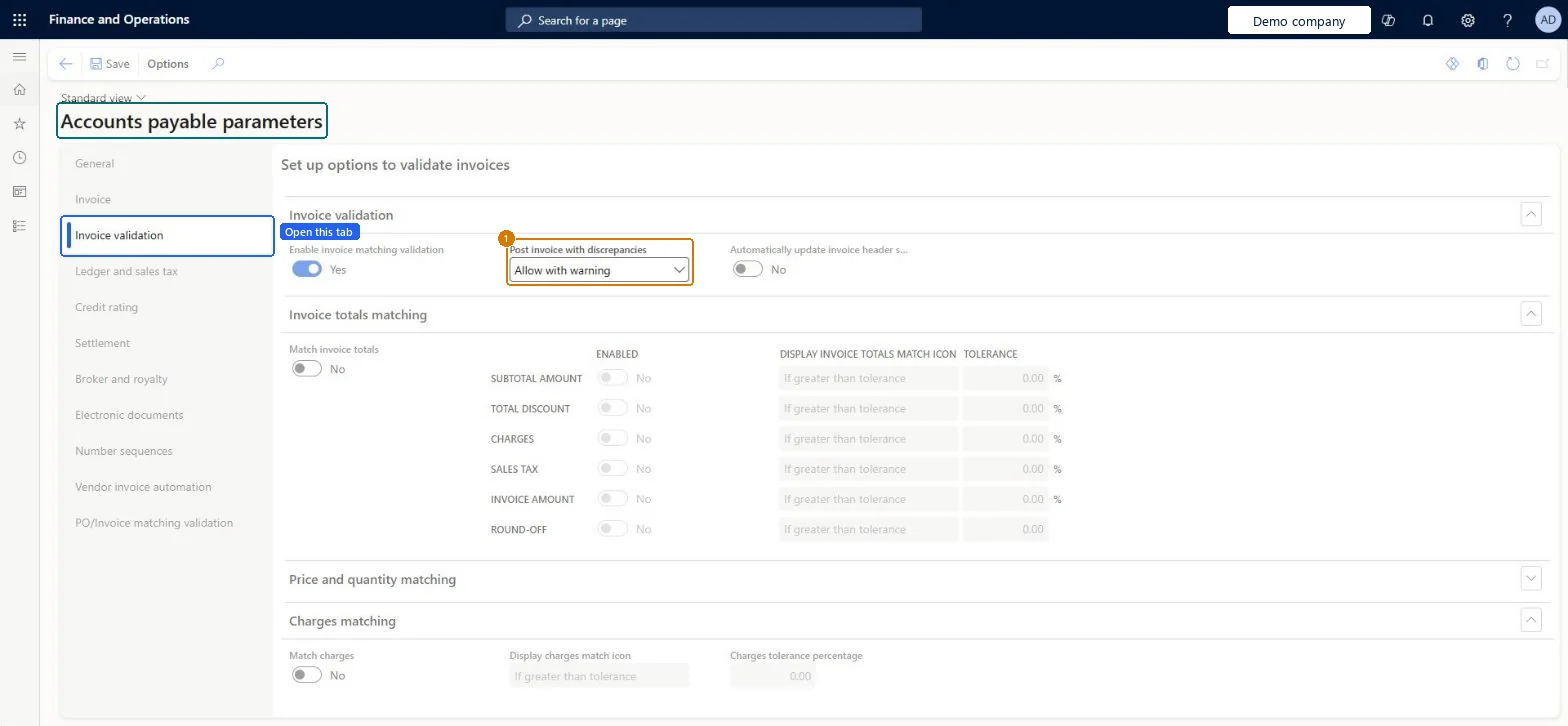
Go to Accounts payable > Setup > Accounts payable parameters, Invoice validation tab
- In the Invoice validation section, set Post invoice with discrepancies
- Select Save
1Post invoice with discrepancies Allow with warning 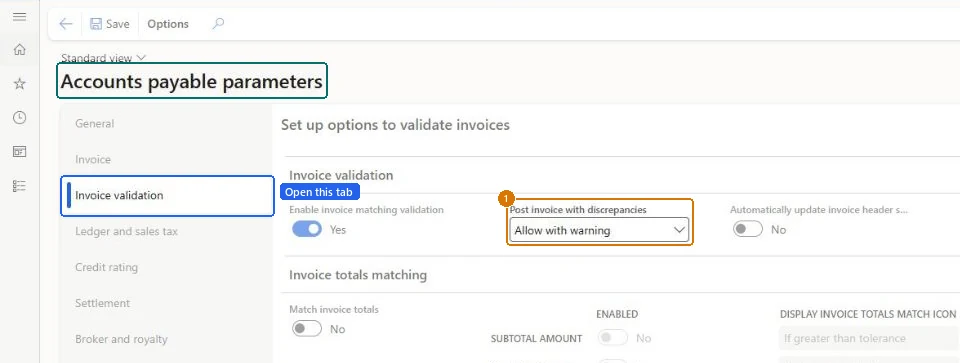
Show the full screen
page title tab to open what to set or check
Solution architect3Design impact
| Shared or per company | Legal entity |
|---|---|
| Can it be undone | Reversible |
Technical architect4Technical
| Data entities | VendorParameters |
|---|
Everyone5Sources
- learn.microsoft.com/dynamics365/finance/accounts-payable/tasks/set-up-accounts-payable-invoice-matching-validation
- Checked in a working Dynamics 365 system, version 10.0.49: the demo records and the values in the screenshots.
To cite this step: AP-INVMATCH-090, Set the posting rule for invoices with discrepancies. Beyond ERP Atlas Hub, 2026-11-11. https://www.beyonderp.cloud/atlas/step/AP-INVMATCH-090