| Business process | Manage accounts payable › Process supplier invoices › Perform invoice matching in Dynamics 365 Finance |
|---|---|
| Set up first | Enable invoice matching validation |
| In this process | Set the posting rule for invoices with discrepancies |
| See it in action | Dynamics World walk-through |
Setup step · Accounts payable
Assign matching-related duties to AP roles
- Business process
- Perform invoice matching in Dynamics 365 Finance
- Setup steps
- 1 on this page
SETUP GUIDEHow to set it up4 sections. Choose a role to highlight what matters to you.
Functional consultant · Solution architect1Where it fits
End user · Functional consultant2How to do it
About the examples: Examples and screenshots in this guide use BEAT, a demo company in a Dynamics 365 test environment. Use your own company's codes and values instead of copying them.
Step by step, with screenshots
Assign matching-related duties to AP roles1 screen
Screen 1
Give the AP clerk role the vendor invoice duty
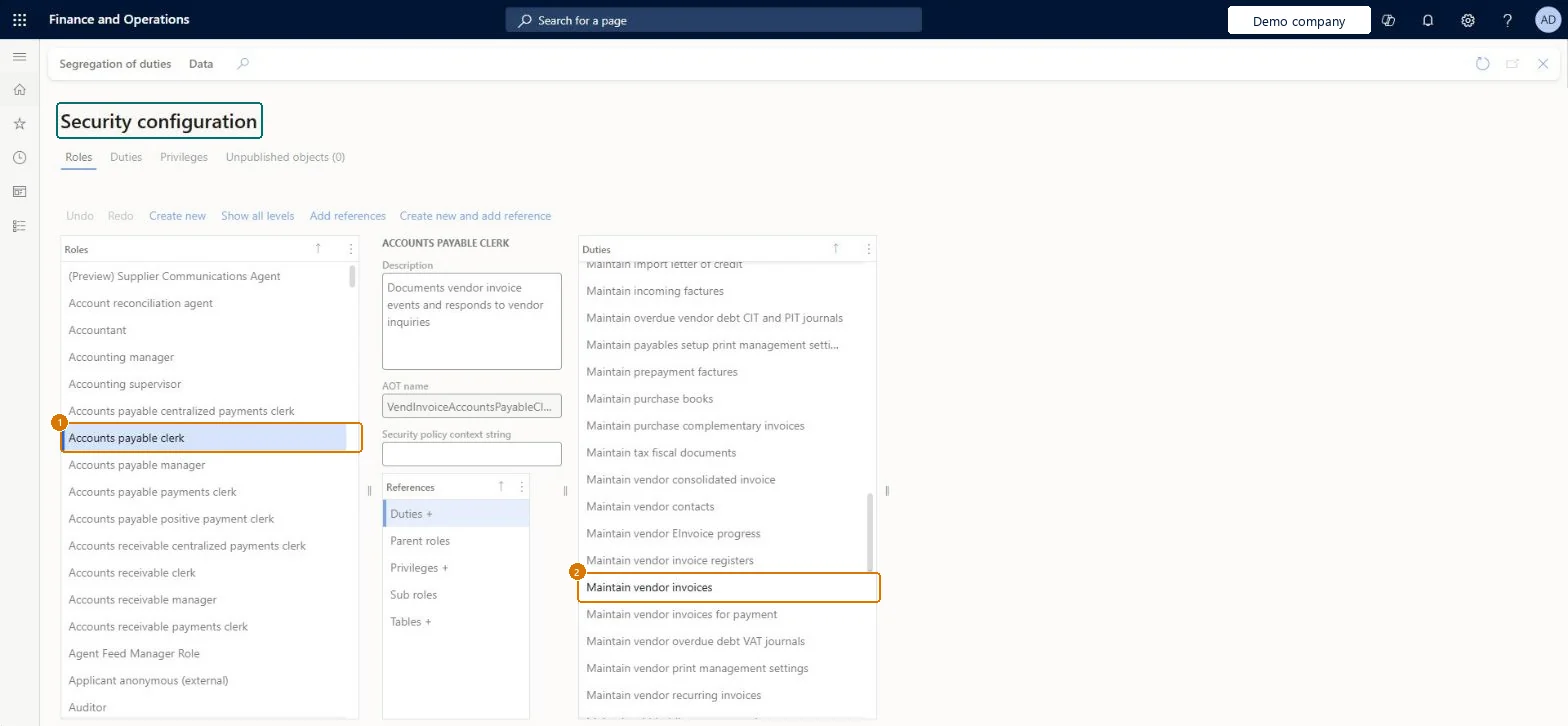
Go to System administration > Security > Security configuration, Roles tab
- On the Roles tab, select Accounts payable clerk
- Under References, select Duties
- Confirm Maintain vendor invoices is in the Duties list, or select Add references to add it
1Role Accounts payable clerk 2Duty Maintain vendor invoices 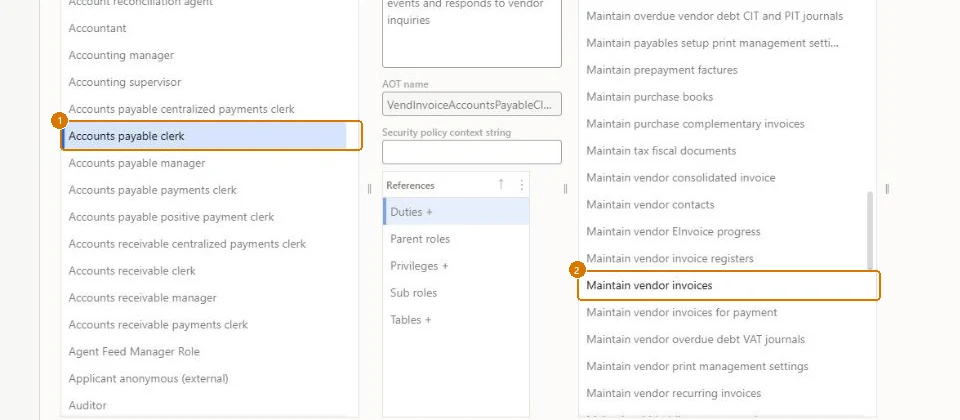
Show the full screen
page title tab to open what to set or check
Solution architect3Design impact
| Shared or per company | Global |
|---|---|
| Can it be undone | Reversible |
Everyone4Sources
- learn.microsoft.com/dynamics365/finance/accounts-payable/vendor-invoice-automation
- Checked in a working Dynamics 365 system, version 10.0.49: the demo records and the values in the screenshots.
To cite this step: AP-INVMATCH-100, Assign matching-related duties to AP roles. Beyond ERP Atlas Hub, 2026-11-11. https://www.beyonderp.cloud/atlas/step/AP-INVMATCH-100