Setup step on the Broker contracts page · Accounts payable
Set up Broker contracts
Records the negotiated terms under which a broker earns a fee for reaching sales targets, so that claims can be generated, approved and paid through Accounts payable.
Establish broker commissions in Dynamics 365 Supply Chain Management
Menu item
MCRBrokerContractTable
Main table
MCRBrokerContractTable
Data entity
MCRBrokerContractHeaderEntity
Setup steps
1 on this page
Show what matters for
SETUP GUIDEHow to set it up8 sections. Choose a role to highlight what matters to you.
Everyone
1What it is and why
What it is
A broker contract records an agreement with a broker: the negotiated terms under which the brokerage company earns a monetary reward for reaching preset sales targets.
What you do here
Use this page to register broker contracts, including the qualifying conditions and items, the reward break, and the broker fee charge that determines who incurs the fee; the contract must be Approved to apply to sales orders.
Example
When a sales order with qualifying lines is invoiced, a broker claim is generated for the invoice line and the accrued broker fee is posted.
The page in Dynamics 365. page title tab to open what to set or check
About the examples: Examples and screenshots in this guide use BEAT, a demo company in a Dynamics 365 test environment. Use your own company's codes and values instead of copying them.
Step by step, with screenshots
Set up Broker contracts1 screen
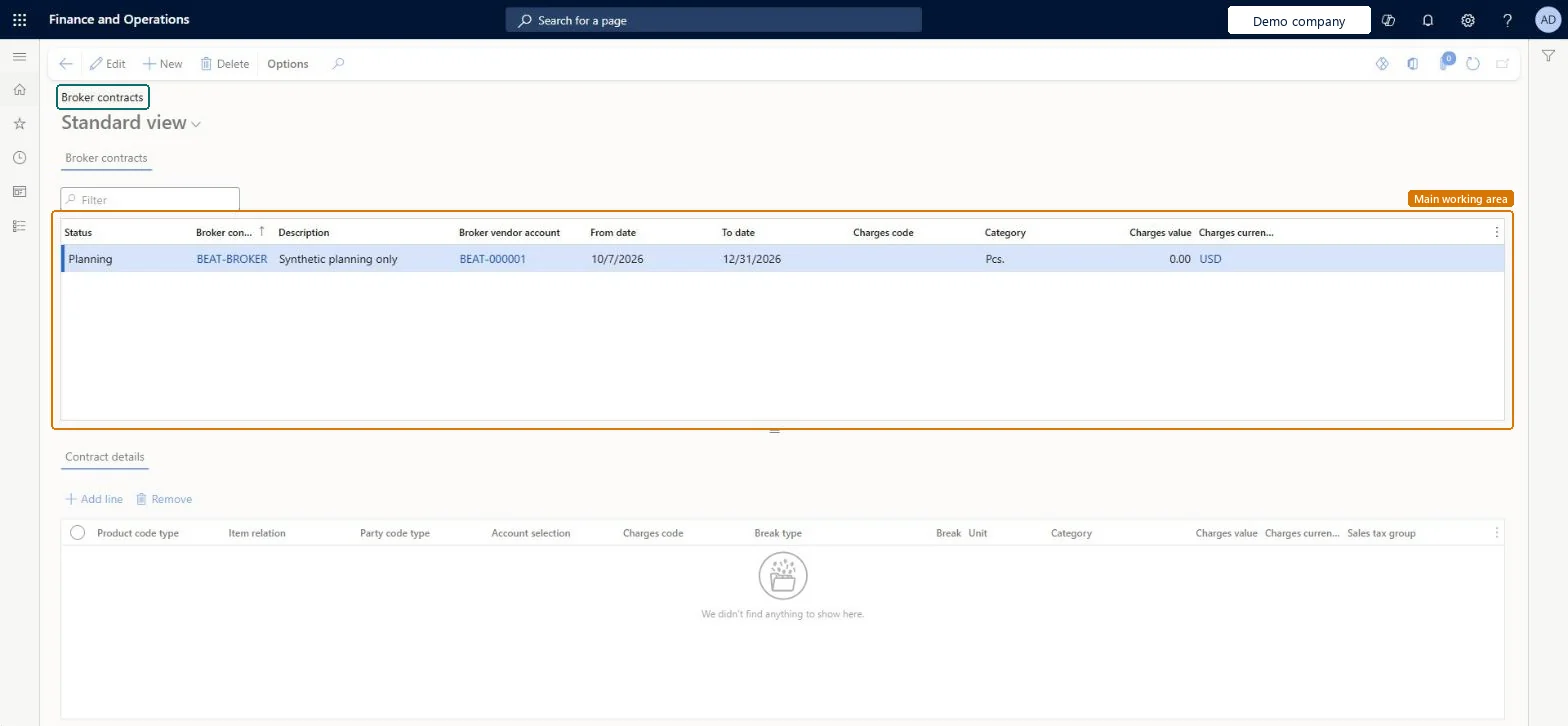
Records the negotiated terms under which a broker earns a fee for reaching sales targets, so that claims can be generated, approved and paid through Accounts payable.
Screen 1
Create the broker contract
Go to Accounts payable > Broker and royalties > Broker contracts
Select New
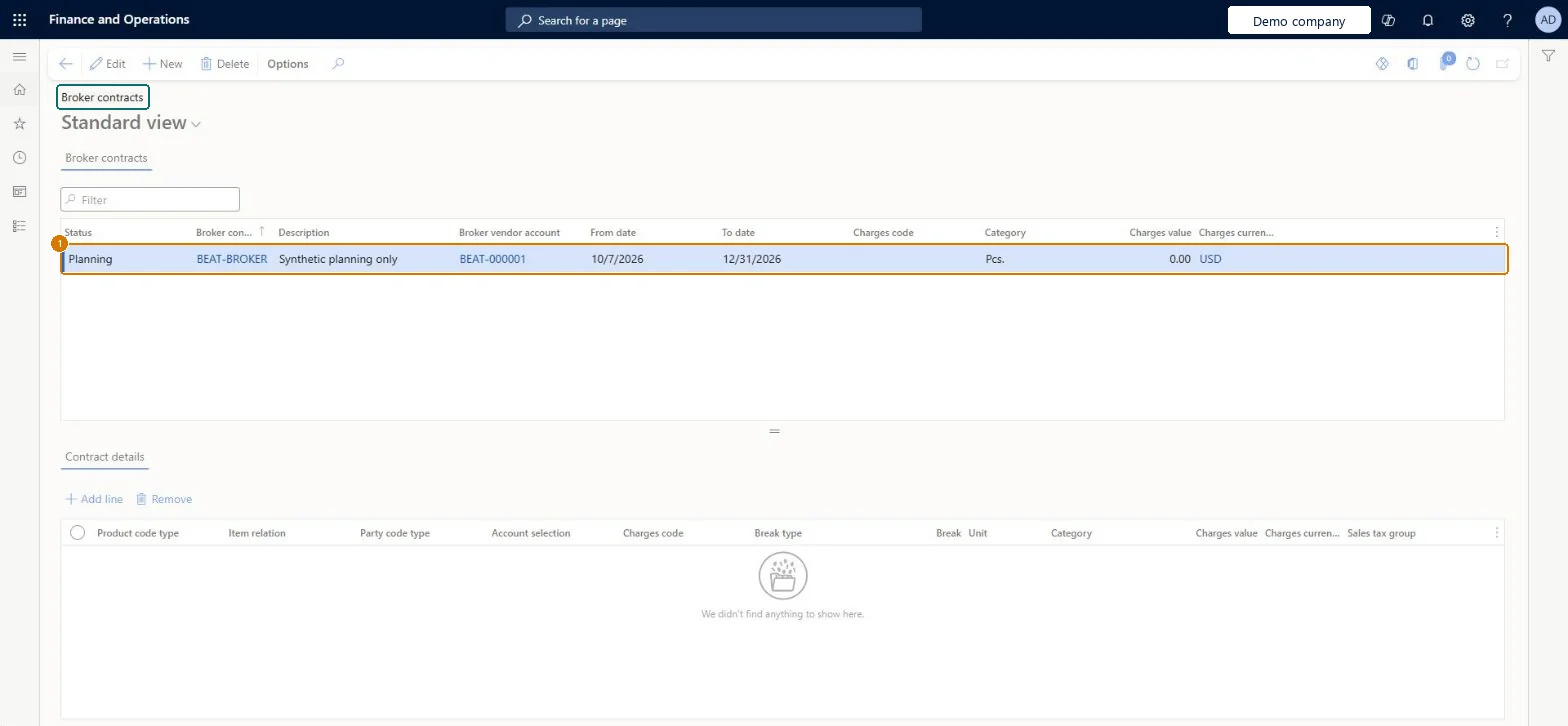
Fill in the broker contract row in the Broker contracts grid
Leave the Contract details grid empty unless you need specific charge lines
1Broker contract
BEAT-BROKER
Description
Planning only
Broker vendor account
BEAT-000001
From date
10/7/2026
To date
12/31/2026
Category
Pcs.
Charges value
0.00
Charges currency
USD
Show the full screen page title tab to open what to set or check
How to use it
Go to Accounts payable > Broker and royalties > Broker contracts.
Select New to add a broker contract, then fill in the Broker contract code, Description and Broker vendor account.
Enter the From date and To date, and the Charges code, Category and Charges value.
In Contract details, select Add line and fill in the Product code type, Item relation, Party code type and Break type.
Select Remove to delete a selected contract line.
Select Save.
Source: Checked in Dynamics 365
Fields on the page
Field
What it means
Example
Table column
Contract details
The conditions and the item that qualifies for the broker fee.Microsoft Learn
Break
The reward the broker gets for reaching the sales target.Microsoft Learn
Amount
Status
Must be Approved before the contract applies to sales orders.Microsoft Learn
Set up the broker fee charge first (Ledger account on both Debit and Credit when the company bears the fee; Customer/Vendor on Debit when the customer bears it), then set the contract Status to ApprovedWho incurs the fee is controlled by the linked charge, and only Approved contracts are applied to qualifying sales orders.
Leaving the contract in a status other than Approved: sales orders that meet the conditions don't pick it up, so no claim is generated when the sales invoice posts.
Hard to reverse: Each sales invoice that qualifies generates a broker claim and posts the accrued fee charge. Changing the contract later doesn't change claims or accruals already posted.
If you change it later
Who pays the broker fee is set on the linked charge: if the company pays it as a sales expense, both the debit and credit sides of the charge must post to ledger accounts. Microsoft Learn
Technical architect
6Technical
Menu item
MCRBrokerContractTableChecked in Dynamics 365
Form
MCRBrokerContractManagementChecked in Dynamics 365
Table
MCRBrokerContractTableShown as “Broker contract header” in Record infoKey field: ContractIDChecked in Dynamics 365
PrivilegesMaintain broker contracts MCRBrokerContractTableMaintainView broker contracts MCRBrokerContractTableViewDutiesMaintain broker information MCRBrokerMaintain2 security rolesMarketing manager CRMMarketingManagerSales manager TradeSalesManagerChecked in Dynamics 365
Roles to set it up and use it
To set it up or change itSales manager TradeSalesManagerMarketing manager CRMMarketingManagerGive people one of these roles. On this system, 2 roles can open this page.Checked in Dynamics 365
Actions on the page
Options: Personalize, Page options, ShareChecked in Dynamics 365
Checked in a working Dynamics 365 system, version 10.0.49: the menu item, form, table and security, the page, the demo records and the values in the screenshots.
To cite this step: AP-BROKER-010, Set up Broker contracts. Beyond ERP Atlas Hub, 2026-11-11. https://www.beyonderp.cloud/atlas/step/AP-BROKER-010