Calculate and pay broker commissions in Dynamics 365 Supply Chain Management
Menu item
MCRBrokerClaims
Main table
MCRBrokerAccrual
Show what matters for
PAGE GUIDEWhat the page does and how to use it7 sections. Choose a role to highlight what matters to you.
Everyone
1What it is and why
What it is
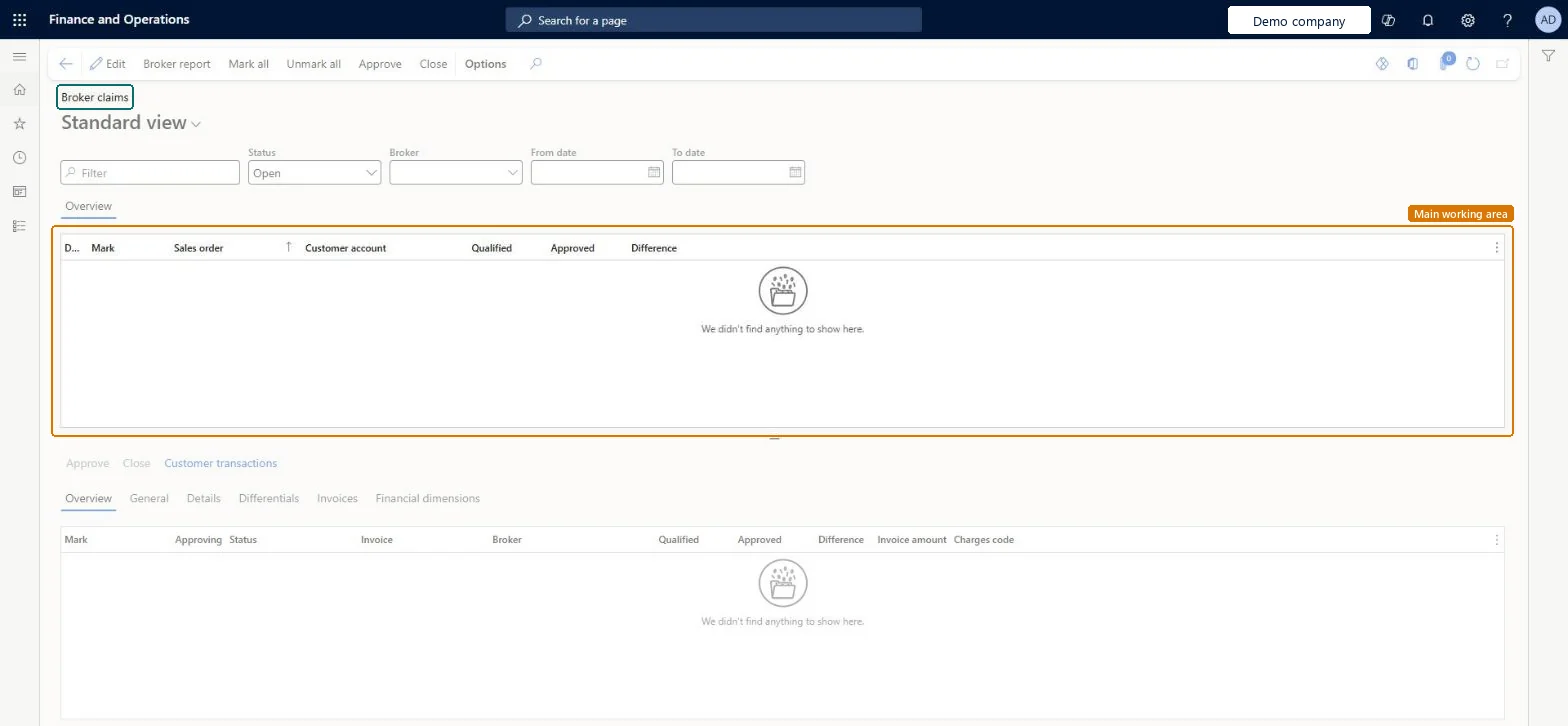
A page that lists the broker claims generated from invoiced sales, showing the qualified fee and details of the originating sales invoice.
What you do here
Use this page to approve claims fully or partially, which creates a broker claim vendor invoice, and to close claims that have differences by entering a reason code.
Example
If a customer returns some units, approve only the total quantity minus the returned units, then close the claim and enter a reason code for the difference.
The page in Dynamics 365. page title tab to open what to set or check
About the examples: Examples and screenshots in this guide use BEAT, a demo company in a Dynamics 365 test environment. Use your own company's codes and values instead of copying them.
Steps from Microsoft
Go to Accounts payable > Broker and royalties > Broker claims.
In the Mark column, select the checkbox for the claim line.
If only part of the fee qualifies, enter the approved quantity in the Approving field.
On the Action Pane, select Approve.
To finish a claim that still has a difference, select the line and select Close.
Enter the reason code that explains the difference.
Approving a claim reverses the interim accrual and creates a vendor invoice for the approved fee, posted automatically or manually depending on a parameter. Microsoft Learn
Technical architect
5Technical
Menu item
MCRBrokerClaimsChecked in Dynamics 365
Form
MCRBrokerClaimsChecked in Dynamics 365
Table
MCRBrokerAccrualShown as “Broker claims” in Record infoChecked in Dynamics 365
To set it up or change itAccounts payable clerk VendInvoiceAccountsPayableClerkSales manager TradeSalesManagerGive people one of these roles. On this system, 2 roles can open this page.Checked in Dynamics 365
Actions on the page
Buttons: Broker report, Mark all, Unmark all, Approve, CloseChecked in Dynamics 365