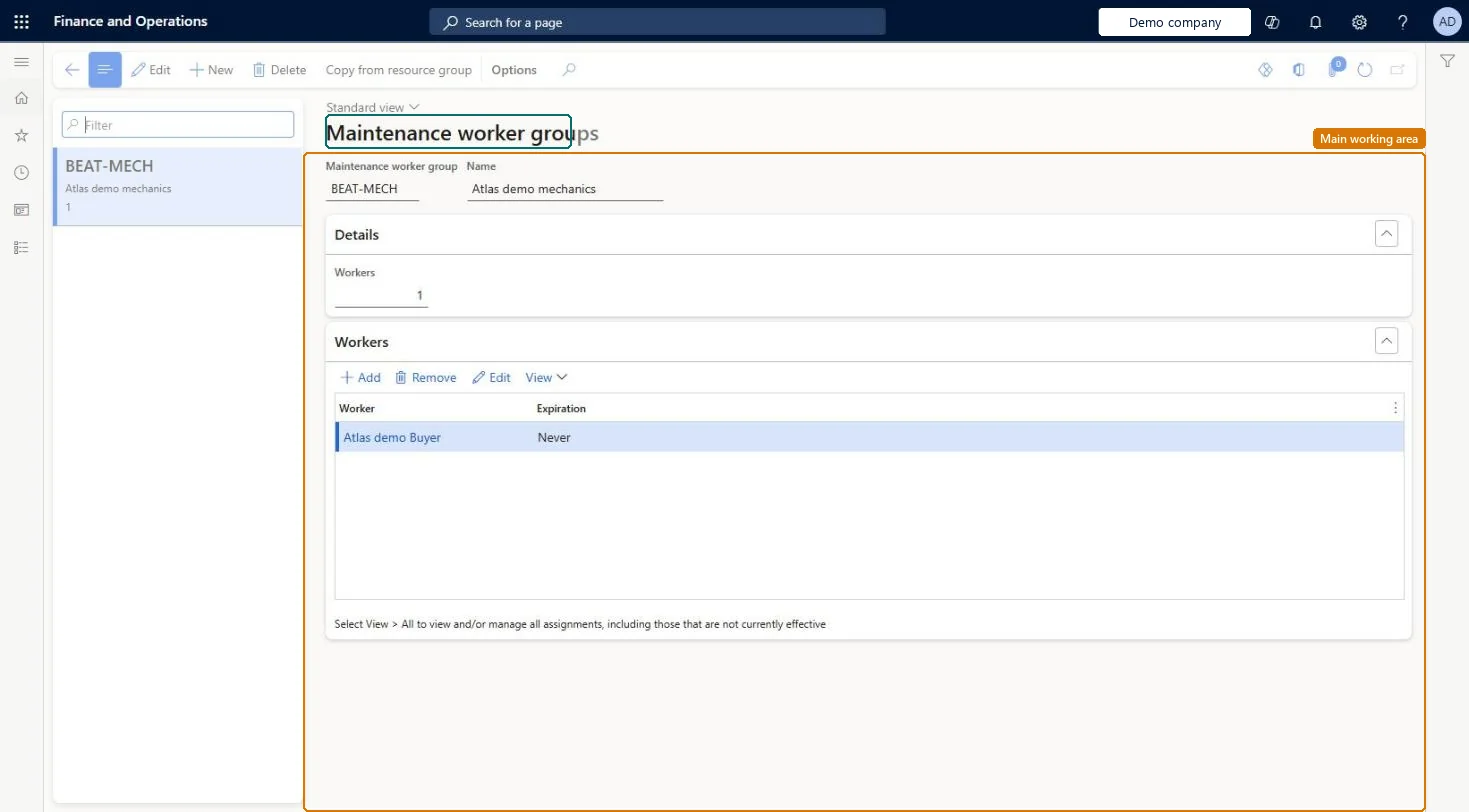
Setup step on the Maintenance worker groups page · Asset management
Set up Maintenance worker groups
Use this page to create worker groups so that you can schedule a group of maintenance workers on a work order and set up preferred and responsible maintenance workers.
SETUP GUIDEHow to set it up8 sections. Choose a role to highlight what matters to you.
Everyone
1What it is and why
What it is
A setup page for maintenance worker groups, which collect maintenance workers into a group.
What you do here
Use this page to create worker groups so that you can schedule a group of maintenance workers on a work order and set up preferred and responsible maintenance workers.
Example
For example, you create an electricians group and add the electricians who should be scheduled together on electrical work orders.
The page in Dynamics 365. page title tab to open what to set or check
About the examples: Examples and screenshots in this guide use BEAT, a demo company in a Dynamics 365 test environment. Use your own company's codes and values instead of copying them.
Setup steps on this page
Set up Maintenance worker groups
Use this page to create worker groups so that you can schedule a group of maintenance workers on a work order and set up preferred and responsible maintenance workers.
Steps from Microsoft
Go to Asset management > Setup > Workers > Maintenance worker groups.
Select New.
In the Maintenance worker group field, enter a group ID, and enter a name in the Name field.
On the Workers FastTab, select Add and select a maintenance worker.
Set the Effective and Expiration fields if the membership is for a limited period.
Select Copy from resource group if the group should use a resource group's calendar.
One group per team you schedule together on work orders; use Copy from resource group only when the group's workers should follow a work center's calendar in schedulingGroups let you schedule a set of maintenance workers on a work order and feed preferred and responsible maintenance workers. Copying from a resource group is only relevant when workers should use the calendar of a resource (work center) during work order scheduling.
Leaving Expiration blank for a temporary member. By default a worker's group membership starts on the day it's added and never expires, so the worker stays in the group until someone sets an Expiration date.
Solution architect
5Design impact
Can it be undone
Reversible: Membership is date-effective through the Effective and Expiration fields, and members can be added or removed at any time.
Technical architect
6Technical
Menu item
EntAssetWorkerGroupChecked in Dynamics 365
Form
EntAssetWorkerGroupChecked in Dynamics 365
Table
EntAssetWorkerGroupShown as “MAINTENANCE WORKER GROUPS” in Record infoKey field: WorkerGroupIdChecked in Dynamics 365
Data entities
EntAssetMaintenanceWorkerGroupEntityAsset management maintenance worker groups Checked in Dynamics 365
To set it up or change itMaintenance manager EntAssetMaintenanceManagerTo use itMaintenance clerk EntAssetMaintenanceClerkGive people one of these roles. On this system, 2 roles can open this page.Checked in Dynamics 365
Actions on the page
(Action Pane without tabs): Copy from resource groupChecked in Dynamics 365