PAGE GUIDEWhat the page does and how to use it8 sections. Choose a role to highlight what matters to you.
Everyone
1What it is and why
What it is
A setup page where you add maintenance workers and connect them to maintenance worker groups and functional locations.
What you do here
Use this page to make workers available for work order scheduling and to relate them to groups and functional locations, which are used for preferred and responsible maintenance workers.
Example
For example, when a maintenance job is scheduled on a machine in functional location 01, you can allocate maintenance workers from that location.
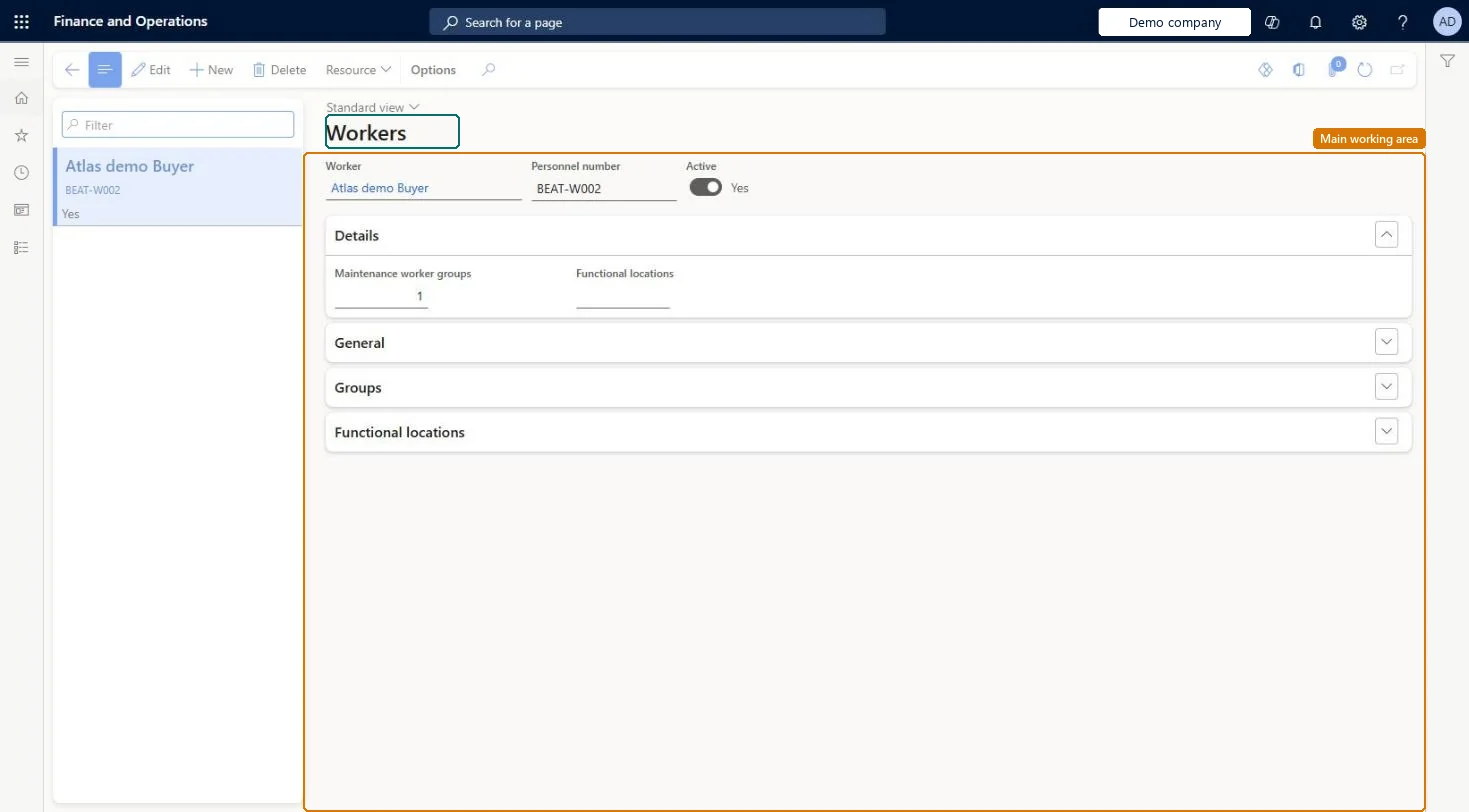
The page in Dynamics 365. page title tab to open what to set or check
About the examples: Examples and screenshots in this guide use BEAT, a demo company in a Dynamics 365 test environment. Use your own company's codes and values instead of copying them.
Setup steps on this page
Set up Workers
Use this page to make workers available for work order scheduling and to relate them to groups and functional locations, which are used for preferred and responsible maintenance workers.
Steps from Microsoft
Go to Asset management > Setup > Workers > Workers.
Select New.
In the Worker field, select the worker.
Set the Active option to Yes to schedule the worker on work orders.
On the Groups FastTab, select Add, and then select a maintenance worker group.
On the Functional locations FastTab, select Add, select a functional location, and mark the worker's primary location.
Active = Yes only for workers who should be scheduled on work orders; give each worker a primary functional location; set up hour-recording technicians as project resources tooOnly active workers are scheduled on work orders, and the functional locations you add decide which active assets the worker sees in My active assets and in the asset lookups for new requests and work orders.
Assuming a maintenance worker can record hours straight away. Creating a maintenance worker doesn't set the worker up as a project resource, so the worker can't be selected on hour registration lines in Work order journals until that is done.
Solution architect
5Design impact
Can it be undone
Reversible: Set Active to No to stop scheduling a worker, end group memberships with an Expiration date, and remove functional locations to change which assets the worker sees. Microsoft Learn
If you change it later
Adding functional locations to a worker makes the active assets on those locations appear on pages such as My active assets and in the asset lookups for new requests and work orders. Microsoft Learn
Technical architect
6Technical
Menu item
EntAssetWorkerChecked in Dynamics 365
Form
EntAssetWorkerChecked in Dynamics 365
Table
EntAssetWorkerShown as “WORKERS” in Record infoKey field: HcmWorker_DirPerson_FK_NameChecked in Dynamics 365
Data entities
EntAssetMaintenanceWorkerEntityAsset management maintenance workers Checked in Dynamics 365
To set it up or change itMaintenance manager EntAssetMaintenanceManagerTo use itMaintenance clerk EntAssetMaintenanceClerkGive people one of these roles. On this system, 2 roles can open this page.Checked in Dynamics 365
Actions on the page
(Action Pane without tabs): ResourceChecked in Dynamics 365
Developer
7Developer
Open it by URL
https://<your-environment>/?mi=EntAssetWorker
Integrate with
EntAssetMaintenanceWorkerEntity data entity Checked in Dynamics 365