BeyondERP.Newsletter
Menu

Setup step on the Lifecycle states page · Asset management

Set up Asset states

Use this page to create states such as Created, Active, and Terminated, and to set whether work orders can be created for assets in each state.

Used by
Maintenance clerk, Maintenance manager
Business process
Classify assets
Menu item
EntAssetObjectLifecycleState
Main table
EntAssetObjectLifecycleState
Data entity
EntAssetMaintenanceAssetLifecycleStateEntity
Setup steps
1 on this page
Show what matters for
SETUP GUIDEHow to set it up8 sections. Choose a role to highlight what matters to you.
Everyone

1What it is and why

What it isA setup page where you create asset lifecycle states, which define whether an asset is active or inactive.
What you do hereUse this page to create states such as Created, Active, and Terminated, and to set whether work orders can be created for assets in each state.
ExampleFor example, you set up the states Created, Active, and Terminated.
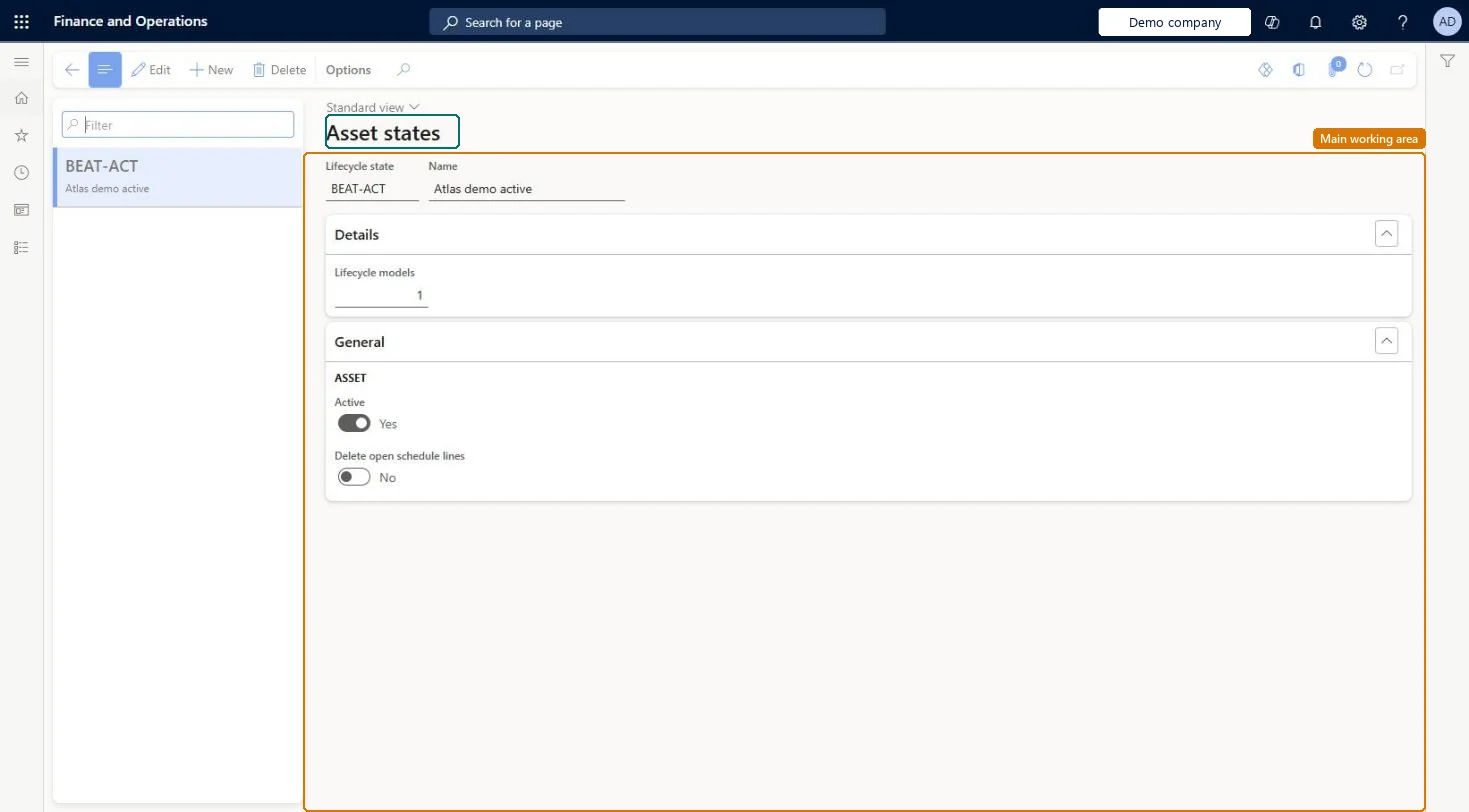
Lifecycle states page in Dynamics 365
The page in Dynamics 365. page title tab to open what to set or check
Functional consultant · Solution architect

2Where it fits

Business processDefine asset strategy › Classify assets
Menu pathAsset management › Setup › Assets › Lifecycle states
Used next byLifecycle models Microsoft Learn
Related pagesLifecycle states (functional locations) Microsoft Learn
In this process Set up Asset lifecycle models
End user · Functional consultant

3How to do it

About the examples: Examples and screenshots in this guide use BEAT, a demo company in a Dynamics 365 test environment. Use your own company's codes and values instead of copying them.

Setup steps on this page

Set up Asset states

Use this page to create states such as Created, Active, and Terminated, and to set whether work orders can be created for assets in each state.

Steps from Microsoft

  1. Go to Asset management > Setup > Assets > Lifecycle states.
  2. Select New.
  3. In the Lifecycle state field, enter the lifecycle state ID.
  4. In the Name field, enter a description.
  5. Set the Active option to Yes if work orders can be created for assets in this state.
  6. Set the Delete open calendar lines option to Yes if open schedule lines should be deleted in this state.

Source: Microsoft Learn

Fields on the page

FieldWhat it meansTable column
Lifecycle stateID of the asset lifecycle state.Microsoft Learn ObjectLifecycleStateId
Lifecycle modelsNumber of asset lifecycle models that use the state.Microsoft Learn
ActiveWhen Yes, work orders can be created for assets in this state.Microsoft Learn ObjectActive
Delete open calendar linesWhen Yes, open maintenance schedule lines for the asset are deleted in this state.Microsoft Learn

Test checklist

  1. Schedule a maintenance plan for an active asset and check open schedule lines exist.
  2. Update the asset to Terminated (Delete open calendar lines = Yes).
  3. Check the open schedule lines with status Created are deleted.
  4. Try to create a work order for the asset and check it isn't allowed.

Source: Microsoft Learn

Functional consultant

4Setup decisions

Setup stepRecommended value and whyDecision, common mistake and test
Set up Asset statesCreated (Active = No), Active (Active = Yes), Terminated (Active = No, Delete open calendar lines = Yes)Learn uses Created, Active and Terminated as examples, Active decides whether work orders can be created, and Delete open calendar lines cleans up maintenance schedules that no longer apply once an asset is no longer active.Linking work order lifecycle states to asset states without telling users: changing the work order's state then also changes the linked asset's state.Test: Inactive asset state blocks work orders
Solution architect

5Design impact

Can it be undoneHard to reverse: A state with Delete open calendar lines = Yes deletes open asset calendar lines with status Created; they must be scheduled again if the asset is reactivated.
If you change it laterIf work order lifecycle states are linked to asset states, changing a work order's state also changes the linked asset's state. Microsoft Learn
Technical architect

6Technical

Menu itemEntAssetObjectLifecycleState Checked in Dynamics 365
FormEntAssetObjectLifecycleState Checked in Dynamics 365
TableEntAssetObjectLifecycleStateShown as “ASSET STATE” in Record infoKey field: ObjectLifecycleStateIdChecked in Dynamics 365
Data entitiesEntAssetMaintenanceAssetLifecycleStateEntityAsset management asset lifecycle states Checked in Dynamics 365
Who can open itPrivilegesMaintain maintenance management setup EntAssetSetupMaintainView maintenance management setup EntAssetSetupViewDutiesMaintain Asset Management setup EntAssetSetupMaintainView Enterprise Asset Management setup EntAssetSetupView
2 security rolesMaintenance clerk EntAssetMaintenanceClerkMaintenance manager EntAssetMaintenanceManager
Checked in Dynamics 365
Roles to set it up and use itTo set it up or change itMaintenance manager EntAssetMaintenanceManagerTo use itMaintenance clerk EntAssetMaintenanceClerkGive people one of these roles. On this system, 2 roles can open this page.Checked in Dynamics 365
Developer

7Developer

Open it by URLhttps://<your-environment>/?mi=EntAssetObjectLifecycleState
Integrate withEntAssetMaintenanceAssetLifecycleStateEntity data entity Checked in Dynamics 365
Everyone

8Sources

To cite this step: AM-ASSET-070, Set up Asset states. Beyond ERP Atlas Hub, 2026-11-11. https://www.beyonderp.cloud/atlas/step/AM-ASSET-070