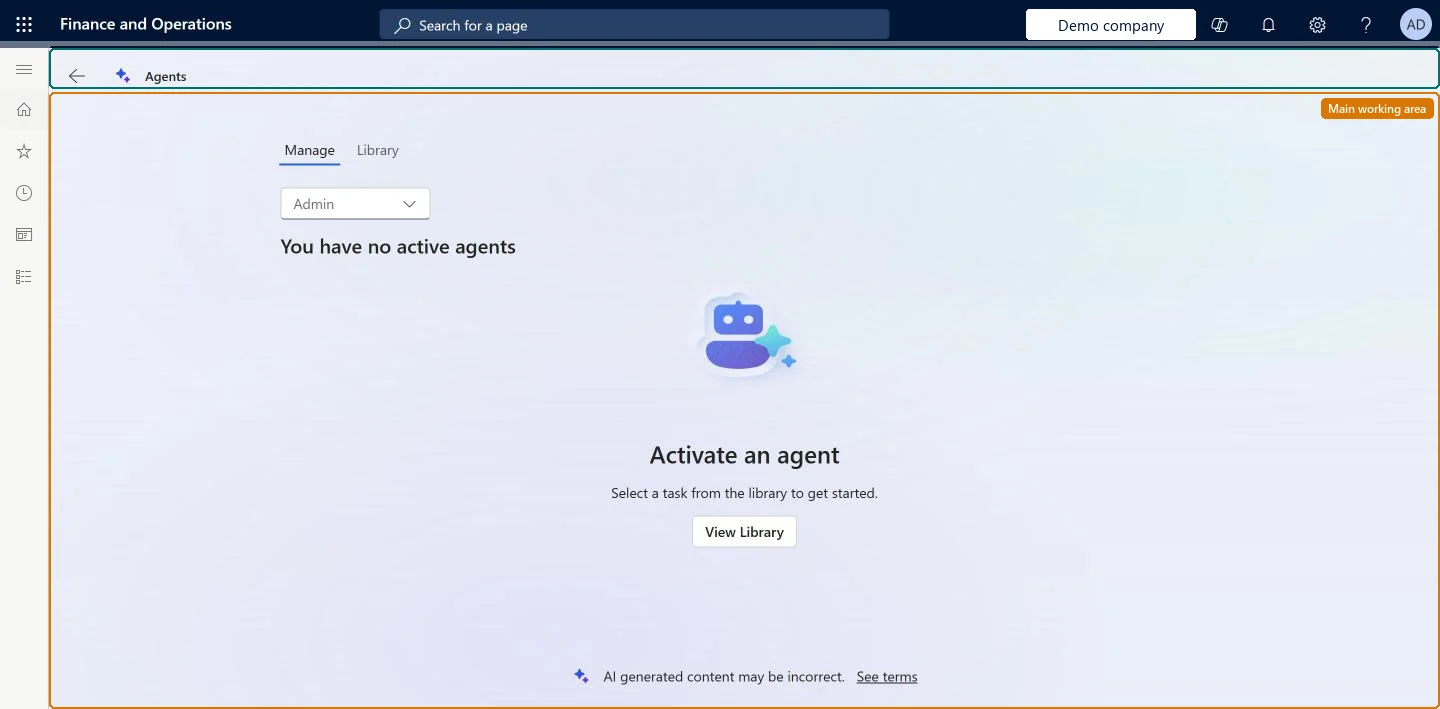
Use this page to browse the agent templates on the Library tab and activate new agents, and to view, edit, activate or deactivate the active agents and their tasks on the Manage tab.
SETUP GUIDEHow to set it up8 sections. Choose a role to highlight what matters to you.
Everyone
1What it is and why
What it is
A page where users discover, activate and manage the autonomous AI agents of finance and operations apps, on its Manage and Library tabs.
What you do here
Use this page to browse the agent templates on the Library tab and activate new agents, and to view, edit, activate or deactivate the active agents and their tasks on the Manage tab.
Example
For example, BEAT's Agent activity log shows that the agents were updated to version 1.0.03554.1 of the Copilot for finance and operations apps solution on 10/1/2026, above the minimum version 1.0.03021.3 that Agent management needs. The administrator then opens the Library tab, previews an agent's capabilities and activates it through the configuration wizard.
The page in Dynamics 365. page title tab to open what to set or check
About the examples: Examples and screenshots in this guide use BEAT, a demo company in a Dynamics 365 test environment. Use your own company's codes and values instead of copying them.
Setup steps on this page
Set up Agents
Use this page to browse the agent templates on the Library tab and activate new agents, and to view, edit, activate or deactivate the active agents and their tasks on the Manage tab.
Steps from Microsoft
Go to Agents > Agents.
On the Library tab, browse the available agent templates and preview an agent's capabilities.
Select an agent and complete the configuration wizard to set its parameters and task-specific preferences.
On the Manage tab, view the agents that are active, edit their configuration, or activate or deactivate individual agent tasks.
The tab where you browse agent templates, preview their capabilities and select and configure new agents.Microsoft Learn
Preview an agent template, then select it to start the configuration wizard.
Manage
The tab where you view the active agents, edit their configuration and activate or deactivate individual agent tasks.Microsoft Learn
Deactivate one task of an active agent while its other tasks keep running.
Common errors and fixes
Message
What to do
The Agent management feature can't be turned on in Feature management
Turn on Immersive Home first, then have the Power Platform administrator confirm version 10.0.44 or later, the linked Dataverse environment, the Copilot for Finance and Operations apps solution (msdyn_fnocopilot, 1.0.03021.3 or later), the Copilot feature flag and a Copilot Studio billing plan with credits for the environment. Microsoft Learn
Active agents stop running
Check the Copilot Studio credits assigned to the environment in the Power Platform admin center. Agents can be deactivated when the organization runs out of credits until they are renewed. Microsoft Learn
Test checklist
In Lifecycle Services, check that the environment shows a linked Power Platform environment and runs 10.0.44 or later.
In Feature management, check that Immersive Home and Agent management are on.
Open Agents, select an agent template on the Library tab and complete the configuration wizard.
Check that the agent appears on the Manage tab and that its actions are logged on the Agent activity page.
Deactivate one task on the Manage tab and check that no new activity is logged for it.
Meet every prerequisite first (Immersive Home on, version 10.0.44 or later, a linked Dataverse environment, the Copilot for Finance and Operations apps solution, the Copilot feature flag and Copilot Studio billing), then turn on Agent management and activate agents one at a time from the Library tabLearn lists these as prerequisites that must be in place before an administrator can turn on the Agent management feature, and the first activation of each agent opens a configuration wizard where you set its parameters.
Immersive Home (Must be on)Agent management (Must be on)
Licence or add-in
Each deployed agent is billed against the Copilot Studio credits assigned to the environment in the Power Platform admin center. On the live system, the System user role can open this page. Users also need the View immersive home privilege, which Microsoft gives to the System User role by default, to reach agents from Immersive Home.
Shared across the organization: Agent management is a Feature management feature, so turning it off turns autonomous agents off for every user. The agents depend on the Dataverse environment linked to this finance and operations environment, so set them up again in each environment. Microsoft Learn
Can it be undone
Reversible: Individual agent tasks can be activated or deactivated on the Manage tab. Turning off the agent features in Feature management turns autonomous agents off for all users in the organization.
If you change it later
Each deployed agent is billed, and turning off agent features in Feature management turns autonomous agents off for the whole organization. Microsoft Learn
Technical architect
6Technical
Menu item
AppCopilotAgentLifecycleChecked in Dynamics 365
Form
AppCopilotAgentWorkspaceChecked in Dynamics 365
Roles to set it up and use it
To set it up or change itSystem user SystemUserTestEssentialsRole Give people one of these roles. On this system, 2 roles can open this page.Checked in Dynamics 365
Load order: Agents has no data entity in Data management. Activate each agent in every environment from the Library tab and its configuration wizard; the prerequisites (Dataverse link, Copilot solution, feature flag and billing) are set per environment in Lifecycle Services and the Power Platform admin center.Load first: Immersive Home and Agent management turned on in Feature management, a linked Dataverse environment with the Copilot for Finance and Operations apps solutionChecked in Dynamics 365