PAGE GUIDEWhat the page does and how to use it8 sections. Choose a role to highlight what matters to you.
Everyone
1What it is and why
What it is
A setup page where you build the menus and submenus that warehouse workers see in the Warehouse Management mobile app.
What you do here
Use this page to add mobile device menu items and submenus to a menu and arrange them so that each worker sees only the items that are relevant to them.
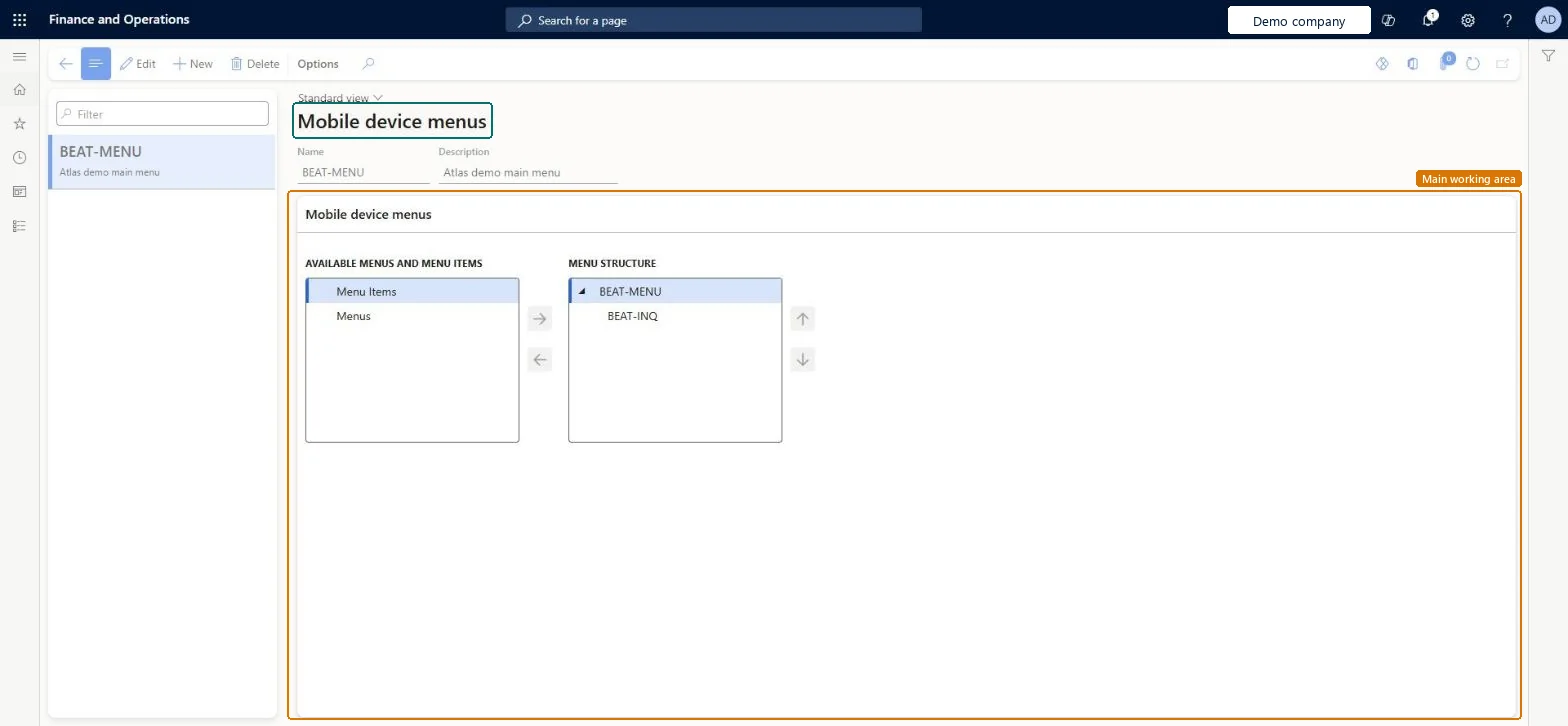
The page in Dynamics 365. page title tab to open what to set or check
About the examples: Examples and screenshots in this guide use BEAT, a demo company in a Dynamics 365 test environment. Use your own company's codes and values instead of copying them.
Setup steps on this page
Set up Mobile device menu
Use this page to add mobile device menu items and submenus to a menu and arrange them so that each worker sees only the items that are relevant to them.
Steps from Microsoft
Go to Warehouse management > Setup > Mobile device > Mobile device menu.
To add a menu or submenu, select New. To edit one, select it in the list pane and then select Edit.
In the header, enter a Name and a Description.
In the Available menus and menu items column, select an item and select the right arrow to move it to the Menu structure column.
Use the up and down arrows next to the Menu structure column to arrange the items.
One top-level menu per worker role, assigned on Work users, with detour-only menu items added to the menu and hiddenWorkers see only the menu assigned to their mobile device user account and its submenus, and detour menu items must be in that menu to work; hiding them stops direct use.
Leaving a menu item that is used as a detour out of the worker's menu, so the detour can't be reached. Also, a typo in the menu Name can't be fixed, because Name can't be edited after saving.
Reversible: Items can be added, removed, hidden or reordered at any time. The menu Name is locked once saved; to rename, create a new menu and point work users to it. Microsoft Learn
If you change it later
The name of a menu cannot be edited after the record is saved. Microsoft Learn
Technical architect
6Technical
Menu item
WHSRFMenuChecked in Dynamics 365
Form
WHSRFMenuChecked in Dynamics 365
Table
WHSRFMenuTableShown as “MENUS” in Record infoKey field: MenuNameChecked in Dynamics 365
PrivilegesMaintain mobile device menu WHSRFMenuMaintainView mobile device menu WHSRFMenuViewDutiesEnable warehouse operation process WMSWarehouseOperationProcessEnable1 security roleWarehouse manager WMSWarehouseManagerChecked in Dynamics 365
Roles to set it up and use it
To set it up or change itWarehouse manager WMSWarehouseManagerGive people one of these roles. On this system, 1 role can open this page.Checked in Dynamics 365